


Start from: The Workforce module.
For a new employee
- Select Workforce Management > Workforce 2.0 from the main menu.
- On the resulting screen, select New.
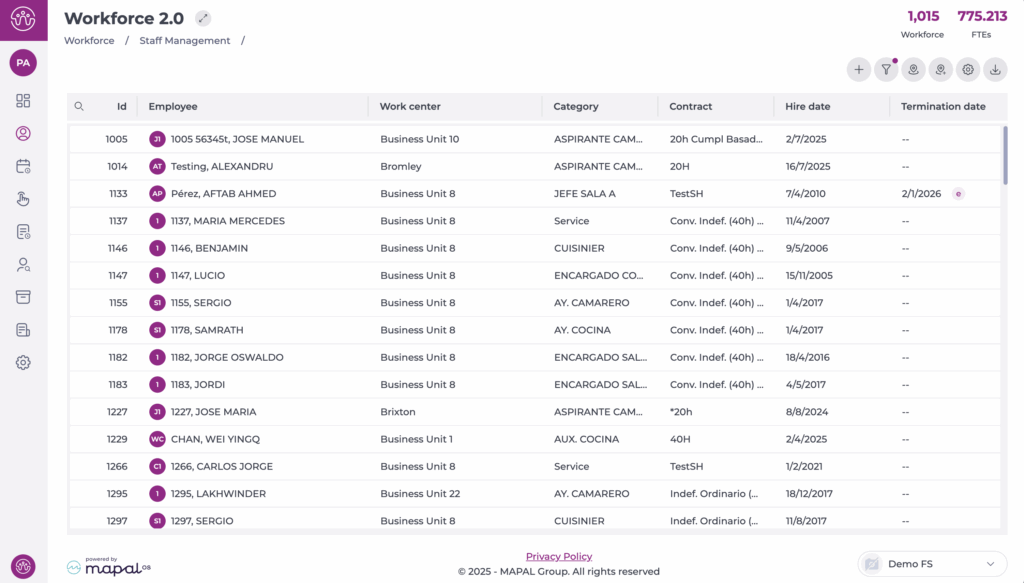
- Follow the procedure to create a new employee. See Create an employee.
- Once in the Employment Information tab, fill out the employment information required for the period.

- Scroll down to Work restrictions (shifts).
- Set the work restrictions for each one of the weekdays. You can set restrictions based on specific working hours (Works from, Works up to), Specific Shifts, No restrictions, or Does not work.
- Toggle if you want to Enable Restrictions on Holidays/Holiday Eves.
For more information about employment situations, see Manage employee "employment conditions".
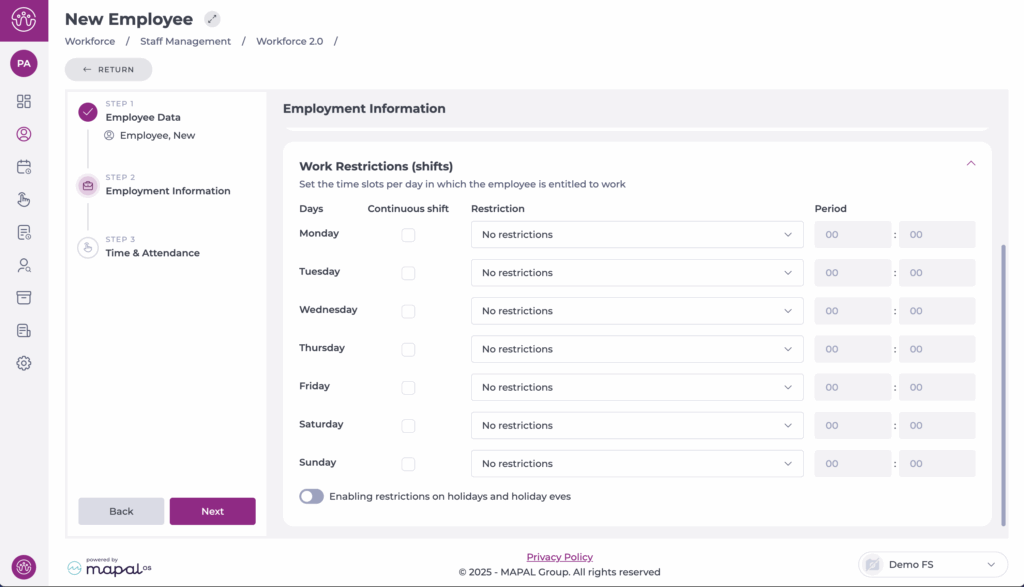
- Select Next to move to the Time & Attendance section. After that, you will be able to save your new employee with their respective work restrictions.
For an existing employee
- Select Workforce Management > Workforce 2.0 from the main menu.
- Filter to display the desired employees OR use the Search (magnifying glass) button to enter specific text.
To know more about the available filtering options, see Filter the employee grid.
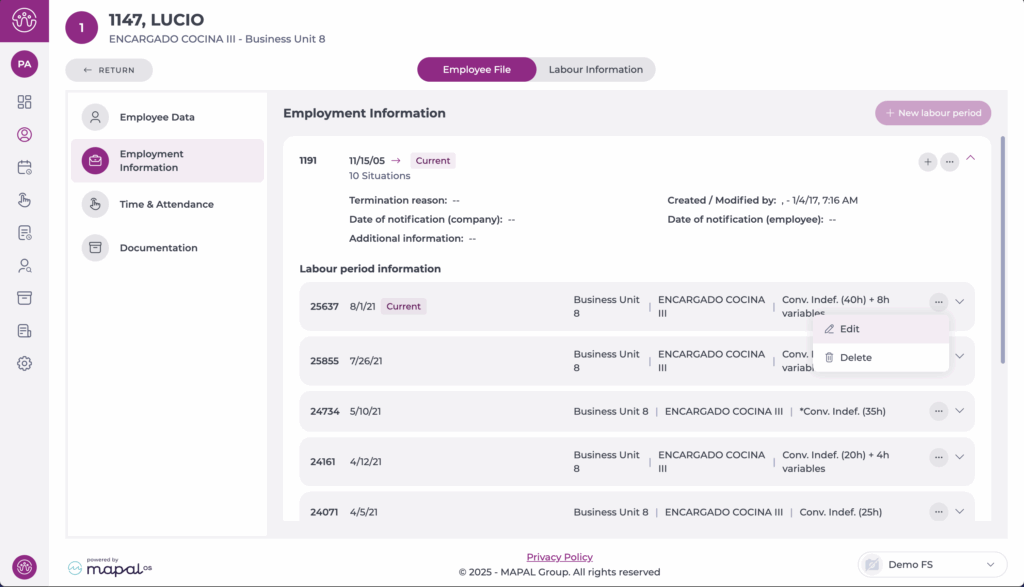
- Once in the employee file, select the Employment Information box.
- In the box with the employee's Labor Period Information, select Edit to modify an ongoing period OR New to set up a new period.
- Set the work restrictions for each one of the weekdays. You can set restrictions based on specific working hours (Works from, Works up to), Specific Shifts, No restrictions, or Does not work.
- Toggle if you want to Enable Restrictions on Holidays/Holiday Eves.
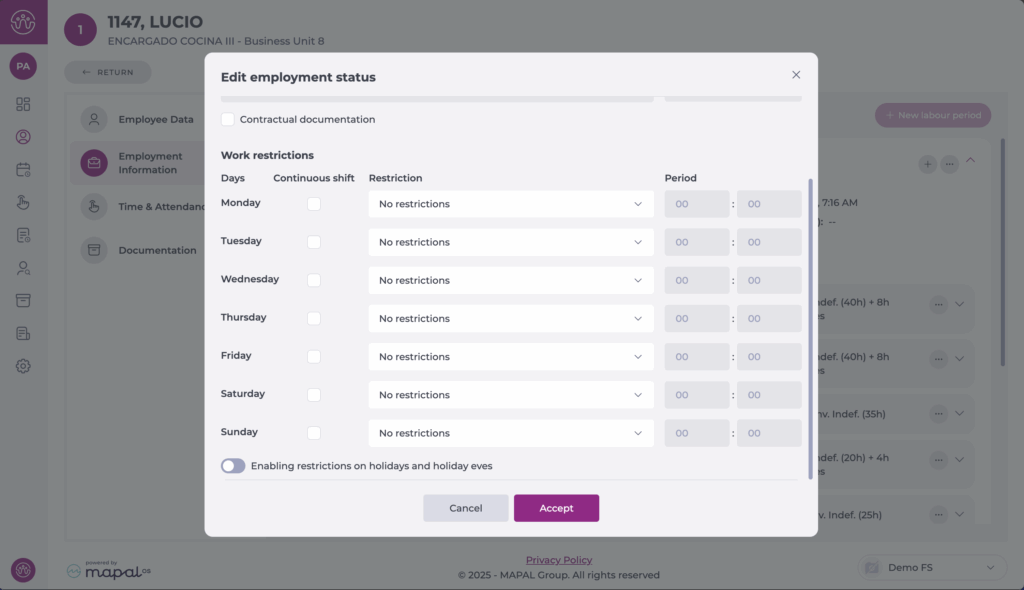
- Select Save to complete the setup OR Cancel not to proceed with the changes.
