


Start from: SmartHub app / POSApp home screen.
How credential expiration works
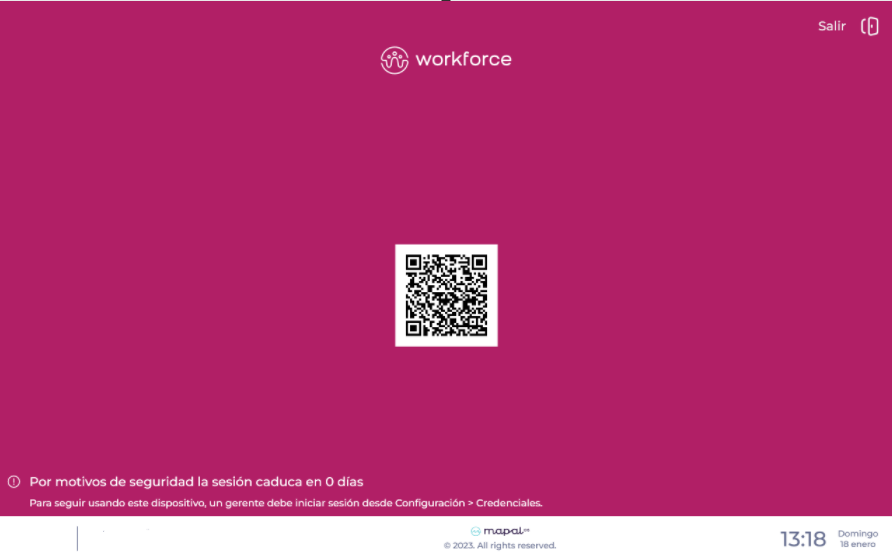
For security reasons, the credentials used by the clock-in device in SmartHub and POSApp must be renewed every 3 months. As the expiration date approaches, a warning appears on the terminal’s home screen 10 days in advance, displaying a countdown until day 0.
As soon as this message appears, you can already update the credentials. You do not need to wait until the last day.
Once the credentials are renewed, the warning automatically disappears, the counter resets for a new 3-month period, and the device can continue to be used normally for daily clock-ins.
Update credentials in SmartHub / POSApp
- On the clock-in device, tap anywhere on the screen to display the menu.
- Tap the menu in the top-left corner to open the options.
- Select Settings.
- Scroll down and select Credentials.
- Enter the same username and password you use to access Workforce.
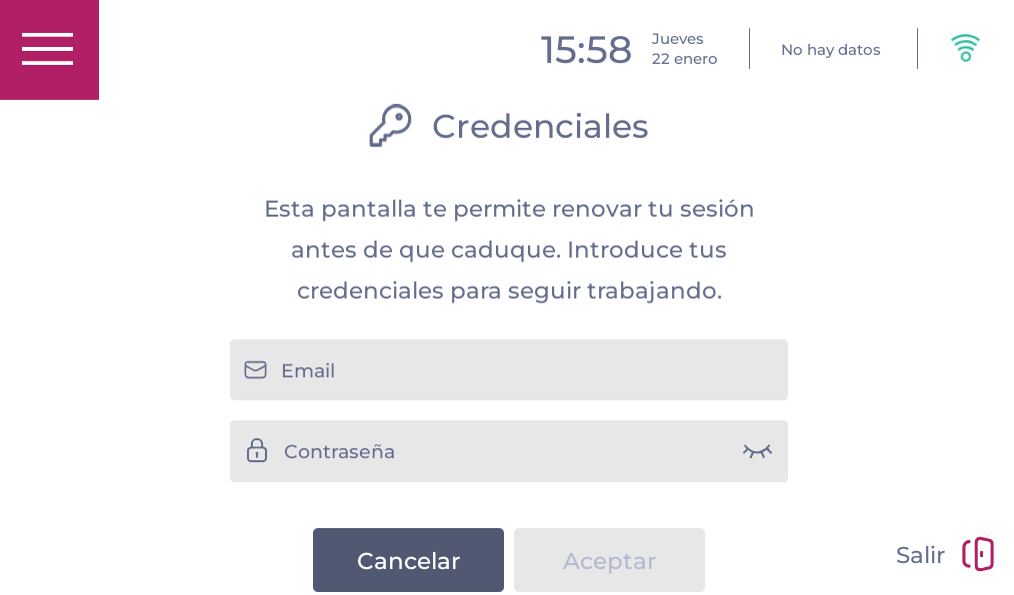
- Confirm the changes by selecting OK. After updating:
- The expiration message disappears from the home screen.
- You can continue using the device normally to clock in and out.
