


Start from: The Configuration module.
Manage users through Mapal OS
- In Mapal OS, select Configuration > User management > Users.
- Follow the process to manage your users in Mapal OS.
Note: if you're not sure whether you are on Mapal OS, contact your customer success manager.
Manage users through GIR
-
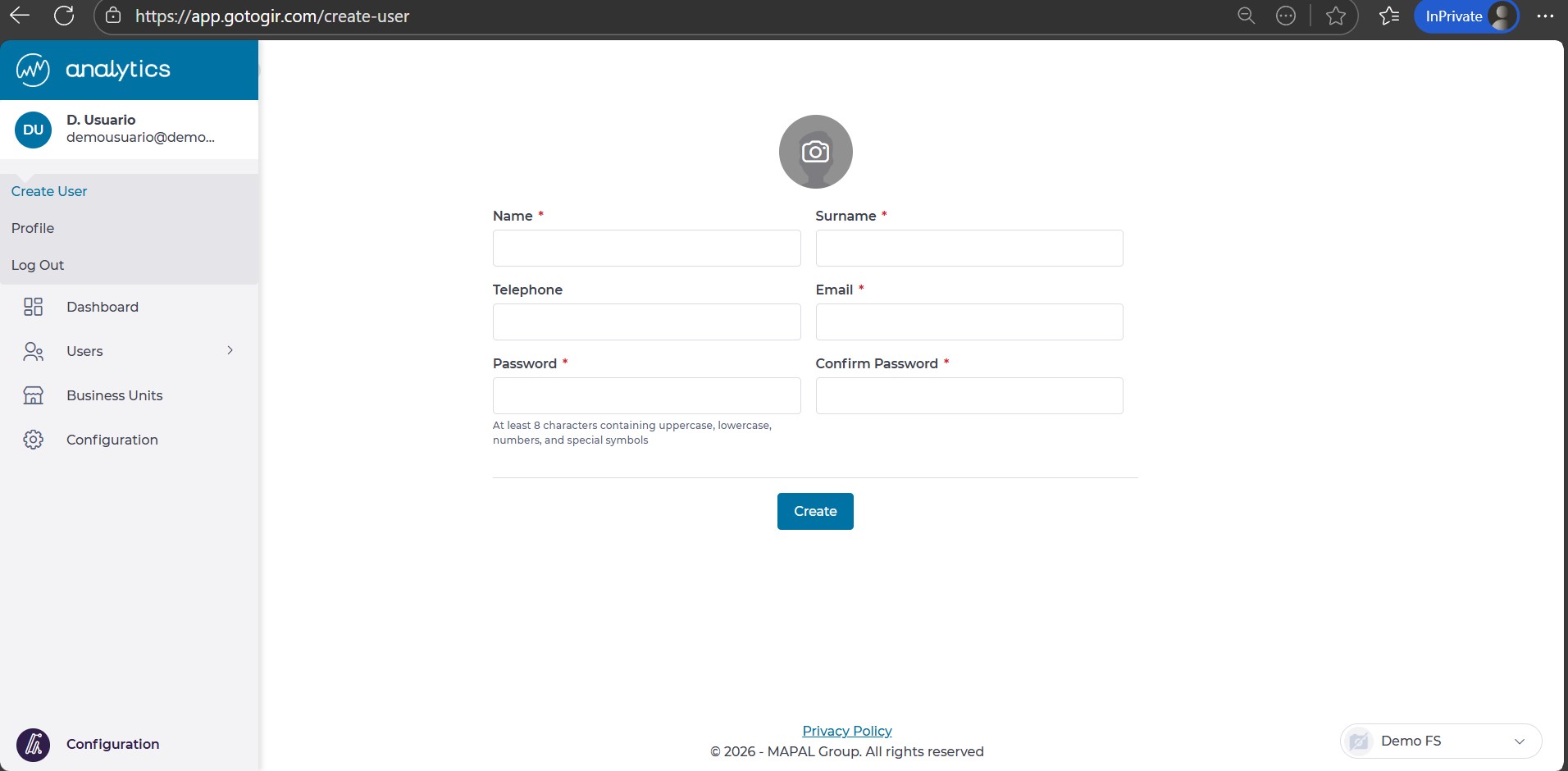
Select Side Menu > User Initials > Create User from the main menu..
-
Complete the requested user information:
a. Full name (mandatory)
b. Phone number (optional)
c. Email: This will serve as our username for accessing GIR and for password recovery in case it is forgotten. Additionally, it will function as the user login for the mobile application Workforce App.
d. Password: It must have at least 8 characters, including uppercase and lowercase letters, and special characters.
-
Select Create when you finish completing the fields.
To activate your new user, see Activate User.
To edit a user, see Manage GIR users.
To assign roles and permissions, see Assign roles to users.
Note: The email submitted during the user creation will become the member’s user login to access GIR. It will also serve as the user login for the Workforce App.
Language in GIR will depend on browser settings, not the language selected in the user’s profile.
