


Observaciones: Cada acción que se puede realizar en la aplicación está sujeta a permisos de acceso. Si no puedes realizar las acciones recomendadas en los artículos que estás consultando, puede significar que los derechos necesarios no están activados para tu perfil de usuario. Contacta con el equipo de soporte o con tu administrador para obtener más información.
Empieza desde: el menú principal de Easilys.
La pantalla de Tramas de menú se ha diseñado específicamente para facilitar el pilotaje de las tramas de menú en varios centros. No necesitas ir a cada centro uno por uno para configurar las tramas de menú; puedes gestionarlo todo desde tu centro administrador.
- Selecciona las pestañas Menús > Plantillas de menú.
- Selecciona Crear.
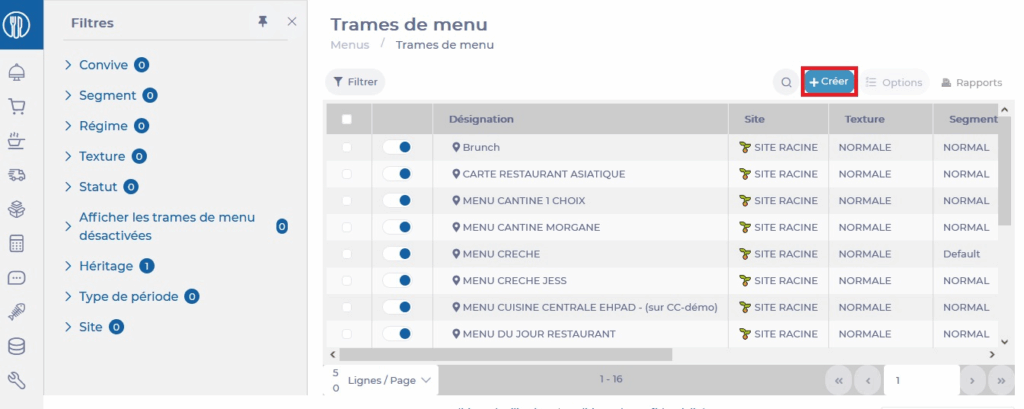
Aparece a la derecha de la pantalla un menú "Create a Menu Template".
- Complétalo. Los ítems marcados con un * son obligatorios para finalizar la creación.
Observaciones: El ítem Tipos de período vinculados se trata más adelante en el tutorial.
- Selecciona Guardar para finalizar la creación.

- Una vez que la plantilla está creada, puedes ir a la pestaña "Parámetros de personal y servicio" de la plantilla para gestionar la estructura de los menús.
- Selecciona Editar.
- Añade un servicio seleccionándolo de la lista que aparece en cuanto seleccionas la barra de búsqueda.
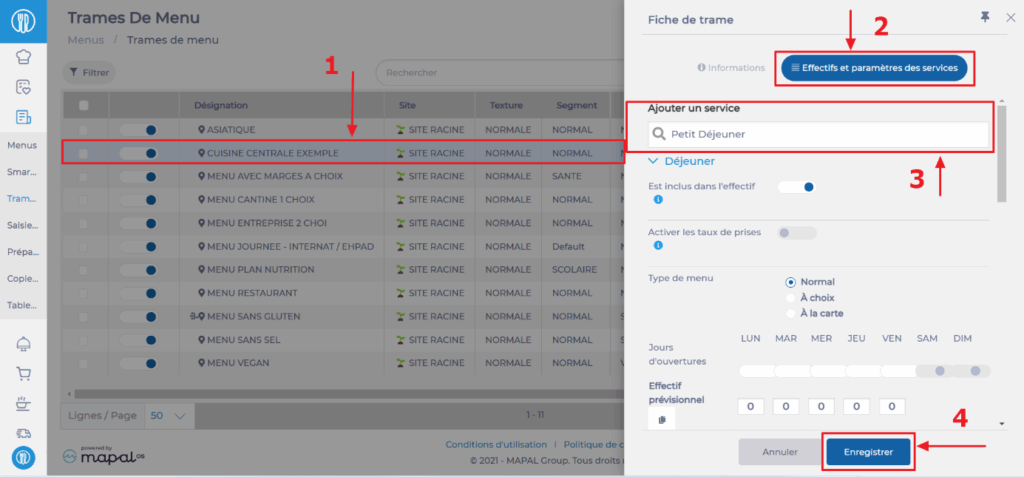
Céntrate en el Pilotaje de tarifas de servicio por periodo
Si quieres gestionar tarifas de servicio específicas según los periodos del año, debes crear tus periodos desde la pantalla de Calendarios (pestañas Centros > Calendario).
Una vez que crees los tipos de periodo, vincula tus tipos de periodo con las tramas de menú correspondientes completando la sección Tipos de periodo vinculados de la plantilla en la pestaña Información.
- Selecciona la Trama de menú a la que quieres vincular tipos de periodo.
- Selecciona Editar.
- Añade los tipos de periodo que quieras vincular a la plantilla en la sección "Linked Period Types" de la plantilla.
- Selecciona Guardar.

La información de "Tipos de periodo" solo se puede gestionar desde esta pantalla de Tramas de menú. Esto te permite vincular los periodos definidos desde la pantalla de Calendarios para después establecer diferentes tarifas de servicio según los periodos. Así evitas crear múltiples tramas de menú para distintos periodos del año.
Para más información sobre los periodos, consulta el artículo Gestionar diferentes periodos o cómo hacer que Easilys se adapte a las fluctuaciones de los Calendarios.
