


Start from: The Workforce module.
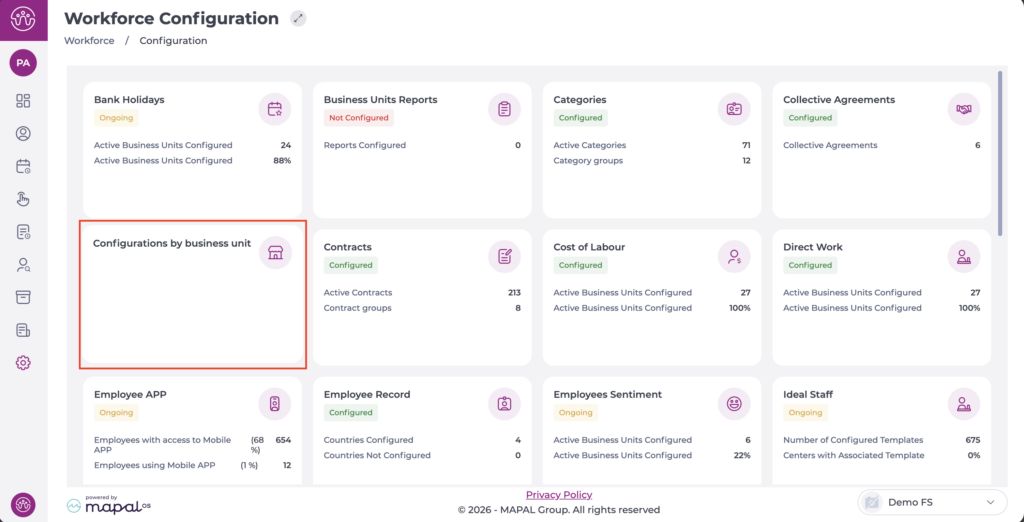
- From the main menu, go to Configuration > Configurations by business unit.
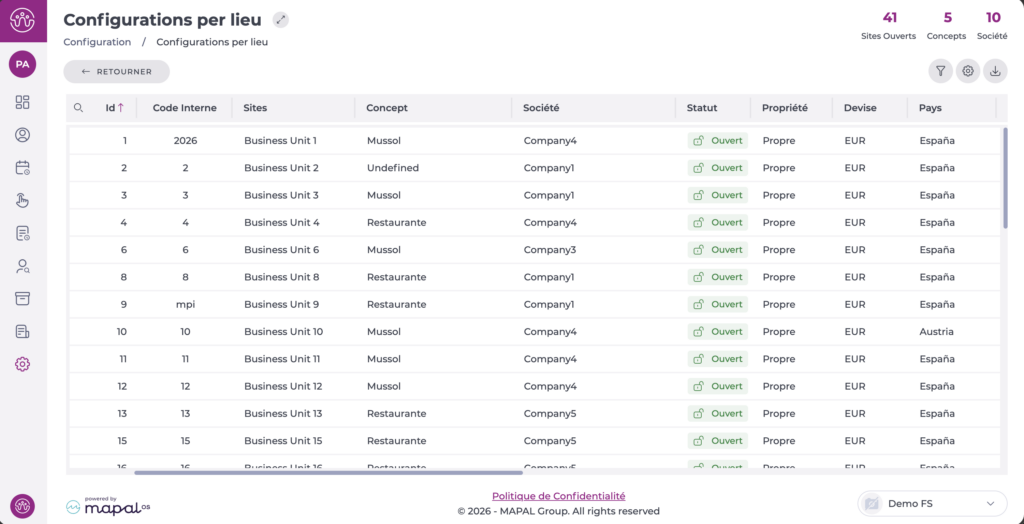
- Select the Business Unit you want to configure. A pop-up window will open.
- Select the Shifts tab.
- Locate the Maximum Expiry in Shifts (Time & Attendance) field and select the desired value, up to a maximum of 24 hours.
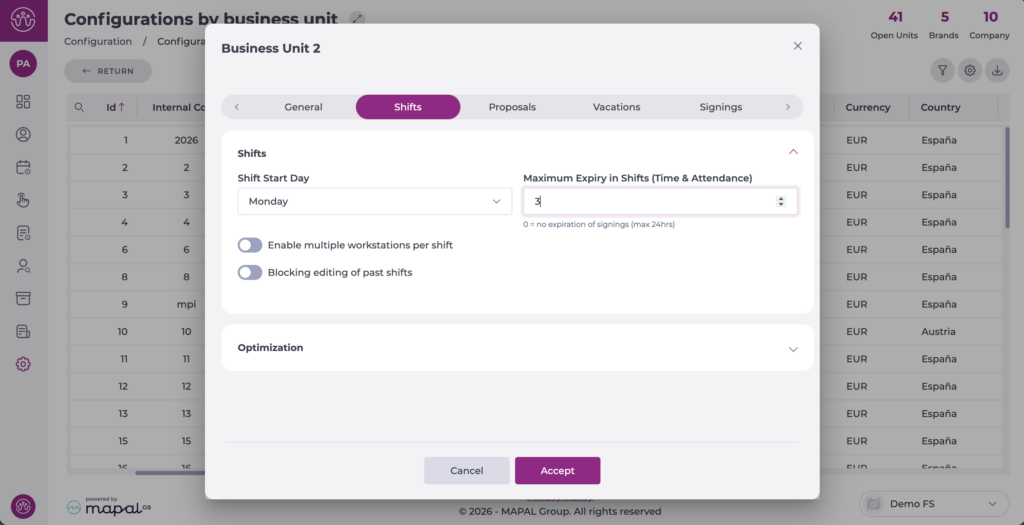
- Select Accept to save your changes.
From this point on, if employees at the configured business unit forget to clock out, their clock-in will be automatically cut off after the configured number of hours.
In these cases, both the Worked Time Screen and reports will show the same value for the clock-in and clock-out, preventing the entry from carrying over to the next day and logging more hours than appropriate.
You can then adjust the clock-ins as needed.
