Start from: The Flow Learning dashboard.
Studio supports +60 languages, meaning you can:
- Generate new lessons directly in a target language.
- Translate existing lessons into one or more languages.
- Manage translations within a single lesson or as separate copies.
- Import/export text for professional translation via XLIFF.
Generate a lesson in a specific language
If you know from the start that a lesson should be delivered in another language, you can set this in the Storyboard:
- Open your storyboard.
- Select Lesson Settings.
- In Lesson Language, choose the target language.
- Generate your lesson.

Note: All text will be generated in the chosen language from the beginning. For example, selecting French when creating a compliance course means the full lesson is produced in French, avoiding later translation steps.
Translate existing lessons
Studio offers two approaches depending on your needs:
1. Multi-language versions within a single lesson
Best for: Global audiences needing a single source of truth.
This option lets you house multiple language versions inside the same lesson. Learners automatically see the version that matches their device’s language settings—even in SCORM packages. Analytics stay unified, but each translation can be edited separately.
To manage lesson translations:
- Open the lesson in the Editor.
- Click the gear icon (Lesson Settings).
- Open the Preview Information tab.
- Next to Lesson Language, select Add language versions.
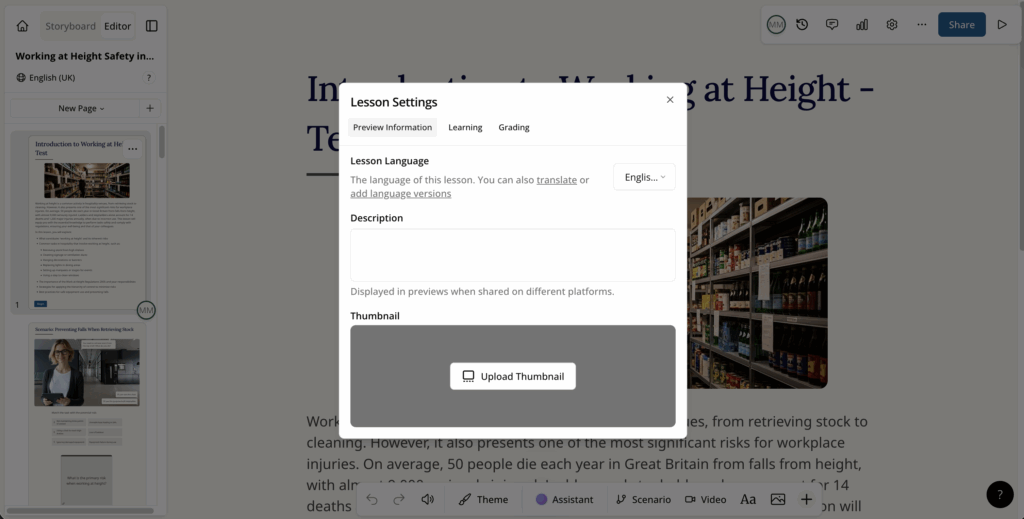
From here you can:
- Set the main language.
- Add or remove translations.
- Import/export XLIFF files for professional translation.
- Regenerate all translations at once.
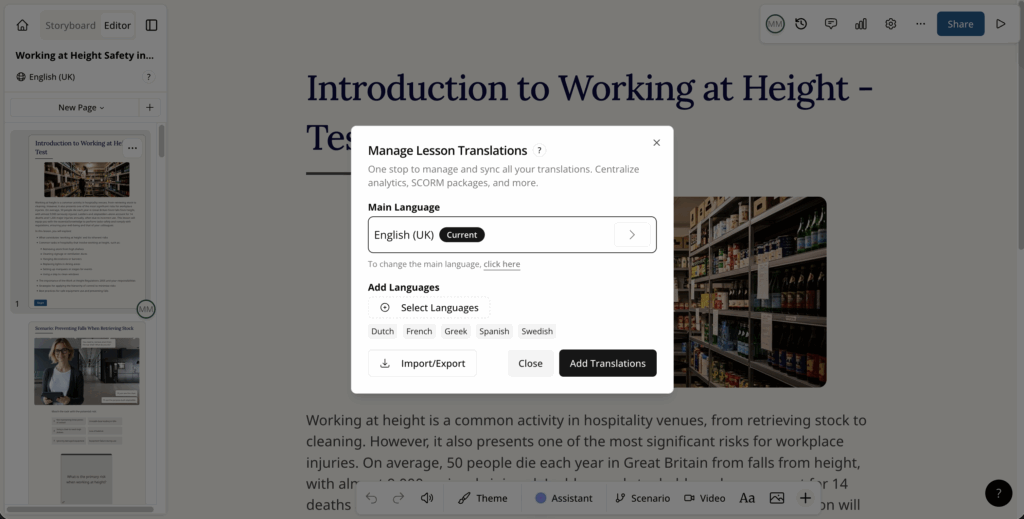
Learners automatically see the version matching their browser/device language. No need to send multiple lesson links.
2. Create a new lesson in a different language
Best for: When versions may diverge (e.g., region-specific compliance or terminology).
This creates a brand-new lesson file in the target language. Each version can then evolve independently.
Steps:
- From the Dashboard, hover over the lesson.
- Open the menu (...).
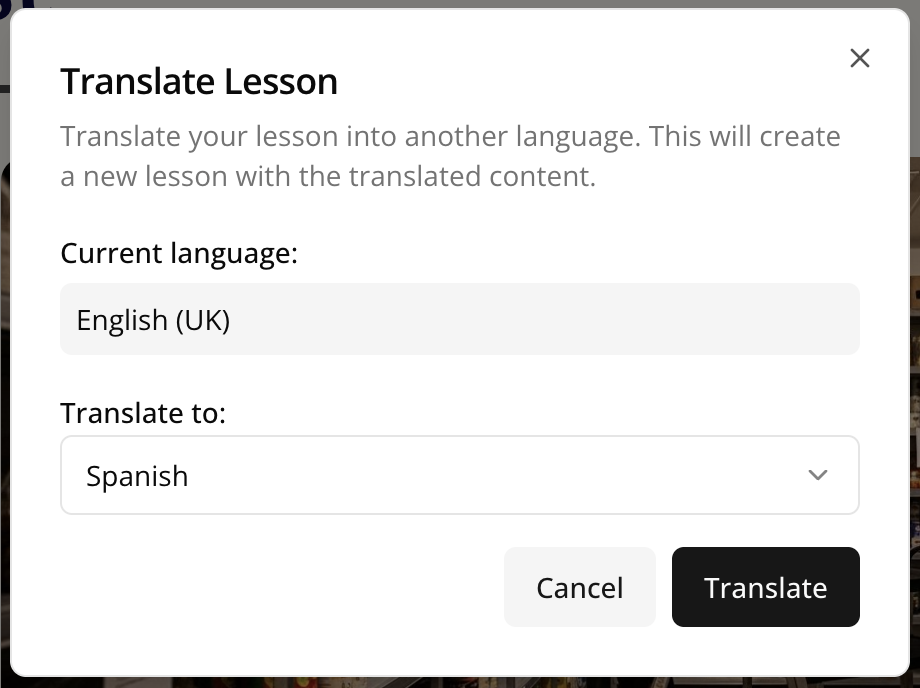
- Select Translate Lesson.
- Choose the target language.
- Select Translate to generate a new lesson copy.
3. Regenerate translations
When you change the source content of a lesson, you can regenerate its translations without updating each language separately.
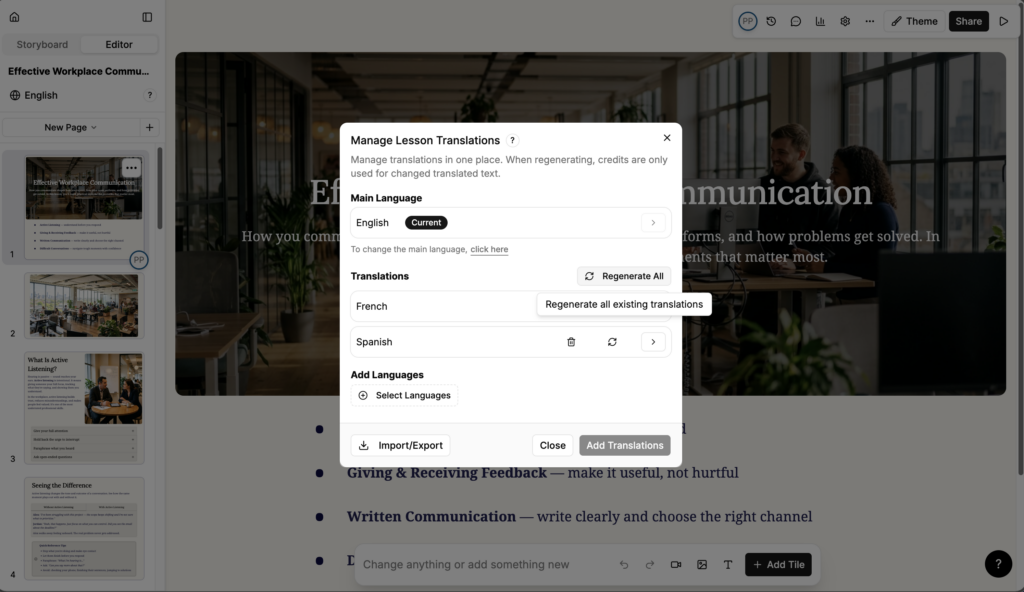
- Open the Manage Lesson Translations window.
- Under Translations, select Regenerate All.
Regenerate All updates translations that already exist. It does not add new languages: to do that, use Select Languages under Add Languages.
To regenerate a single language, select the regenerate icon on that language's row. The bin icon on the same row deletes the translation.
Notes: When you regenerate, credits are only used for translated text that has changed. Translations refresh immediately when you regenerate or delete them.
Import and export with XLIFF
If you work with external translation services or localisation teams, you can export lesson text for translation via XLIFF.
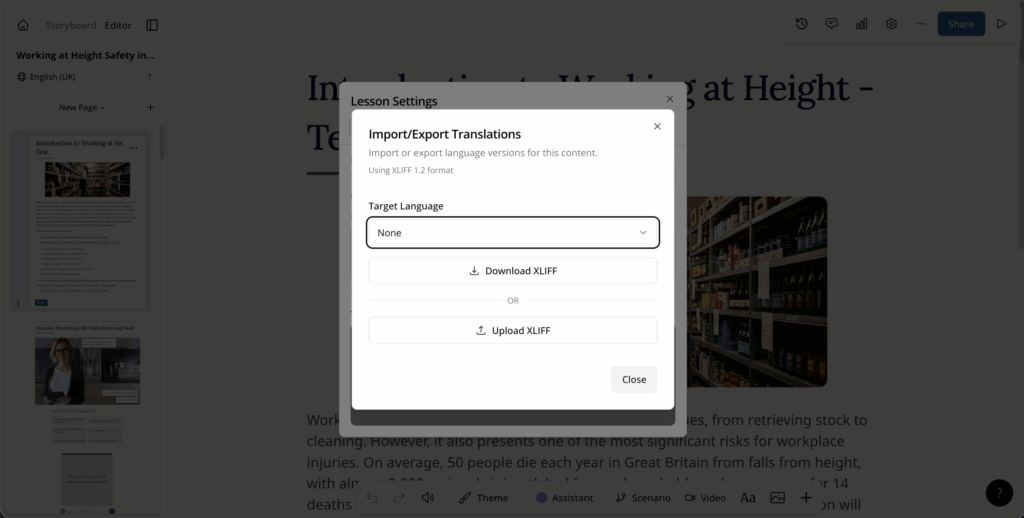
Steps:
- Open the lesson in the Editor.
- Click the gear icon (Lesson Settings).
- Open the Preview Information tab.
- Next to Lesson Language, select Add language versions.
- The Manage Lesson Translations window opens. Select Import/Export.
- Select a Target Language.
- Select Download XLIFF OR Upload XLIFF.