


Start from: The Workforce module.
The base configuration of indirect work is done through the Workforce Configuration module. However, there is a simple way to make changes or additions to this base configuration through the Projected Shift screen, thus allowing a clearer visualization of needs by time slot.
To learn how to perform the standard Indirect Labor configuration, see Configure Indirect Work.
-
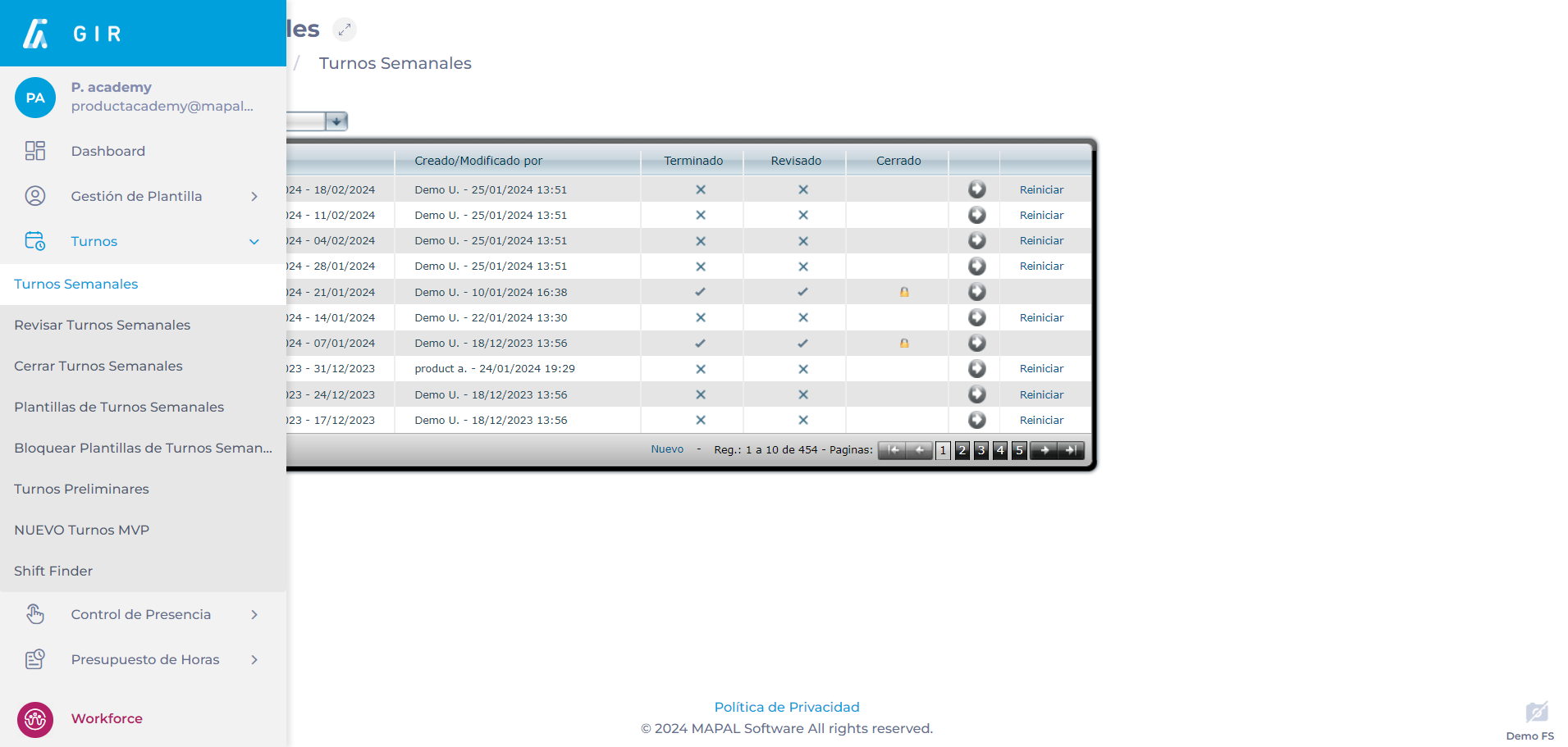
Select Scheduling > Weekly ROTAs from the main menu.
-
Select the Work Center where you want to set up indirect labor.
-
Select New to create a new weekly shift.
Notes: You can configure a weekly shift that has already been created by selecting the Arrow icon. If the icon is blue, it means that there is already data saved in that week.
-
Once in the Projected Shift screen, locate the list of workers assigned to the shift under the Employee column.
-
Right-click on any point in the list to open the action menu.
-
Select the Indirect Work option from the drop-down menu.
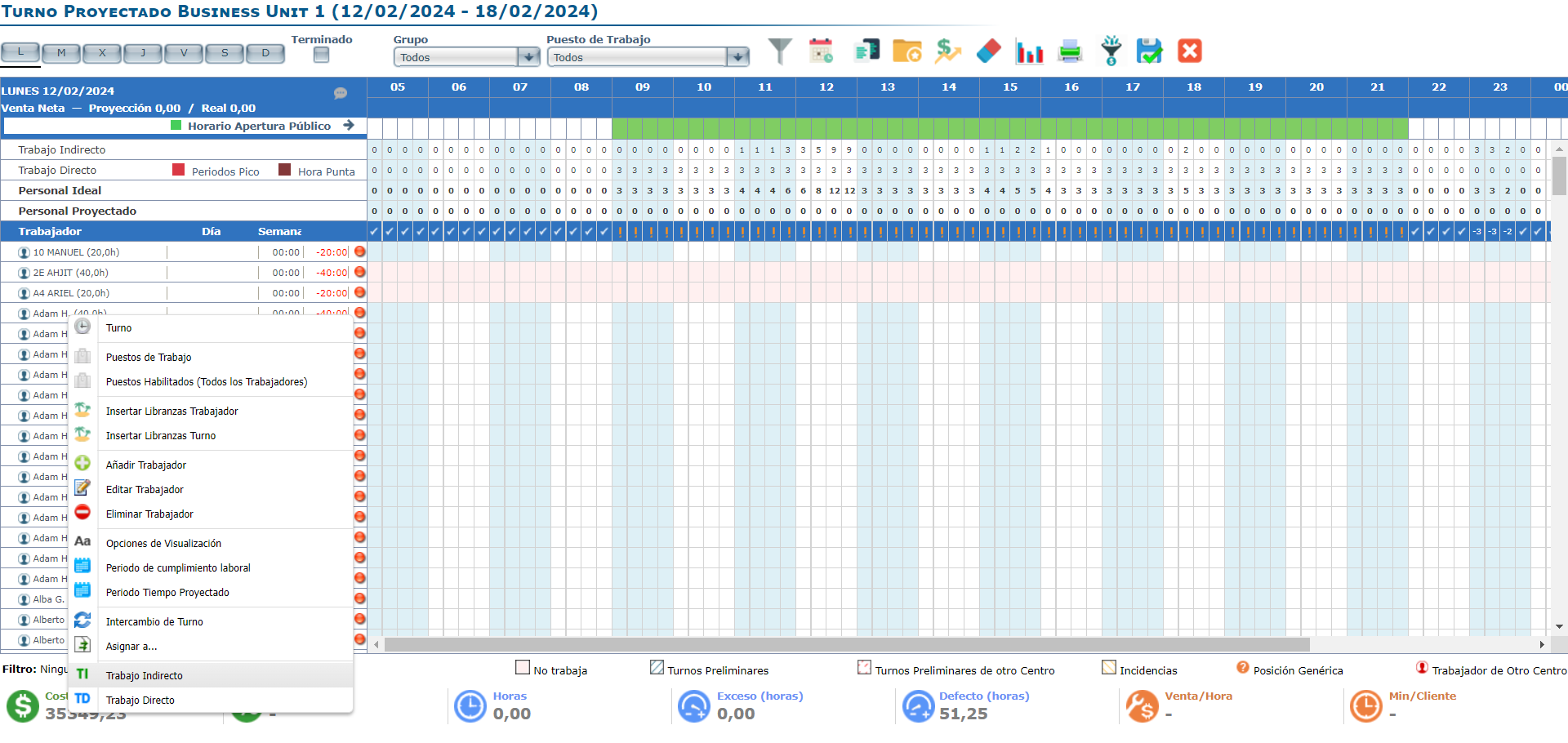
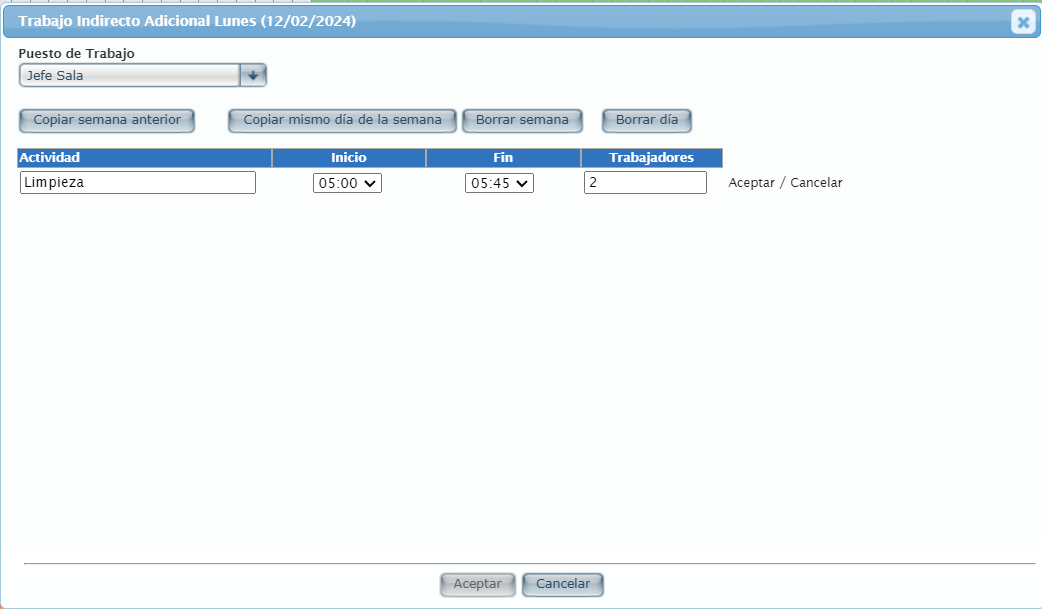
In the pop-up window, you'll be able to assign additional Indirect Work on top of what was previously configured for the day you've selected.
-
Assign a Workstation from those available in the dropdown.
-
You can bring the settings of a previous day or week by selecting Copy previous week or Copy same day of previous.
-
You can also reset the settings by selecting Delete week or Delete day.
-
To add a new indirect work activity, select the green +.
-
In the new row, type the description or name of the activity.
-
Set a start and end time. Note that the times are established per quarter hour.
-
Set a number of workers assigned to the activity in the time you have set.
-
Select Accept next to the row to save the new configuration OR Cancel to discard it.
-
Add as many rows as needed, always following this parameter.
-
Once you are finished, select Accept to save all changes OR Cancel to discard them.
To review the indirect work settings in a shift, see Revise indirect work within the shift.
