


Start from: The Easilys menu
- Select the Products > Analytical group tabs.
An analytical group is defined by:
- Its label and code
- Its type:
- Product: you will then need to specify the product families that make it up and whether or not they should be included in the calculation of the food cost price
- Non-product: you will then need to indicate the VAT amount to be applied to this analytical group. "Non-product" analytical groups are used in supplier invoices if you want to indicate global amounts without specifying the corresponding products
- Whether or not it is set as default (required for certain interfaces)
- The related accounting codes (required for certain interfaces)
- The concept of analytical group is used in:
- The calculation of the food cost price
- The Supplier invoices screen
- The search filters of certain screens, for example the Stock management screen

Create a new analytical group
- Select + Create.

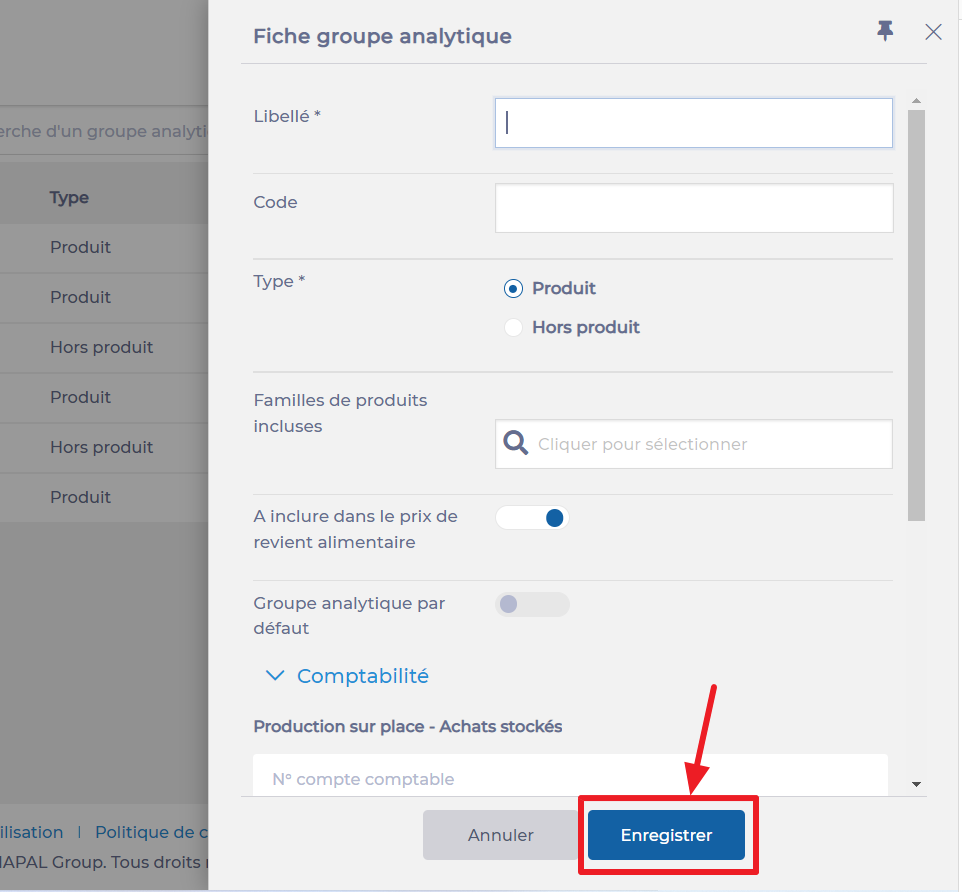
A blank analytical group form appears on the right side of the screen.
- Fill in the required information. Fields marked with an asterisk are mandatory to confirm creation.
- Select Save to validate creation.
Edit an analytical group
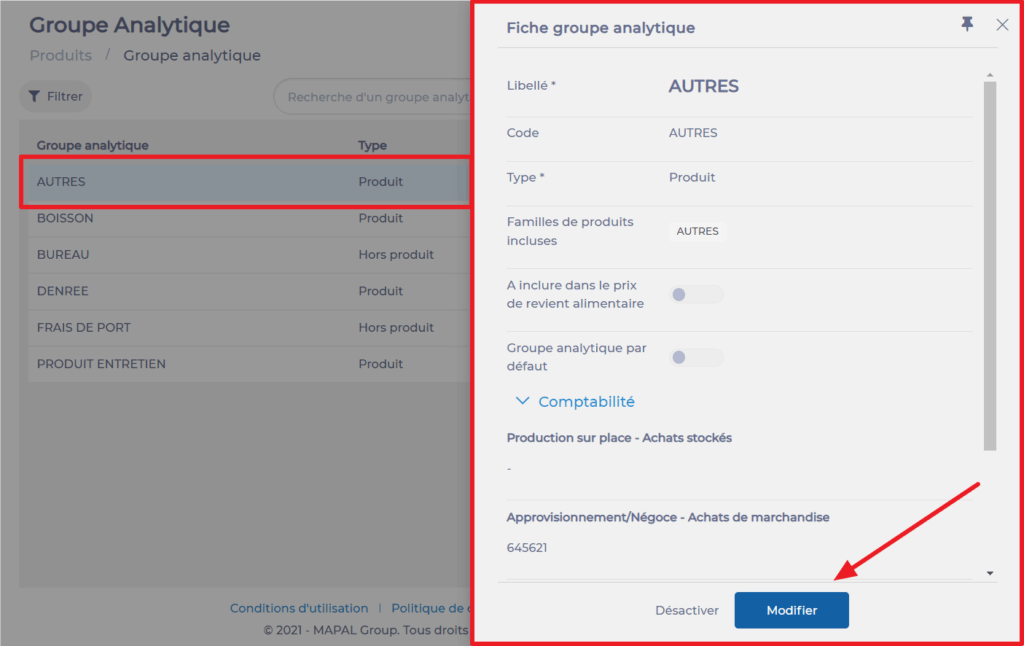
- Select the analytical group you want to edit from the list of analytical groups.
The analytical group form appears on the right side of the screen.
- Make the desired changes.
- Select Edit to confirm your changes.
Delete an analytical group
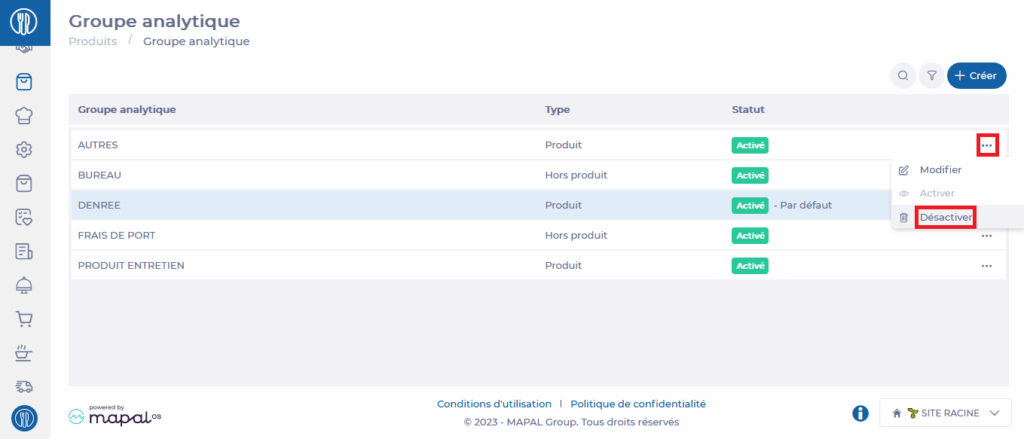
- Select the three dots next to the analytical group you want to deactivate in the list of analytical groups.
- Select Deactivate.
The Deactivation window appears.
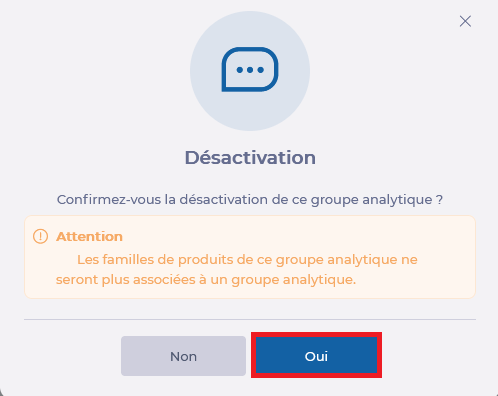
- Select Yes to confirm the deactivation of this analytical group.
