


Start from: The Easilys menu.
Administration of the list of meal items and services is done via the "Manage services" function, which is accessible from Menus > Menus as well as from Nutrition > Meal plan.
Access the "Manage services" function, 1st method: from Menus > Menus.
- Select the Menus > Menus tabs.

- Select the cogwheels leading to the "Menu frame options".
Note: if you do not have any menu frames on your root site, Easilys will then prompt you to create one. Accept this creation to access the administration of services and meal items. (You will not be required to finalize the creation of the menu frame if you do not wish to.)
- Select Edit the selected menu frame.

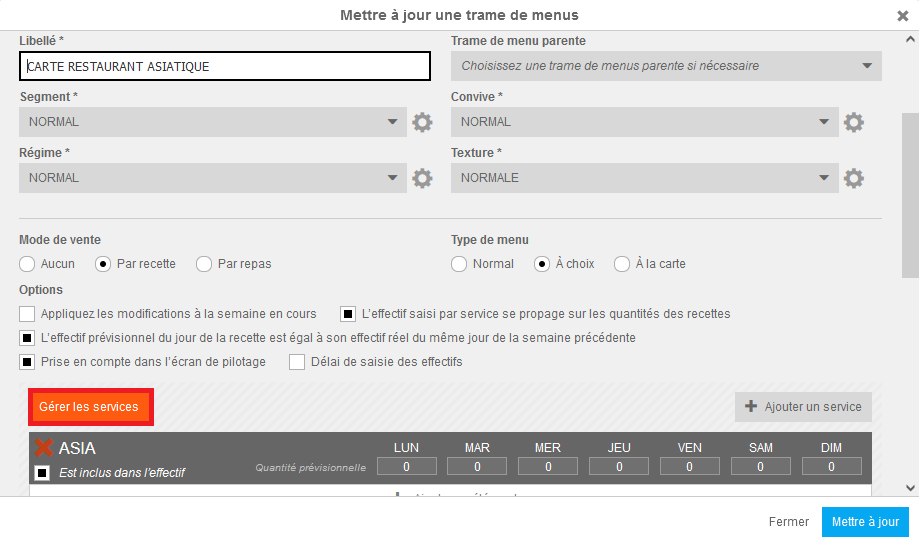
The Update a menu frame window appears on the screen.
- Select Manage services.
Note: this button is only visible if you are on the root site and have administration rights for these items.
Access the "Manage services" function, 2nd method: from Nutrition > Meal plan.
- Select the Nutrition > Meal plans tabs.
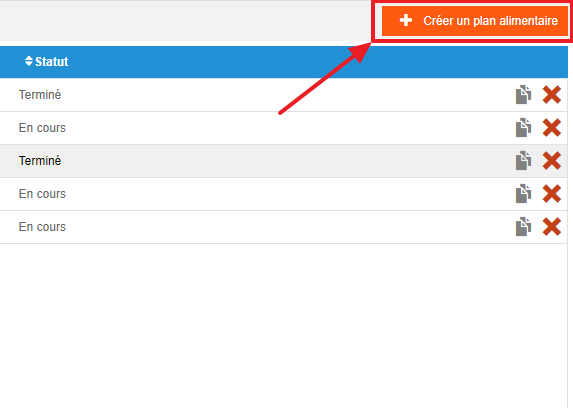
- Select Create a meal plan.

Use the "Manage services" function
The Manage services and meal items window appears on the screen. Service management is on the left side of the window, meal item management is on the right side.
- Select "Add a service" or "Add a meal item" to create a new one. You can create a meal item by adding it to a meal item group.
Note: it is not possible to delete a service, you can only rename it.
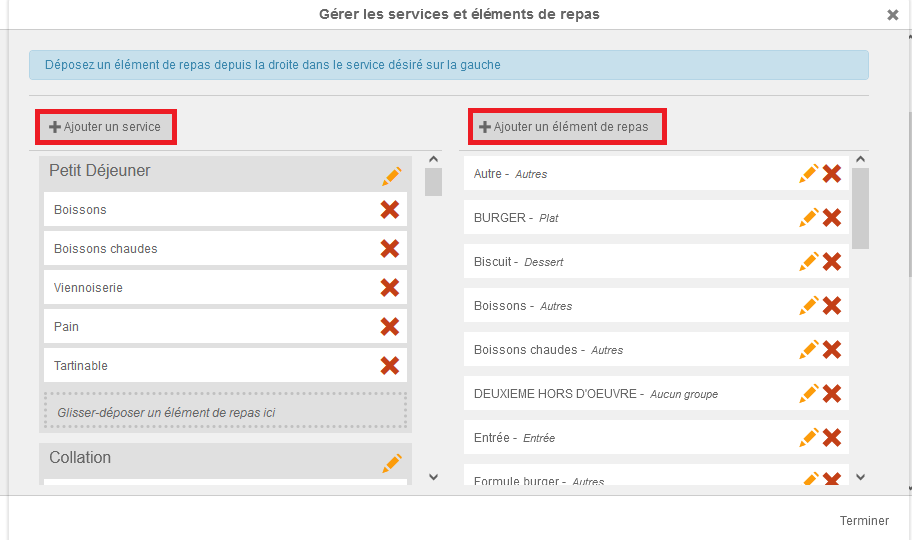
- Drag and drop meal items into a service to configure the service and determine which meal items can be offered for use when the user chooses to add the service to their menu frame.
Note: be careful not to delete a meal item by mistake when you only want to remove it from a service composition!
- Select the orange pencil to edit the name or meal item group of a meal item.
- Select the red cross to permanently delete a meal item.
Note: if it was part of a service composition, you will need to update the menu frames to remove it. Deleting a meal item does not remove its use in the menu frames.

