


Note: it is not possible to modify an order that has already been sent. However, you can manually add products to your reception. Contact your supplier to tell them which products you would like to add to your order, then follow this guide to add these products to your reception.
Start from: the Easilys menu.
Add a product
- Select the Supplier orders > Receptions tabs.
- Select the reception to which you wish to add a product.

The details of this receipt to be validated are then displayed.
- Select the " +" sign next to the Supplier product tab to add the missing product.
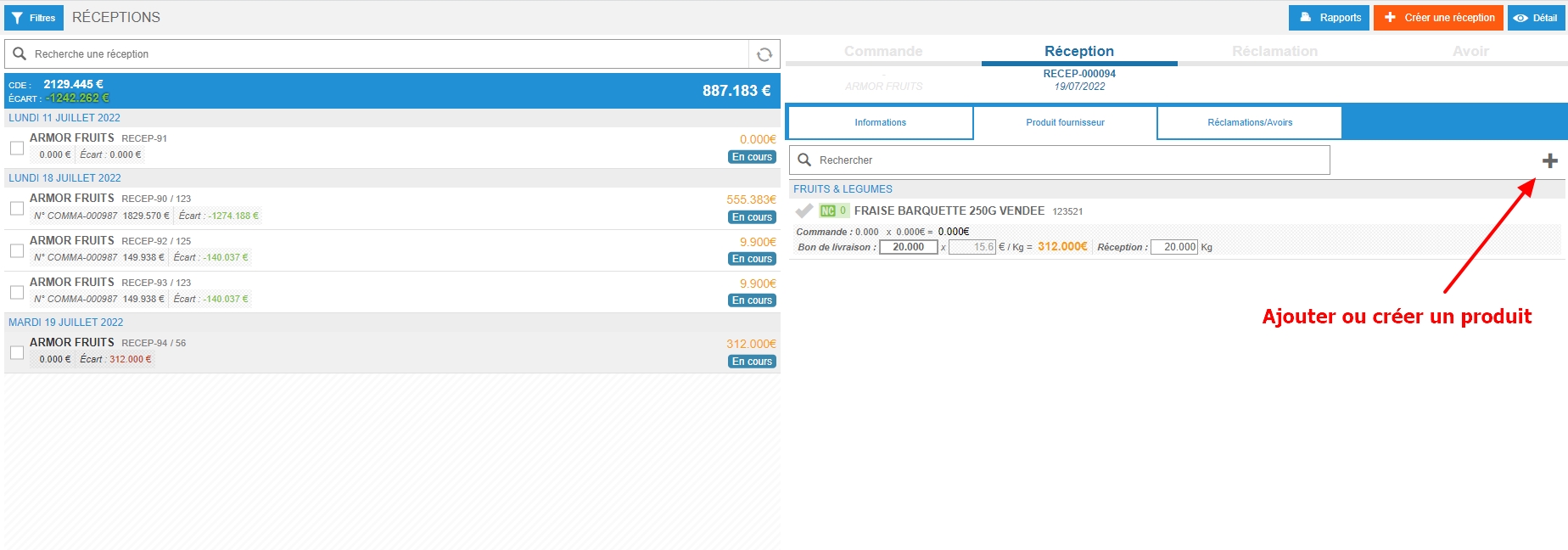
The Add a supplier product window appears.
Easilys offers you the other products available from this supplier, you can then search for the product and click on it to add it to the reception.
Create a product
If the product you want to add does not appear in the list, you can create it:
- Select Create to create a product that does not yet exist.

The Create a supplier product window appears.
- Complete the required fields.
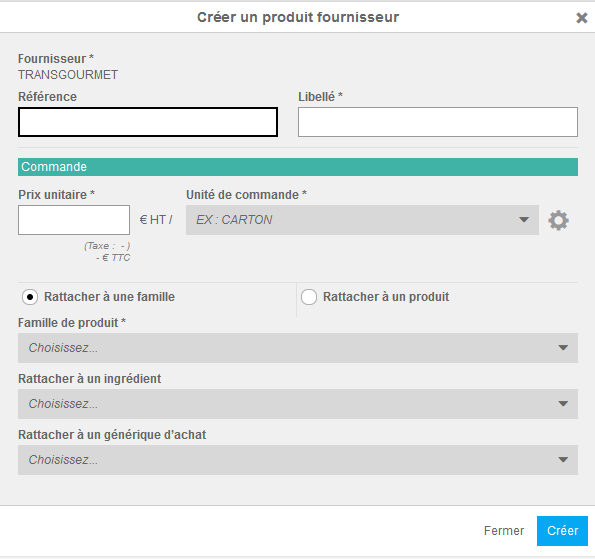
Note: the creation of a product via the Receptions screen is subject to a special right, which must be activated if necessary. In fact, using this screen to create a product does not allow you to complete all the information required for daily use of the product. We strongly advise you to complete the product file created via this screen, by going to the "mercuriales" screen, and finding the product file that was created in reception, in order to complete it.
