


Start from: The Easilys menu.
From child sites, users can place orders in the same way as they order from other suppliers. To manage the delivery of their order, you must go to the "Site Supply" screen on the parent site.
- Select the Shipping > Site supply tabs.
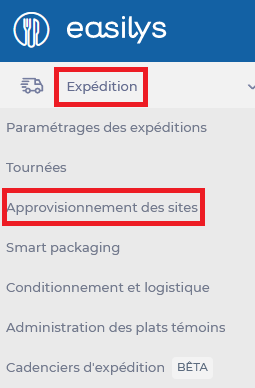
- The table listing the orders from your child sites is displayed.

- Select the order you want to process.
- The delivery note form appears on the right of the screen and lists the details of the order.
- Select Edit if you wish to make changes to quantities or prices, or replace one product with another (by selecting the “replace” icon in front of the product name)or change the management unit for the order.
- Click on + if you wish to specify the batch number of the product being shipped.
- If you wish to add products, use the Add supplier product drop-down list.
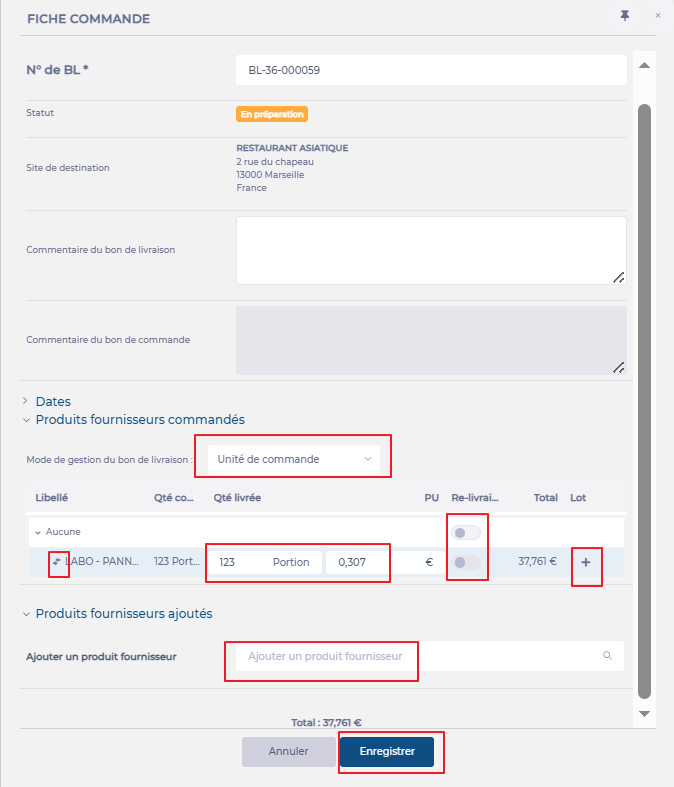
It is possible to deliver the requested products in several shipments. To do this:
- Change the quantities to indicate those delivered in the first shipment.
- Activate the "Redelivery" toggle on the lines of the products that will be delivered in a second shipment.
- Send the note.
- A new delivery note containing only the products that have not yet been sent is then created: you can send it when needed.

Note: Depending on your profile rights, you may or may not be able to confirm shipment if the total stock of the products ordered is insufficient. To be able to change the delivery status to Sent, if you are blocked, you will need to either replenish the stock or modify the quantity delivered on the delivery note.
- Select Send at the bottom right of the delivery note form to indicate to Easilys that the delivery has been sent.
- The delivery note form changes to Sent status and the stock removal of sent products is performed automatically on the parent site.
- Easilys automatically generates a pre-filled receipt note on the child site receiving the delivery.
- It's not possible to change the delivered quantity or price.
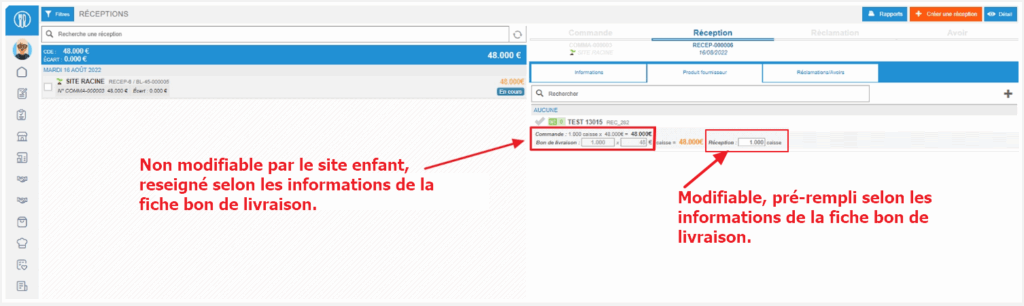
- If the child site has enabled the option Automatically validate receipt upon dispatch in the internal supplier file (Product>Supplier), then the receipt note is automatically set to Received status.
- If the option has not been enabled, then the child site can modify the quantity received if necessary and generate complaints or credit requests as for a receipt from an external supplier before validating the receipt note so that it changes to ‘Received’ status.
You can track the status of your deliveries from the “Site supply” screen, at any time and for any past or future period.
