


An accounting period is defined by a name (often the year to which it applies), a start date and an end date. Several accounting periods can be open at the same time. Sites automatically inherit the accounting periods created on their parent sites.
Note: This function is used only for the root site and production sites.
Start from: The Easilys menu.
Access the accounting periods
- Select Profile > Site settings.
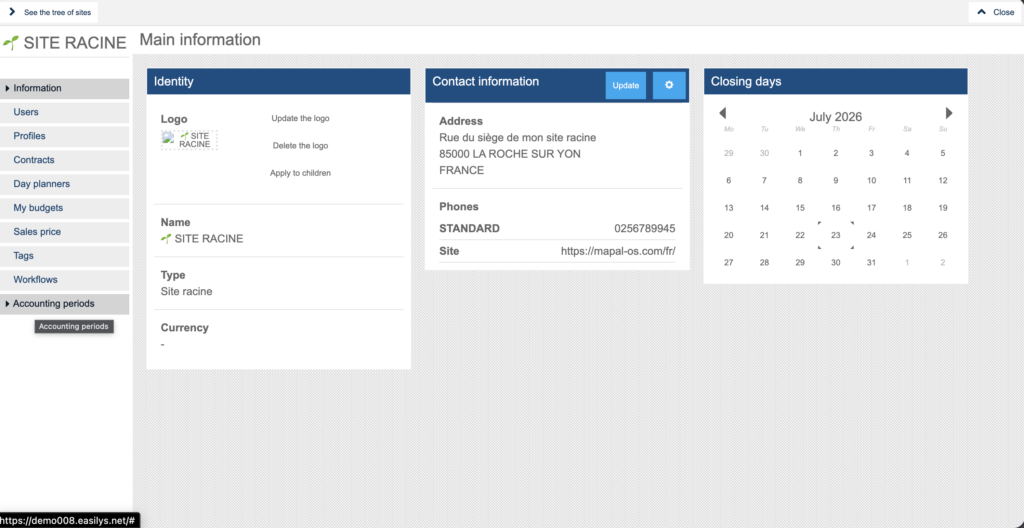
You are redirected to the Information tab of the site settings.
- Select the Accounting period tab.
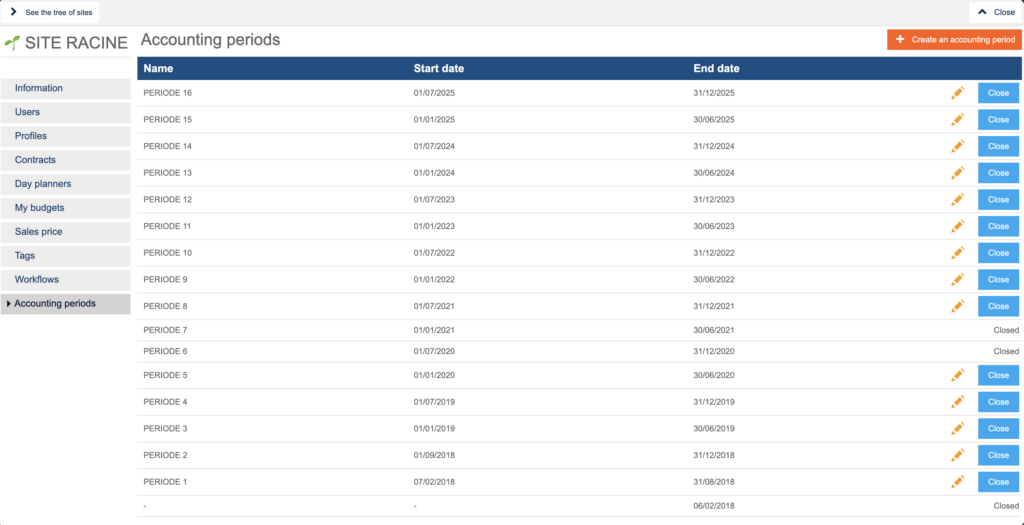
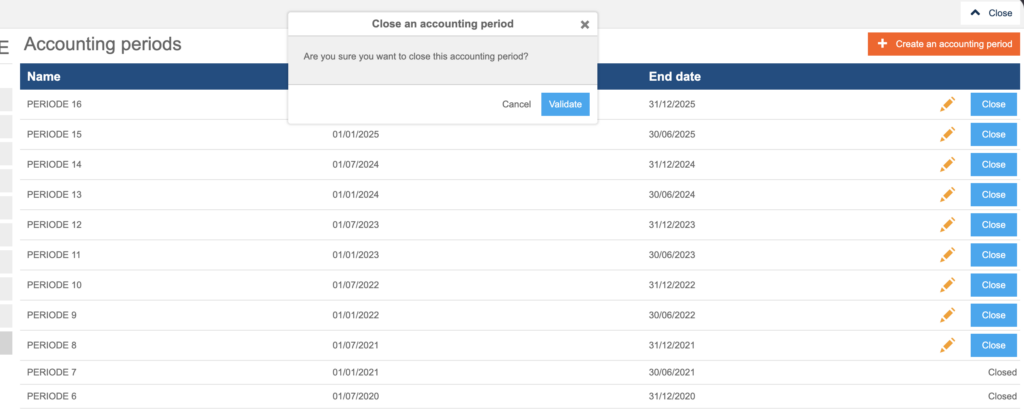
The list of all saved accounting periods is displayed.
Create an accounting period
- Select + Create an accounting period.
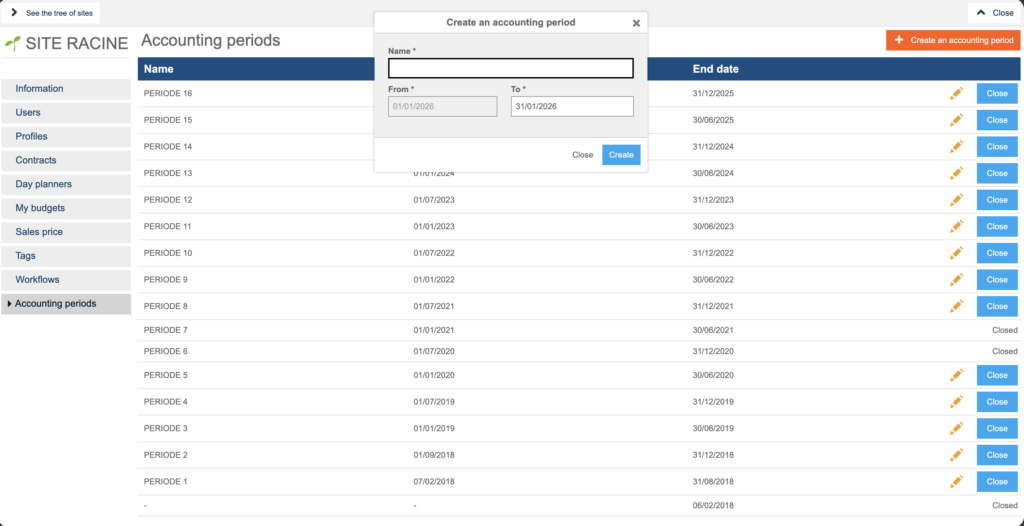
The Create an accounting period window appears. Complete the following fields:
- Name: the name of the period being created.
- From… To…: the date on which the accounting period starts and the date on which it ends.
- Confirm the creation by selecting Create.
Edit an accounting period
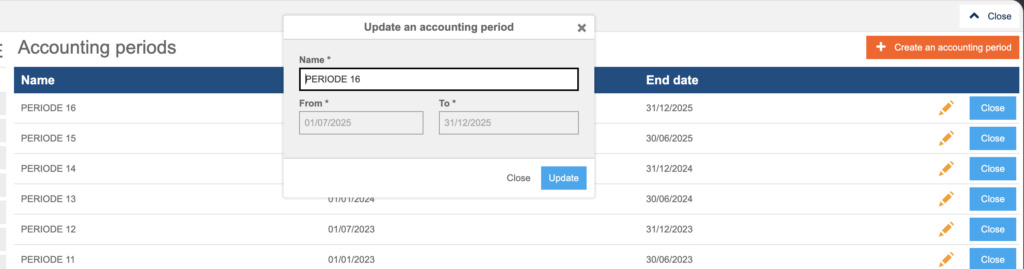
- Select the pencil for the accounting period you want to edit.
- Confirm the change by selecting Update.
Close an accounting period
- Select Close.
The Close an accounting period window appears.
- Select Validate.
Closed is displayed at the end of the line. Once a period is closed, no further receptions or invoices can be attached to it.
Note: Once closed, an accounting period cannot be reopened. The invoices and receptions included in that period can no longer be edited.
