


Start from: the Easilys menu.
Open the Reports panel
- Go to Menus > Menu quantities.
- Select a site in the Sites tree.
- Select a menu in the menu list for the selected site.
- Select the Reports icon.
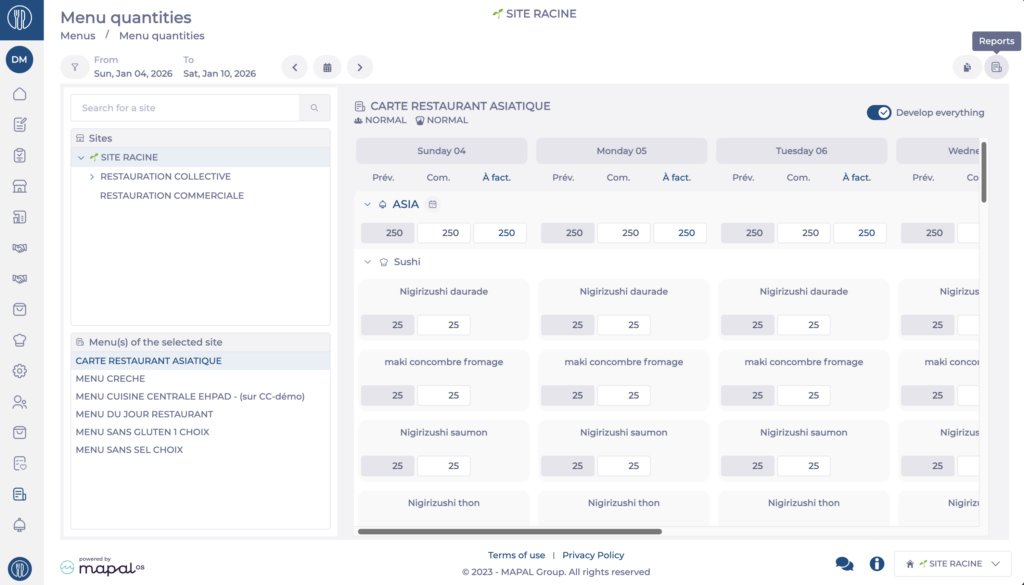
The Reports panel opens. The report options appear on the right of the screen.
Note: these reports were previously available from the Menus module only. They are now available from Menu quantities for faster access.
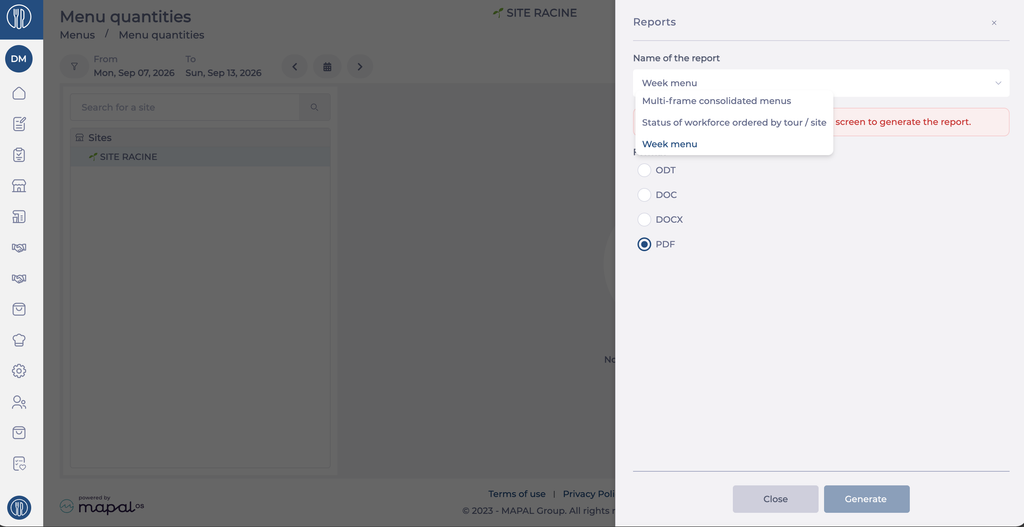
Choose a report
- Select a report in the Name of the report dropdown.
The configuration fields update to match the report you select. Complete the fields for your chosen report as described below, then select Generate.
Select Close to leave the panel without generating a report.
Day's menu in A4 format
The Day's menu in A4 format report prints the menu for a specific day in A4 format, for the menu selected in Menu quantities.
Note: This report requires a selected menu. If no menu is selected, a message asks you to select one.
- Select Day's menu in A4 format in the Name of the report dropdown. The Menu field shows the selected menu.
- Under Weekdays, select the day to print. The days available match the period displayed.
Note: Days without meal items cannot be selected.
- Optional: in Meal types, tick one or more meal types, then select the + icon to add them.
- Optional: in Menu item, tick one or more menu items, then select the + icon to add them.
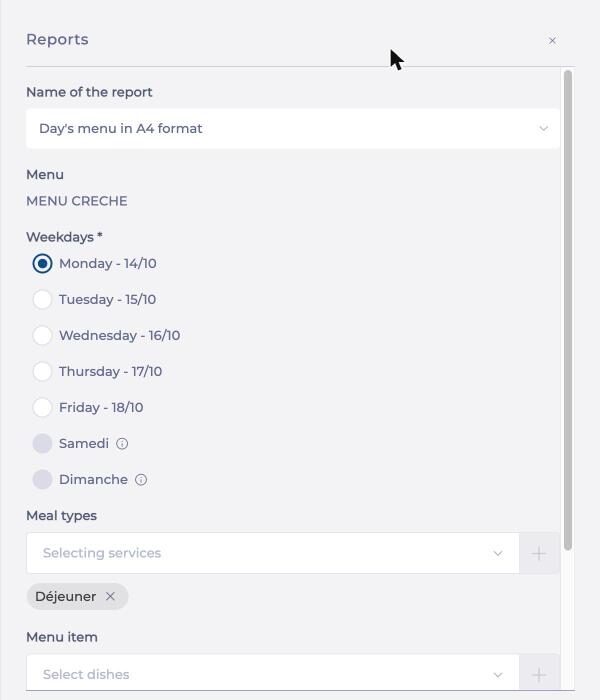
- Under Format, select ODT, DOC, DOCX or PDF.
- Select Generate.
Week menu
The Week menu report shows the menus planned over a given period for a selected site and menu.
- Select Week menu in the Name of the report dropdown.
- Select the start date and the end date in the Period calendar.
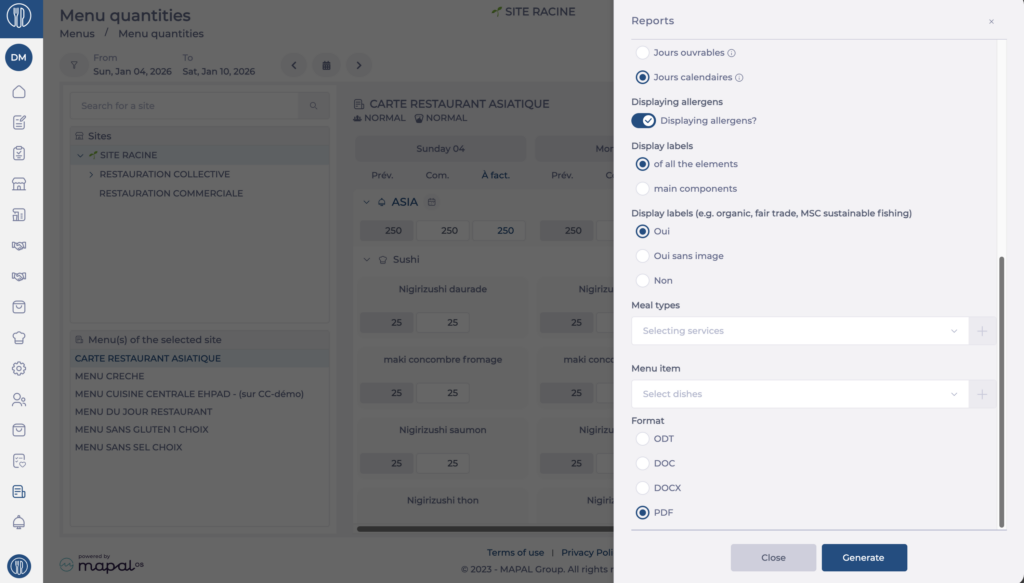
- Under Opening days, select the type of days to include: Working days, Business days or Calendar days.
- Enable Display allergens? to include allergens in the report.
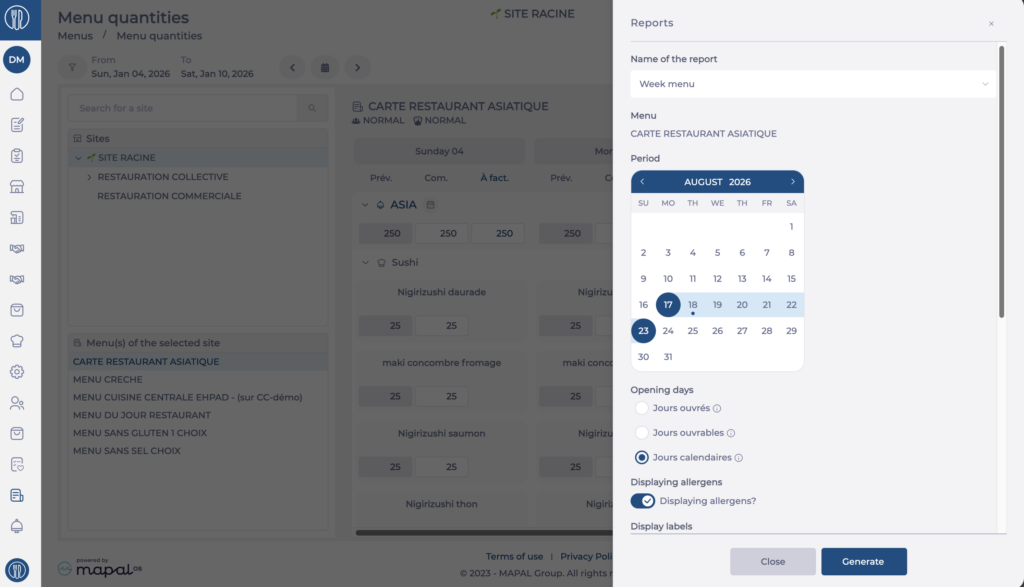
- Under Display labels, select of all items or of main items.
- Under Display labels (for example organic, fair trade, MSC sustainable fishing), select Yes, Yes without image or No.
- Optional: select one or more meal types in the Select meal types field.
- Optional: select one or more menu items in the Select menu items field.
- Under Format, select ODT, DOC, DOCX or PDF.
- Select Generate.
Multi-frame consolidated menus
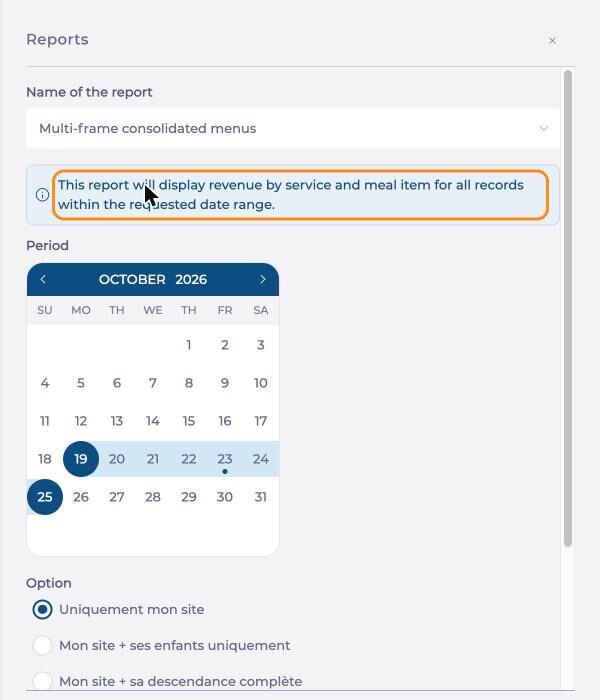
The Multi-frame consolidated menus report consolidates menus across your site or its child sites for a given period. When you select this report, a message describes its content: the recipes by service and menu item for all menu templates over the requested period.
- Select Multi-frame consolidated menus in the Name of the report dropdown.
- Select the start date and the end date in the Period calendar.
- Under Option, select the scope of the report: My site only, My site and its children only or My site and its child sites.
- Under Format, select ODT, DOC, DOCX or PDF.
- Select Generate.
Status of workforce ordered by tour / site
The Status of workforce ordered by tour / site report shows headcounts organised by delivery tour and site for a given period.
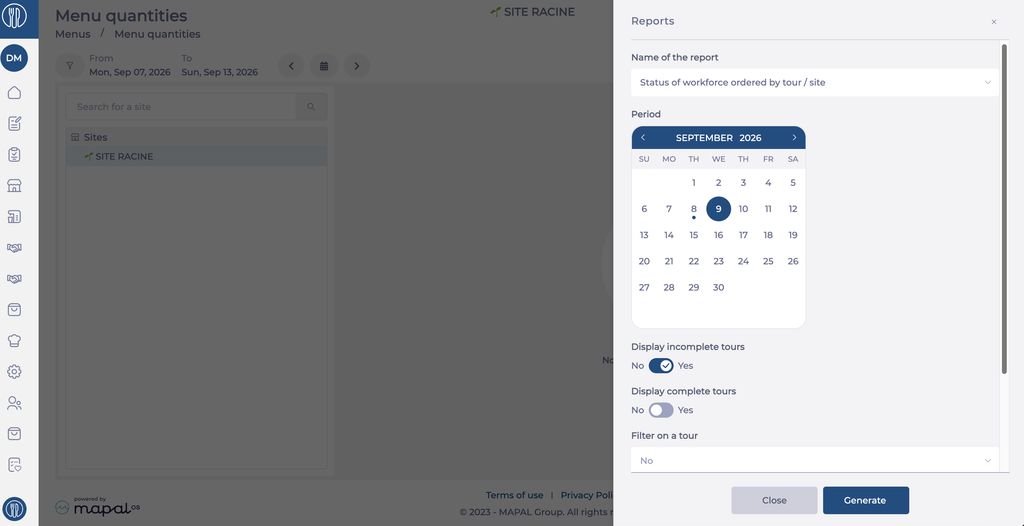
- Select Status of workforce ordered by tour / site in the Name of the report dropdown.
- Select the start date and the end date in the Period calendar.
- Set Display incomplete tours to Yes or No.
- Set Display complete tours to Yes or No.
- Under Filter on a tour, select No, or select a specific tour to restrict the report.
- Under Format, select ODT, DOC, DOCX or PDF.
- Select Generate.
