


Start from: The Easilys menu
1. Check the In progress receptions
Receptions that have not been validated at the inventory date, or earlier, prevent it from being closed.
Find the In progress receptions
- Go to Supplier orders > Receptions.
- Open the period filters.
- Change the start date by choosing a deliberately old date in order to carry out a broad search.
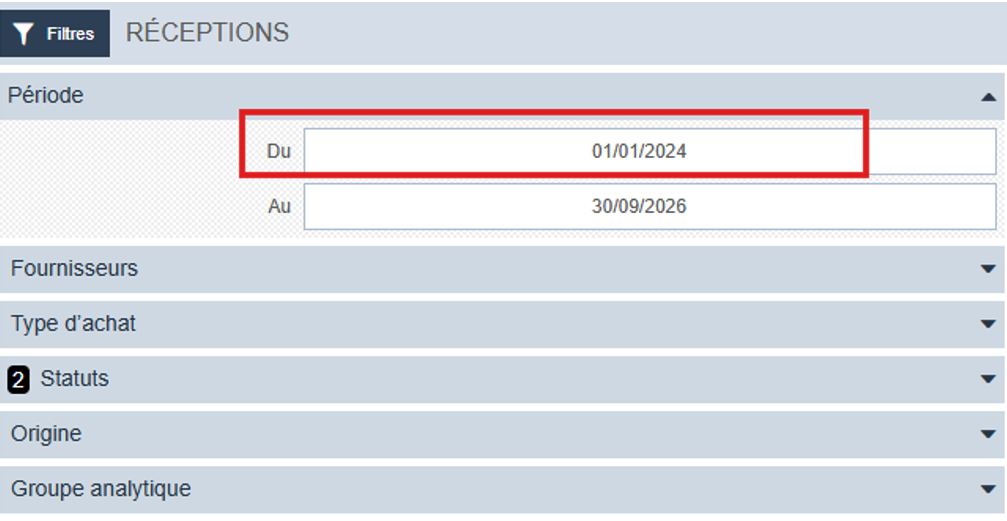
The receptions at the In progress status are then displayed.
You can then:
- Validate the receptions if you want to keep a record of them. Receptions validated after the current inventory has started are not taken into account in it, however, and therefore do not affect stock. If necessary, quantities must be adjusted manually in the inventory itself to reflect these stock movements.
- Delete the receptions if they are no longer needed.
Note: In most cases, it is advisable to delete old receptions left at the In progress status. If they have never been validated, they are probably no longer useful, and validating them late could generate stock discrepancies.
Delete an In progress reception
- Select the checkbox in front of the reception concerned.
The Delete button appears.
- Select Delete.

Once all In progress receptions have been dealt with, return to your inventory and try to close it again.
2. Check that all products have been inventoried
To close an inventory, all products in the list must be marked as inventoried, even if their quantity is zero.
Note: The filters applied to the screen may hide some products. Make sure the whole list has been dealt with.
Identify an inventoried product
When a product has been inventoried, the ? symbol turns dark blue.
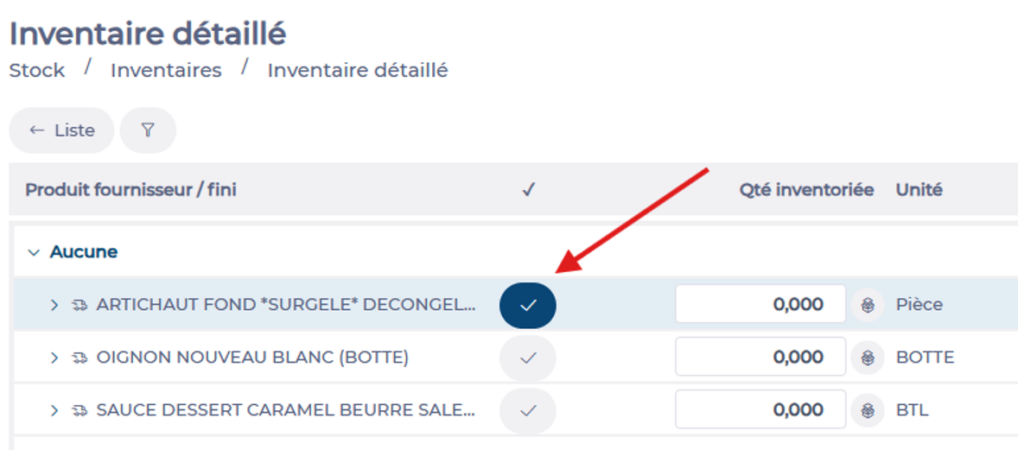
Inventory products one by one
- Enter the inventoried quantity.
- Select the product.
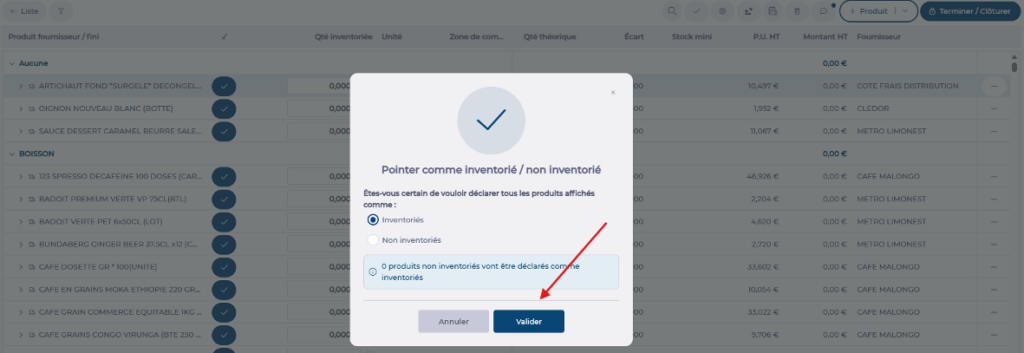
Inventory the whole list at once
- Select the ? icon next to the magnifying glass.
- The Inventory all option is selected by default.
- Select Validate.

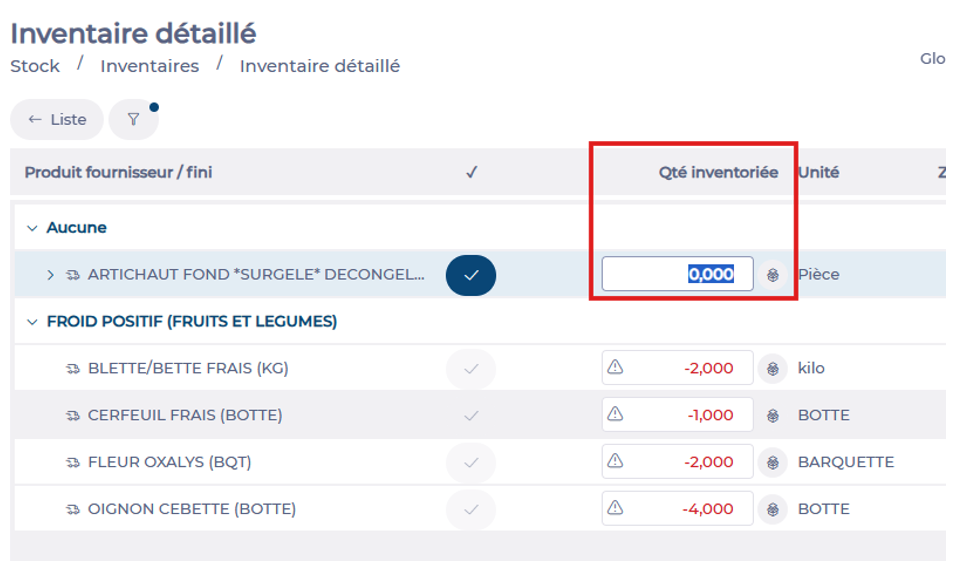
Special case: negative quantities
The error message sometimes still indicates that some products have not been inventoried even though they have all been marked. The most frequent cause is the presence of negative quantities on some products.
- Identify the products concerned.
- Enter 0 in the Inventoried quantity column.
Note: Remember to mark the product again after changing the quantity.
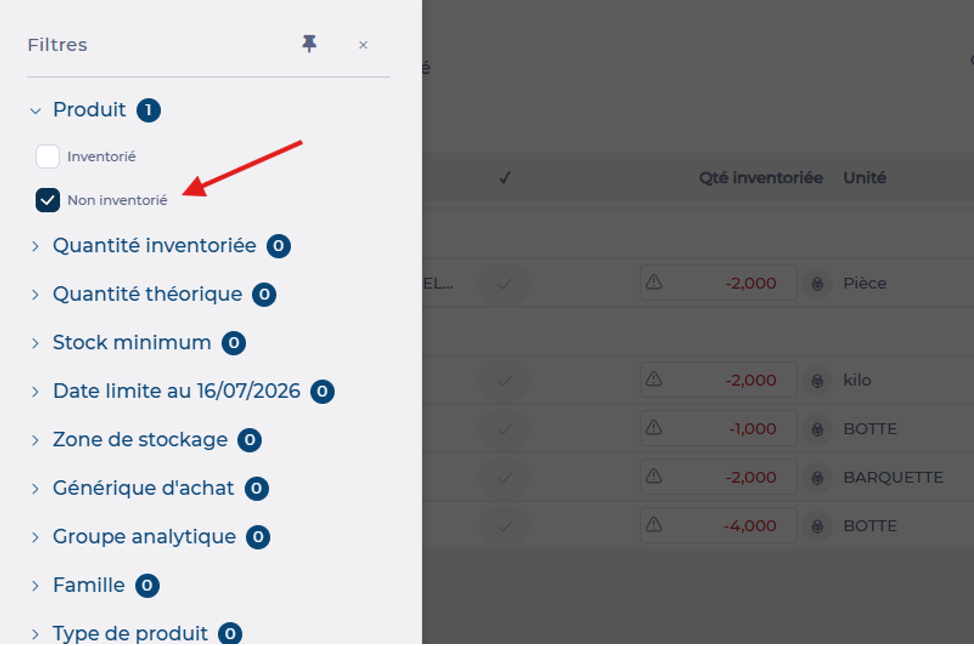
Display only the products still to be inventoried
- Select the Filters icon, shaped like a funnel.
- Select Products.
- Choose the Not inventoried filter.
Only the products still to be inventoried are then displayed.
Once these checks have been carried out, closing the inventory should be accepted.
Note: Closing an inventory is done in two stages: Completed, then Closed. The inventory is only definitively validated, and stock updated, after the Closed stage. You can therefore either move the inventory to Completed and have your manager close it, or close it directly if your access rights allow. For more information about the Inventory screen, see the articles Create an inventory and Complete an inventory.
