Start from: The Easilys menu.
By specifying your suppliers’ delivery days, you allow Easilys to suggest appropriate delivery dates when you prepare orders, either manually or from the Order preparation screen.
There are two ways to set delivery days, as described below.
Set delivery days using “Free selection”
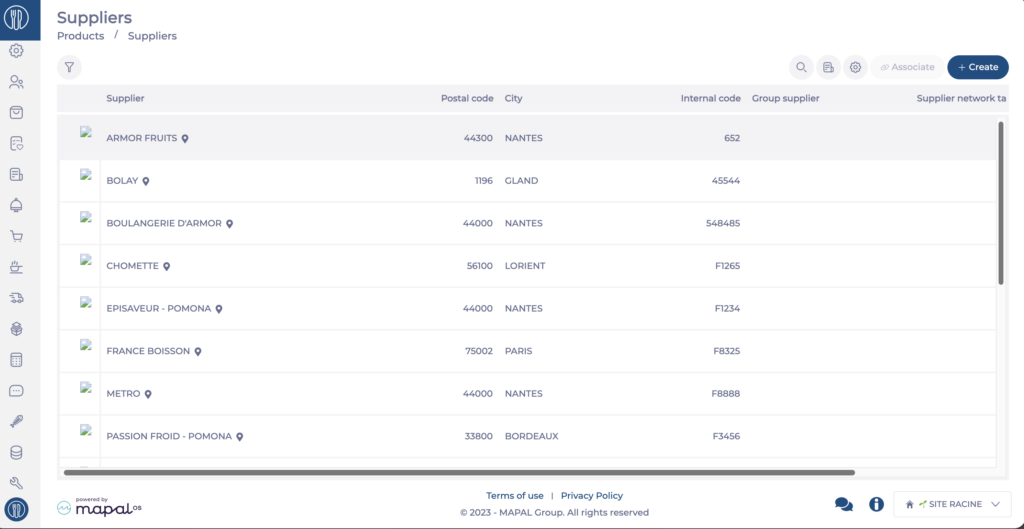
- Select Products > Suppliers.
- Select the relevant supplier record.
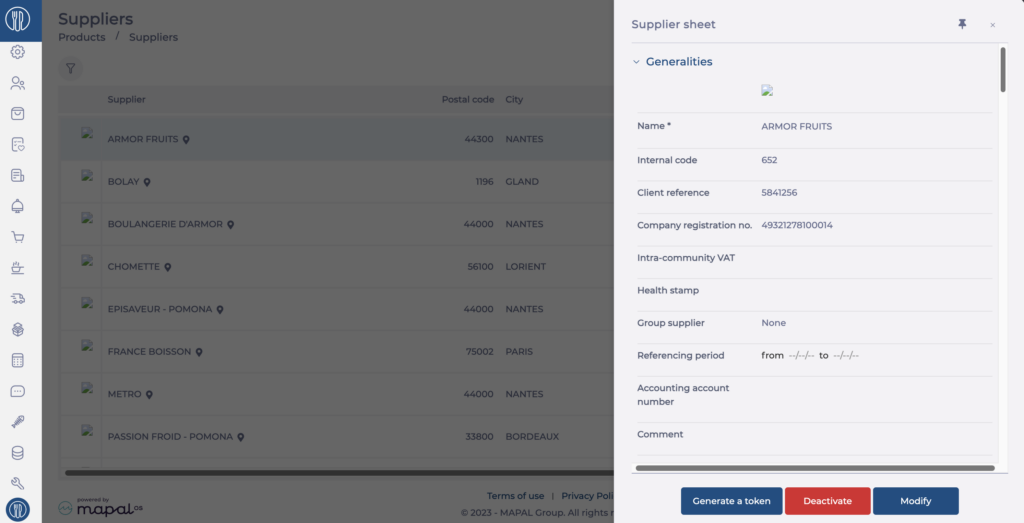
- Select Modify.
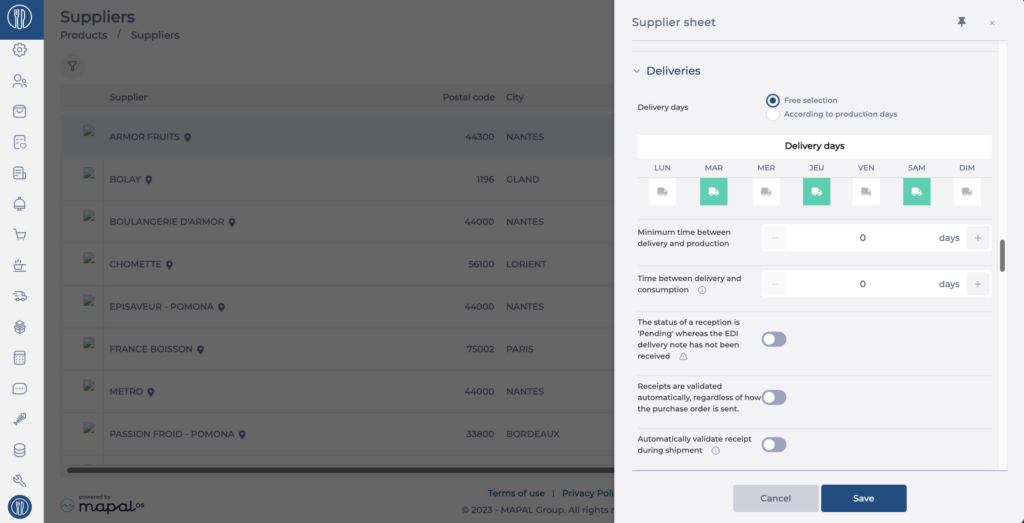
- In the Delivery section, select Free selection.
- Select the checkboxes for the delivery days.
- You can then specify the minimum number of days required between delivery and production. The default value is 0, which allows Easilys to suggest delivery on the production date.
Set delivery days using “According to production days”
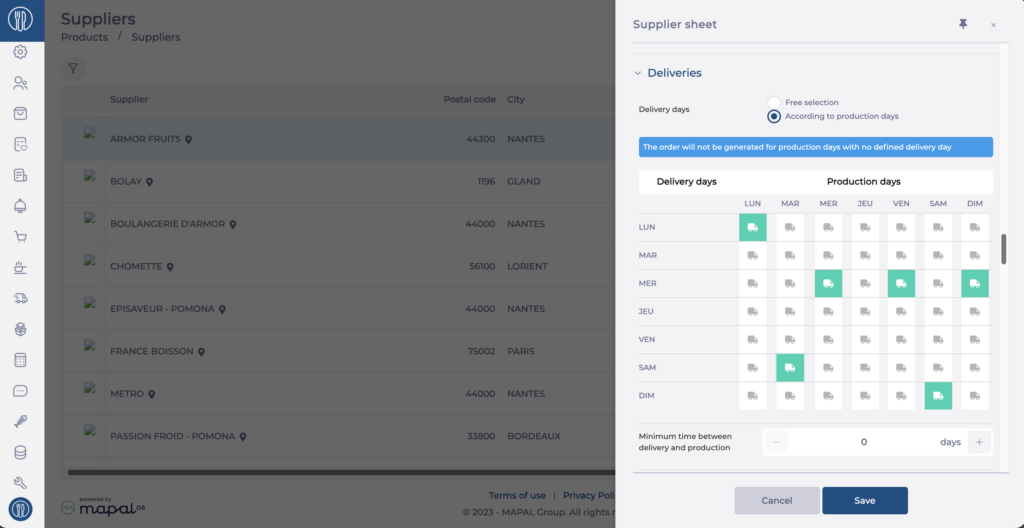
If you need to align delivery days more precisely with your production schedule, select According to production days. A table appears, allowing you to specify which production days are associated with each delivery day.
The first column shows the delivery day. In the example below, production scheduled for Wednesday or Thursday requires delivery on Wednesday.
This method is useful when you have set up menus and, optionally, a production plan.