


Note: Every action that can be carried out in the application is subject to permissions. If you are unable to perform the actions described in this article, it may be because the required permissions are not activated for your user profile. Contact the Support team or your administrator for more information.
This article explains how to do it in the Rights management screen, with the different methods available and the tools that help you work faster. To understand profiles, screens and access rights, read Understand rights management in Easilys first.
Choose how to configure rights
| What you need | Method |
|---|---|
| Adjust a profile's rights, screen by screen | Configure the profile manually (the rest of this article) |
| Set up or align several profiles at once | Change rights from the Comparator: see Compare the rights of several profiles |
| Start from an existing profile's rights | Copy rights from another profile: see Copy rights from another profile |
| Set up a full configuration, for example when Easilys is being set up, or reproduce a configuration | Export, then import rights with a CSV file: see Export and import a profile's rights |
You can combine these methods: for example, copy the rights of an existing profile, then adjust the result manually.
Before you start
- Rights changes apply to all users assigned to the profile. The number of users affected is shown under the profile name: check it before you save.
- You cannot change the rights of your own profile (marked with the Your Profile tag). A message tells you: You cannot modify your own profile. Contact your administrator to modify this profile. To change this profile, ask another administrator.
Configure a profile manually
Start from: the Easilys menu.
- Select Sites > Rights management in the main menu. The Profiles tab opens.
- Select the profile to configure in the profile list.
- Select a module to show its screens.
Make a screen available or not
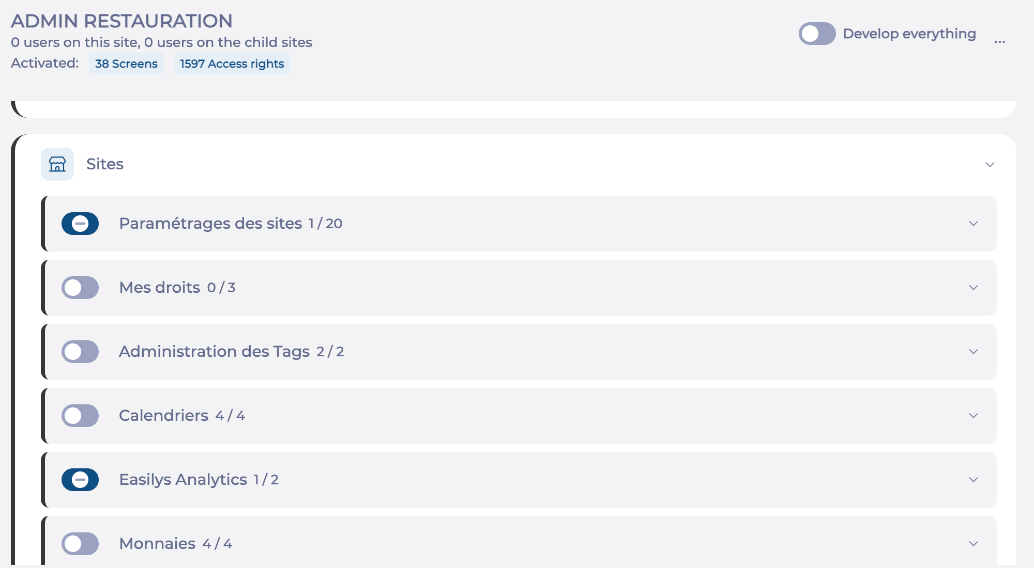
Each screen has a switch that makes the screen available, or not, to the profile's users:
- Switch off: the screen is not available.
- Switch on: the screen is available and all its access rights are granted.
- Switch with a dash: the screen is available, but only some of its access rights are granted.
Note: If a screen is not available, the profile's users cannot carry out the actions on that screen, even if some of its access rights are ticked.
Choose the actions allowed on a screen
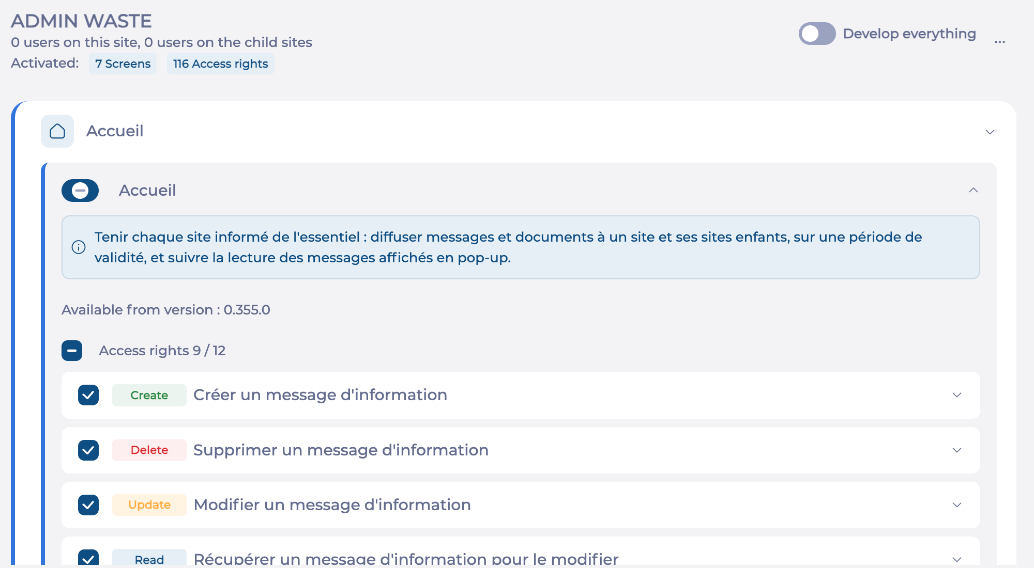
- Select the screen to show its access rights. A short description explains what the screen is for, and Available from version shows when it was introduced.
- Tick or untick the rights you want. A coloured tag shows each right's type: Read, Create, Update or Delete.
- To tick or untick all of a screen's rights at once, use the multi-select box next to Access rights (for example Access rights 9 / 12). A dash in this box means only some rights are ticked.
Next to each screen name, the counter (for example 9 / 12) shows the number of rights granted out of the number available.
Some rights show a tree-shaped icon: the right is shared with other screens. Granting or removing it here also grants or removes it on those screens. Hover over the icon to see the list of screens.

Save your changes
Your changes only apply once you save them.
- While you change rights, the Save button shows the number of pending changes, and changed items are marked in the list.
- Select Save. A message confirms that the changes are saved.
The profile's rights change immediately. Users who are already signed in must sign in again for the change to apply to their session.
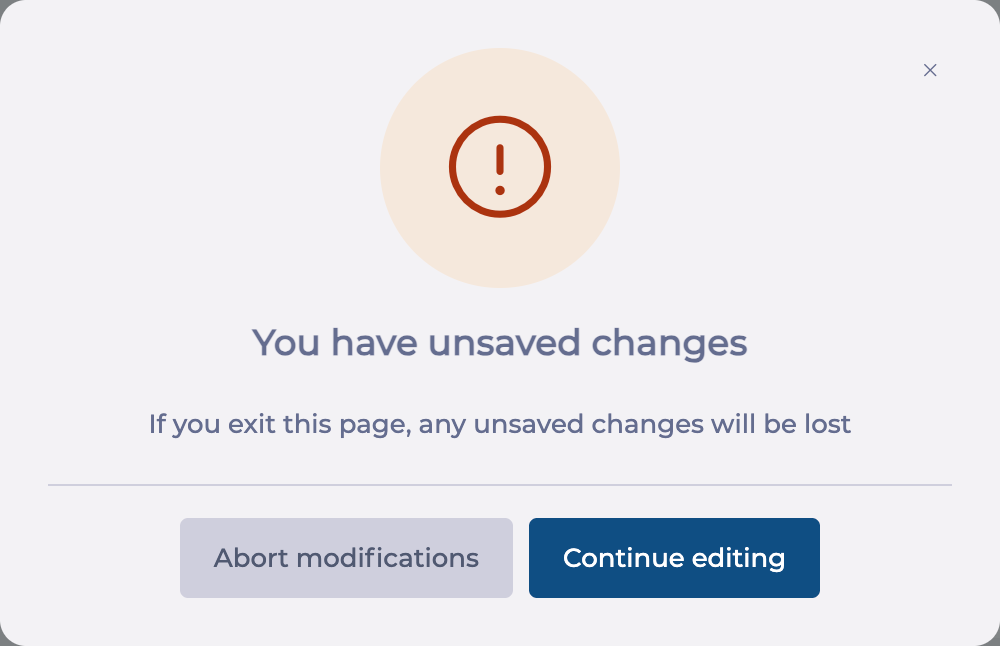
If you leave the page with unsaved changes, the You have unsaved changes message opens. Select Continue editing to go back to the screen, or Abort modifications to leave without saving.
Tools to work faster
Develop everything
The Develop everything switch expands or collapses all modules and screens at once.
Search
Type a word in the Search field: the list only shows screens and access rights whose name matches. To clear the search, select the cross in the field.
Filter
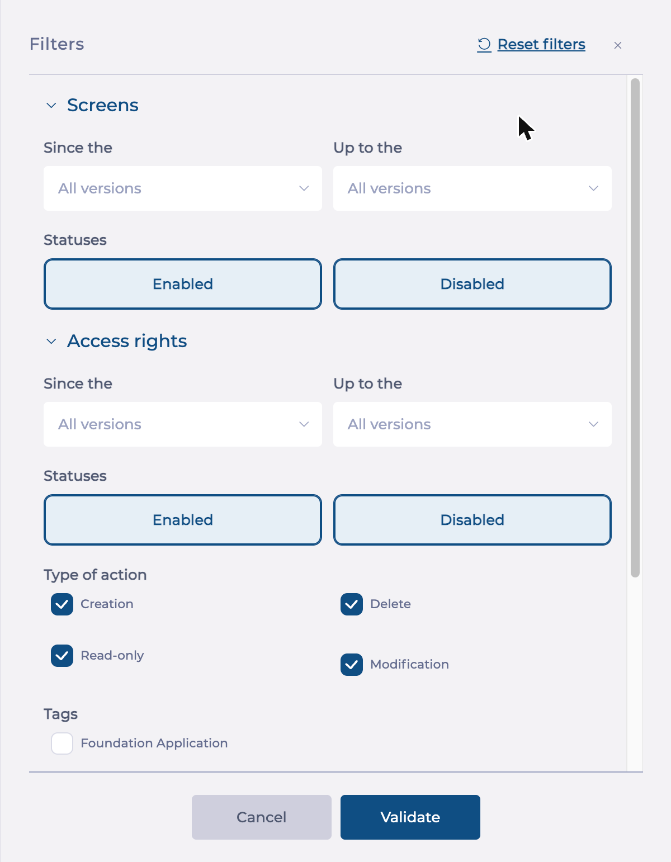
Select the filter button to narrow the list. The available filters may change. For example, you can filter:
- screens and access rights by the version they were introduced in (Since the and Up to the), to find what is new in an Easilys version.
- screens and access rights by status (Enabled or Disabled).
- access rights by type of action (Creation, Delete, Read-only or Modification).
- access rights by subcategory (for example Report or Analytics).
Select Validate to apply the filters, or Reset filters to show the full list again.
Enable or disable everything
- Select the action menu (...) next to Develop everything.
- Select Enable All or Disable All.
Note: These two actions only apply to what is displayed. If you used the search or filters, only the visible screens and rights change.
