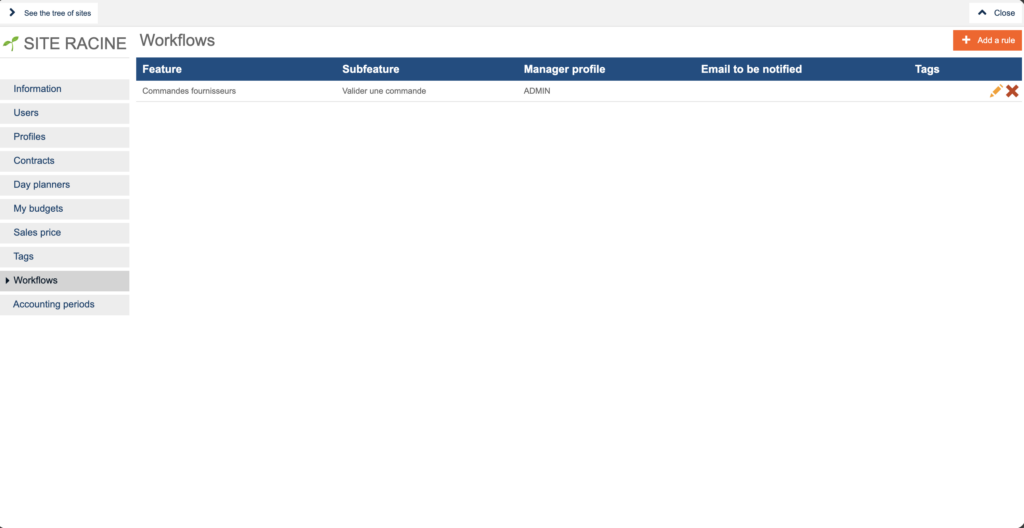
Start from: the Easilys menu.
Create a supplier order validation rule
- Select the Admin section (your username or avatar) > Site parameters.
- Select Workflows.
- Select + Add a rule.
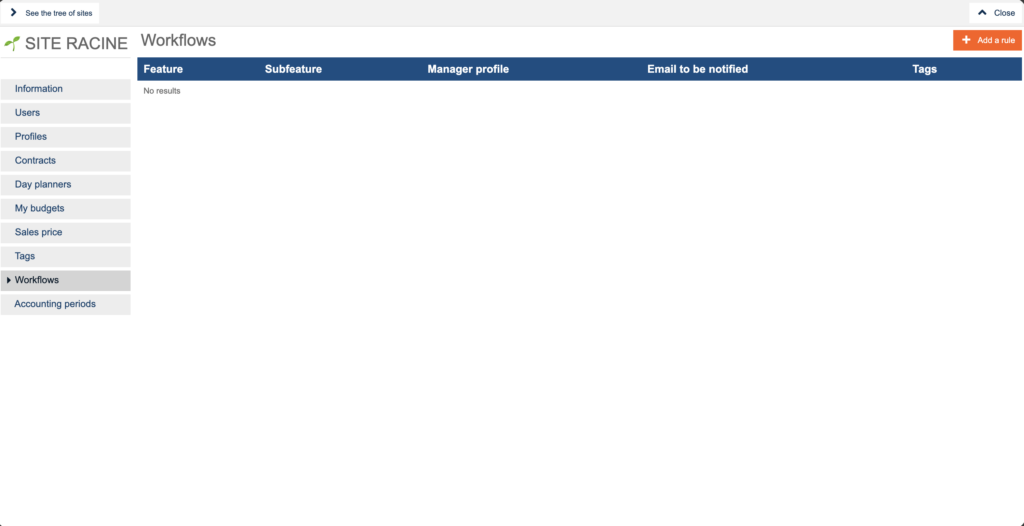
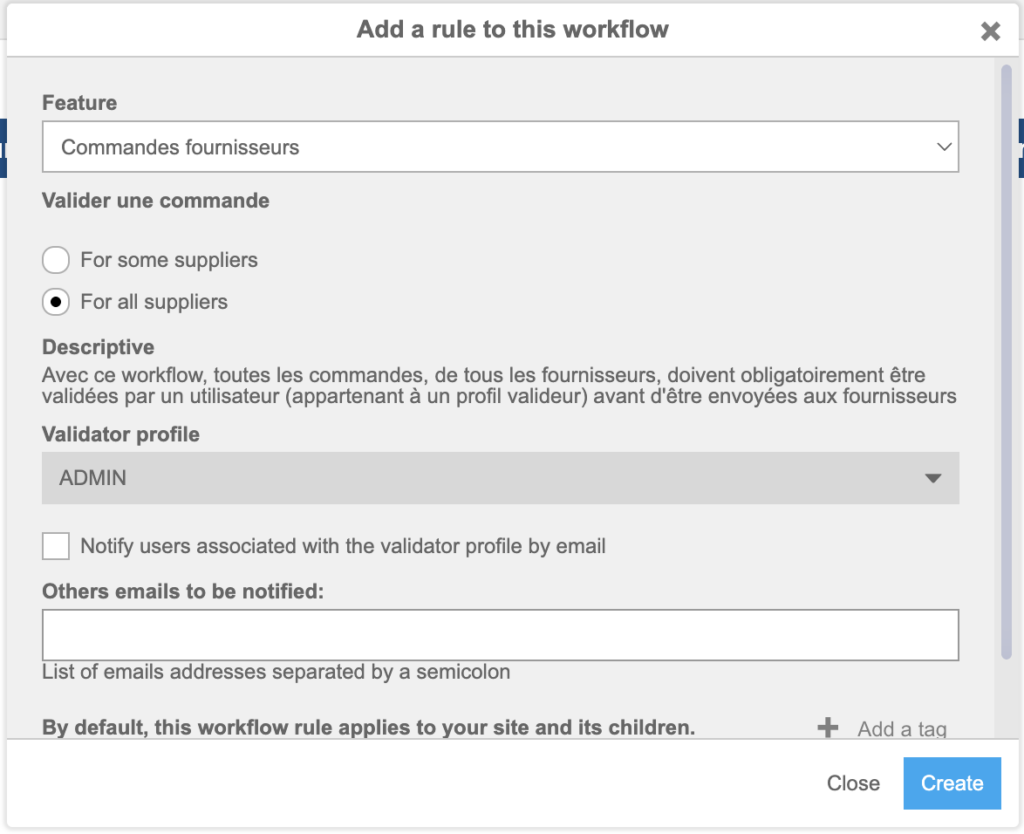
An Add a rule to this workflow pop-up window appears:
- In Feature, select Supplier orders.
- Under Validate an order, choose whether the rule applies to all suppliers or only some suppliers:
- For all suppliers: every supplier order will require validation using this workflow rule.
- For some suppliers: the workflow will only apply to suppliers where the option Enable order validation workflow is enabled on their supplier record.
- This is useful if only certain suppliers require approval (for example, high-spend vendors or specific categories).
- To enable this per supplier, open the supplier record and enable Enable order validation workflow (see Understand all parameters of the supplier form for where to find this setting).
- Select the Validator profile (the user profile responsible for validating orders). This determines which users can approve orders before they are sent.
Configure notifications
- If you want validators to be notified by email when an order validation is requested, tick Notify users associated with the validator profile by email. All users with the validator profile will be notified at the email address in their account information.
- If you also want to notify additional addresses, enter them in Other emails to be notified (and keep the checkbox ticked).
Note: Separate each email address with a semicolon.
Apply to specific sites (optional)
- If you work with multiple sites, add a dedicated Sites tag (select + Add a tag) to indicate which sites are affected by the rule.
Note: If all sites are set to have orders validated by a manager, then the tag is not necessary. All child sites of the site on which you created the rule will be affected by it.
Save the rule
- Select Create. The rule will now appear in the Workflows list.