


Note: Actions on the Easilys platform depend on your user access permissions. If you cannot perform the actions below, it may be due to restrictions on your user profile. Contact the Support team or your administrator for assistance.
Start from: The Easilys menu.
- Navigate to Supplier orders > Supervision of order dispatch.

The supervision screen provides a multi-site view of supplier order statuses. As a manager overseeing multiple establishments, this tool helps you quickly check whether orders have been sent, received, are pending, or have encountered errors.
- To refine the visualization of the orders in the grid, select the Filter button. The available filters are:
- Site: Select one or more sites from the list to display orders associated with specific locations. The sites are listed by default in this filter.
- Supplier: Filter orders based on a specific supplier or a group of suppliers.
- Order Status: Filter by the current status of orders:
- Not sent: Orders that are still in the order basket and have not been sent.
- En attente (Pending): Orders that are awaiting further action.
- Envoyée (Sent): Orders that have been successfully sent to the supplier.
- Reçue (Received): Orders that have been fully received.
- Refusée (Rejected): Orders that have been rejected.
- En erreur (Error): Orders that encountered an error during processing.
- Reception Status: Filter by the reception stage of the order:
- En attente de livraison (Awaiting delivery): Orders awaiting delivery.
- En cours (In progress): Orders currently being received.
- En attente (Pending): Orders pending further reception.
- Échouée (Failed): Reception attempts that failed.
- Terminée (Completed): Orders fully received and completed.
- Fusionnée (Merged): Orders that have been merged with others.
- Sending Mode: Filter by the method used to send the order:
- Pas de mode d'envoi (No sending mode): Orders with no specified sending method.
- Manuellement (Manually): Orders sent manually.
- Par fax (By fax): Orders sent via fax.
- Par EDI non normé (By non-standard EDI): Orders sent via non-standard EDI.
- Par e-mail (By email): Orders sent by email.
- Par EDI normé (By standard EDI): Orders sent via standard EDI.
- Date sent: Specify a date or a date range to display the orders sent during that period.
- Date of receipt: Filter orders by the date or period when the goods were received.
- To locate a specific order, you can also use the Search bar (magnifying glass icon) at the top of the page and enter the order number.
- Select the number of a Not sent order to open the order basket details in a new browser tab.
To change several Not sent orders from different sites to Sent status at once, see the article Bulk change orders from several sites to 'Sent' status.

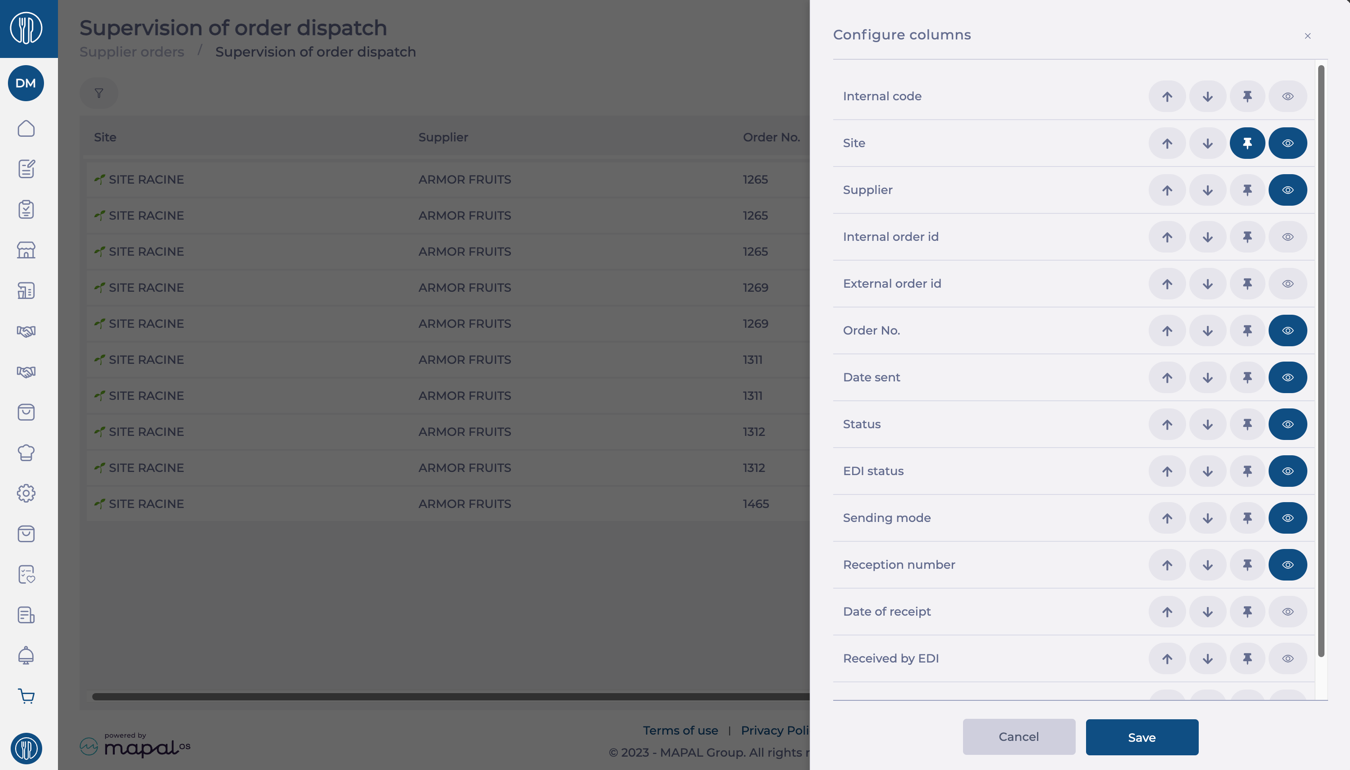
Customize grid columns
Adjust the grid columns to optimize readability and relevance:
- Select Configure (gear icon) to open the Configure Columns window.
- Choose from the following options:
- Change Order (Arrow Up/Down): Move columns to the left (up) or right (down) based on your priorities.
- Pin/Unpin: Keep specific columns fixed for easy visibility.
- Visible/Invisible: Use the Eye icon to toggle column visibility.
- Once the column setup is complete, select Save to apply changes.
Exporting or printing data
- Select the Reports (sheet icon) button.
- Assign a Name to your report.
- Select a Format to export the report. Available formats are ODS, XLS, XLSX, ad PDF.
- Select Generate to download your report.

