


Note: Actions on the Easilys platform depend on your user access permissions. If you cannot perform the actions below, it may be due to restrictions on your user profile. Contact the Support team or your administrator for assistance.
Start from: The Easilys menu.
From the Supervision of order dispatch screen, you can change unsent orders from several sites to Sent status in a single action. This status change does not send the orders to the supplier.
- Select Supplier orders > Supervision of order dispatch.
- Select the filter icon. In the Filters panel, tick Not sent in Order status to display the unsent orders.
- Tick the Not sent orders that you want to change to Sent status. You can select orders from several sites.
- Select Status.
Note: The Status button is active as soon as an order is selected.
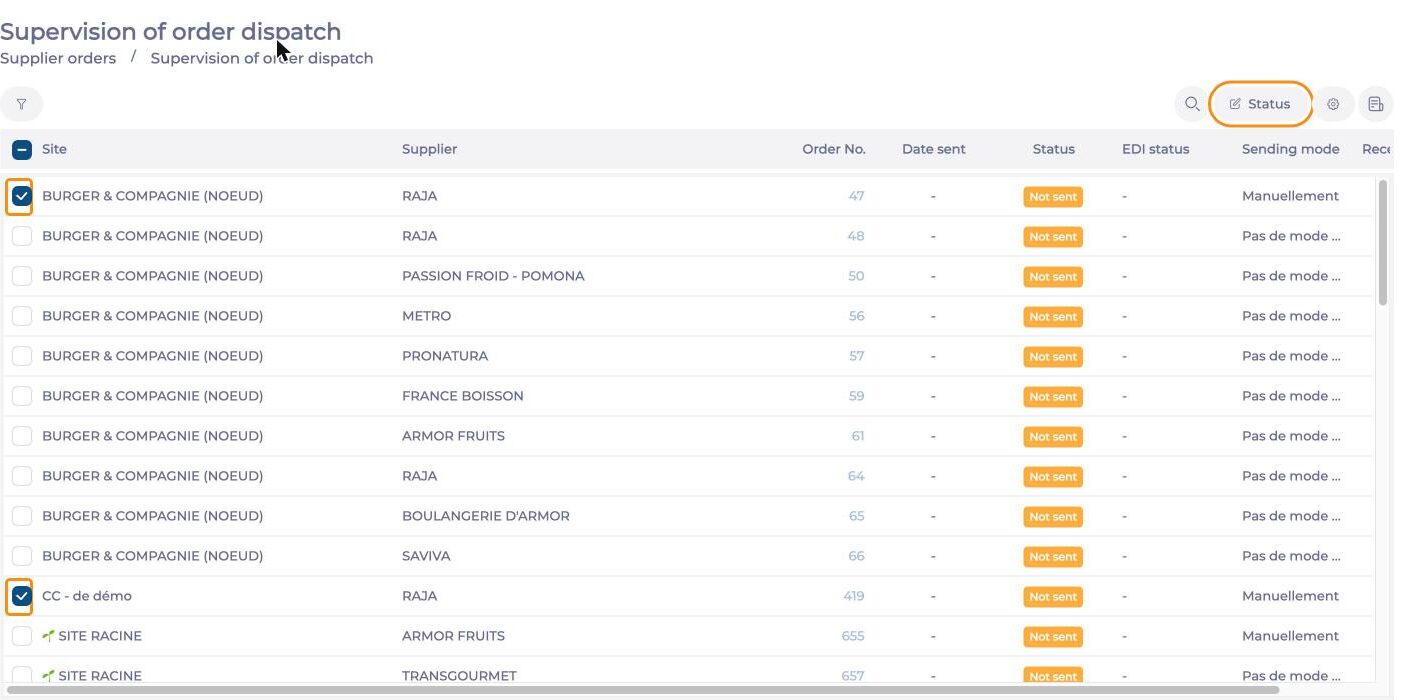
- In the Change of order status window, select Yes.
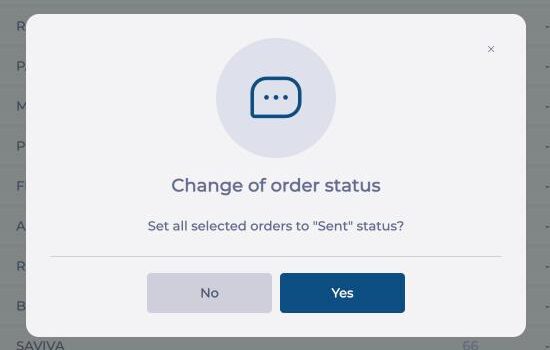
The selected orders change to Sent status.
Note: This status change is the equivalent of sending the orders manually. Easilys does not send the orders to the supplier: you inform the supplier by other means, for example by telephone.
Difference with the Track orders screen
The Track orders screen also lets you change several orders to Sent status, but only for the current site. To find out more, see the article Bulk change a list of supplier orders to 'manually sent' status.
