Note: Every action within the application is subject to user permissions. If you are unable to perform the actions described in the articles you are consulting, it may be because the required permissions are not enabled for your user profile. Contact the Support team or your administrator for more information.
Start from: The Easilys menu.
View stock movement details for a single product
If the product is visible in stock
- Select Stock > Stock v2.
- Select the Stock movements or Stock section.
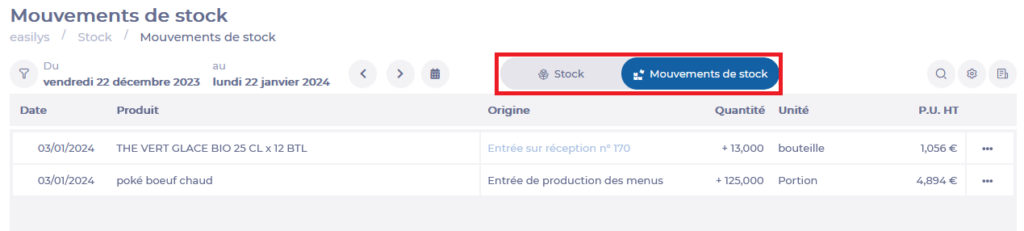
- Search for the product whose stock movement details you want to view.
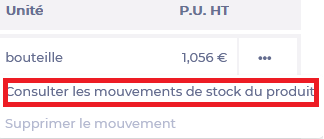
- Select the three dots at the end of the relevant product line.
- Select View stock movements for this product.
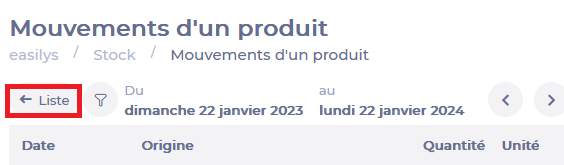
The Product movements window appears on screen.
- Select List to return to the list of products in stock.
If the product is not visible in stock
- Select Stock > Stock v2.
- Select the Stock section.
- Select the filter icon.

- Select the Quantity filter.
- The filter options appear — select Quantity = 0 or Quantity < 0.
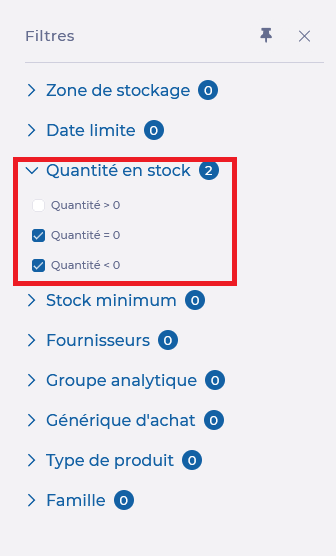
Only products that are no longer in stock are displayed.
- Search for the product whose stock movement details you want to view.
- Select the three dots at the end of the relevant product line.
- Select View stock movements.
- Select List to return to the list of products in stock.
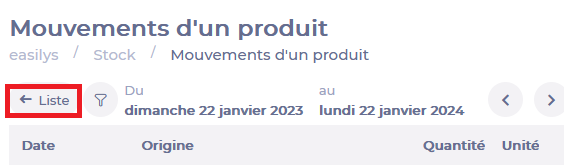
Note: Remember to reset the Quantity filter to Quantity > 0 when you are done.
View all stock movements over a period
- Select Stock > Stock v2.
- Select the Stock movements section.
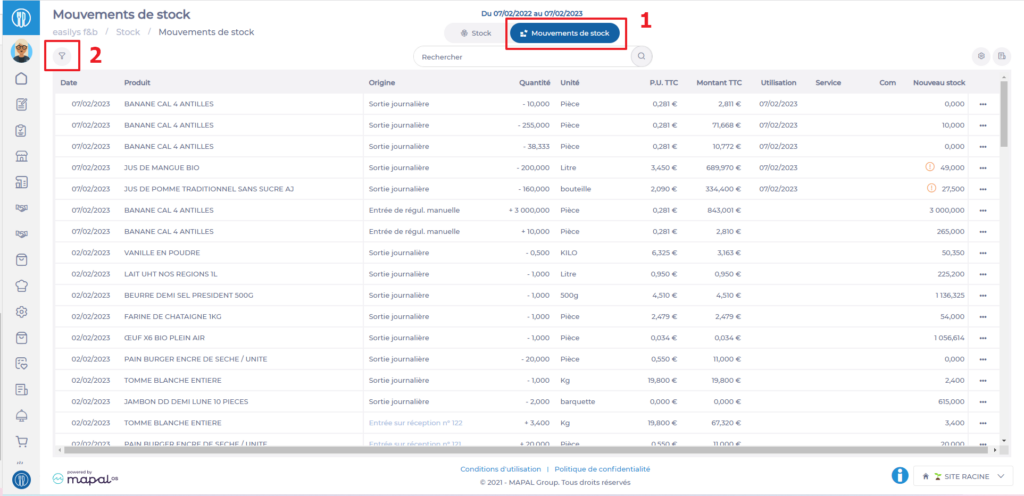
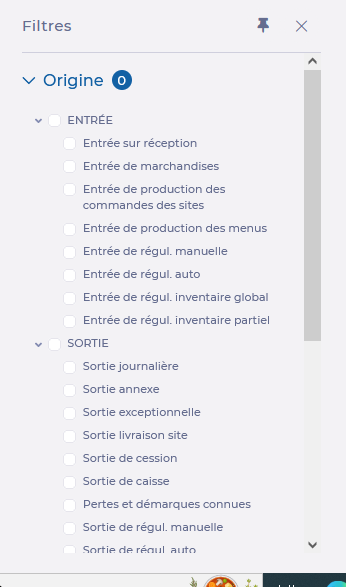
- Select the filter icon to filter movements by origin, supplier, and more.
- Select the calendar icon to define the search period.
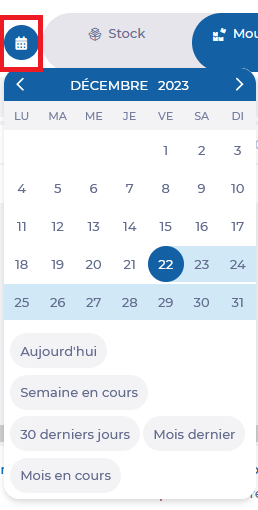
- Use the search bar to filter stock movements by label.

Example: To find all stock movements for products whose label contains "WATER", from 01/01/2022 to 31/12/2022, with the origin set to daily output — enter the label, set the date range, and apply the relevant origin filter.
You can also view movement details for a specific product from the Stock movements section by selecting the three dots at the end of the relevant product line, then selecting View stock movements for this product.
View the details of a movement
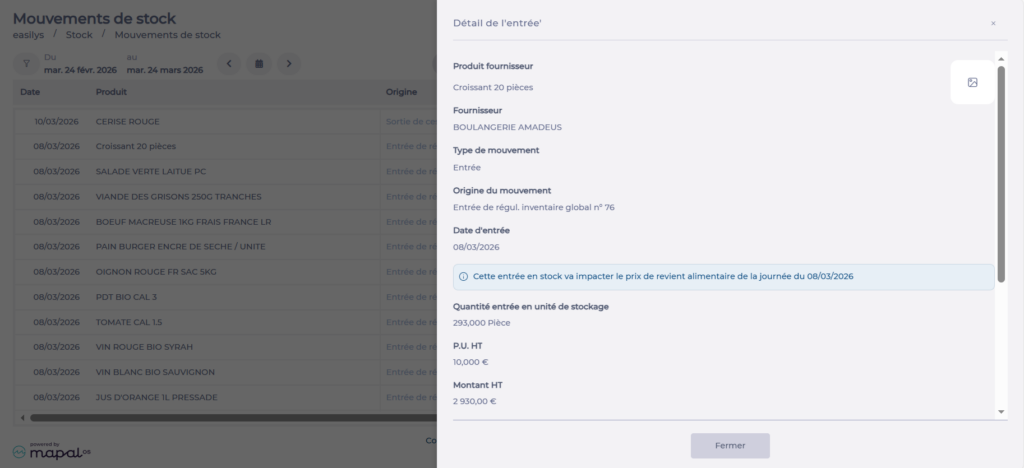
Once the list of movements is displayed, select View details on any movement to open the detail side panel.
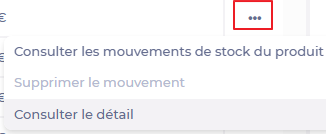
The information shown depends on the type of movement.