


Start from: The Easilys menu.
Create a shopping cart
- Select Supplier orders > Supplier orders.
- Use the search bar to find the supplier product you need to order.
- Scroll to the supplier product you wish to order and select it.
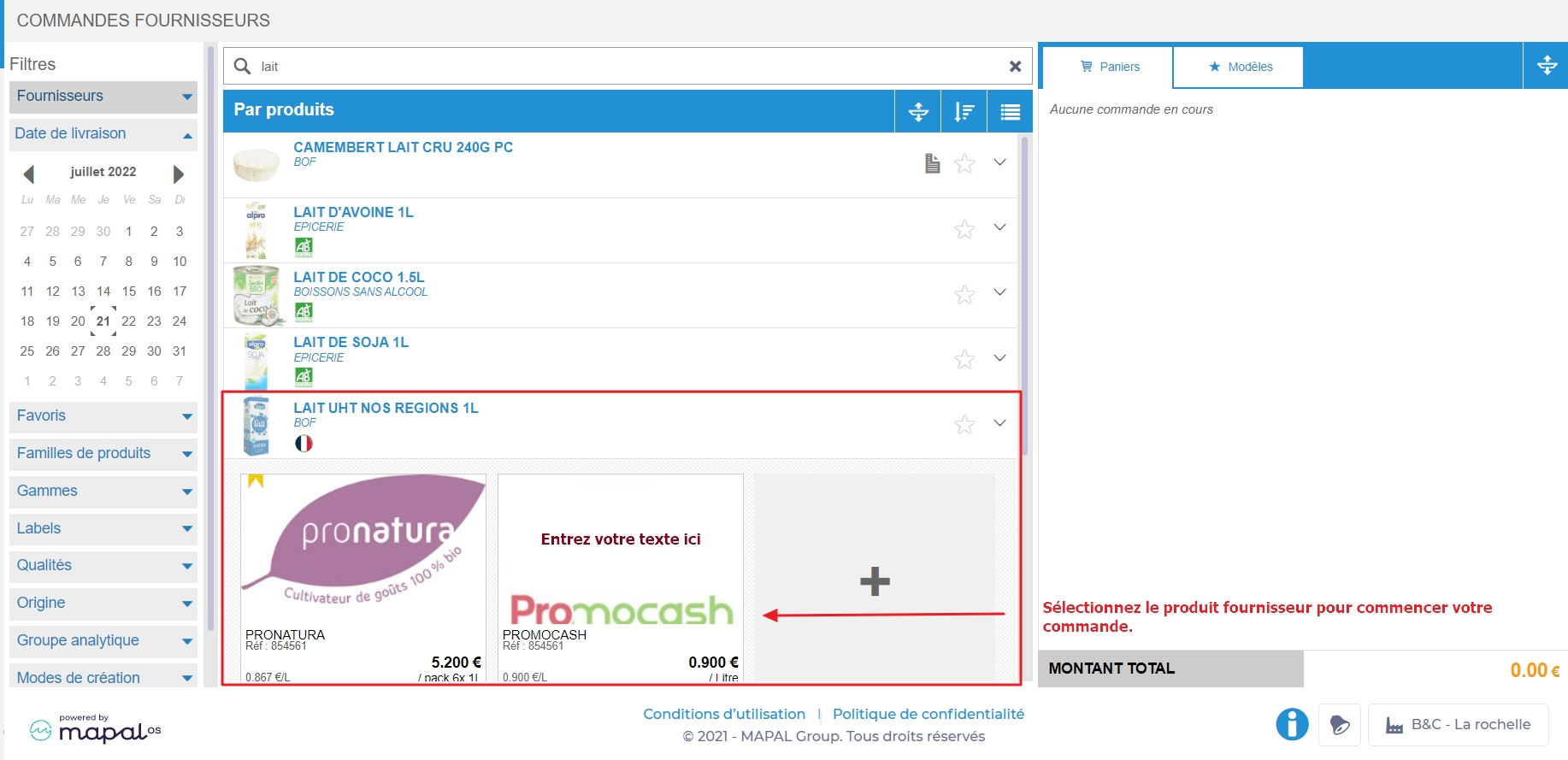
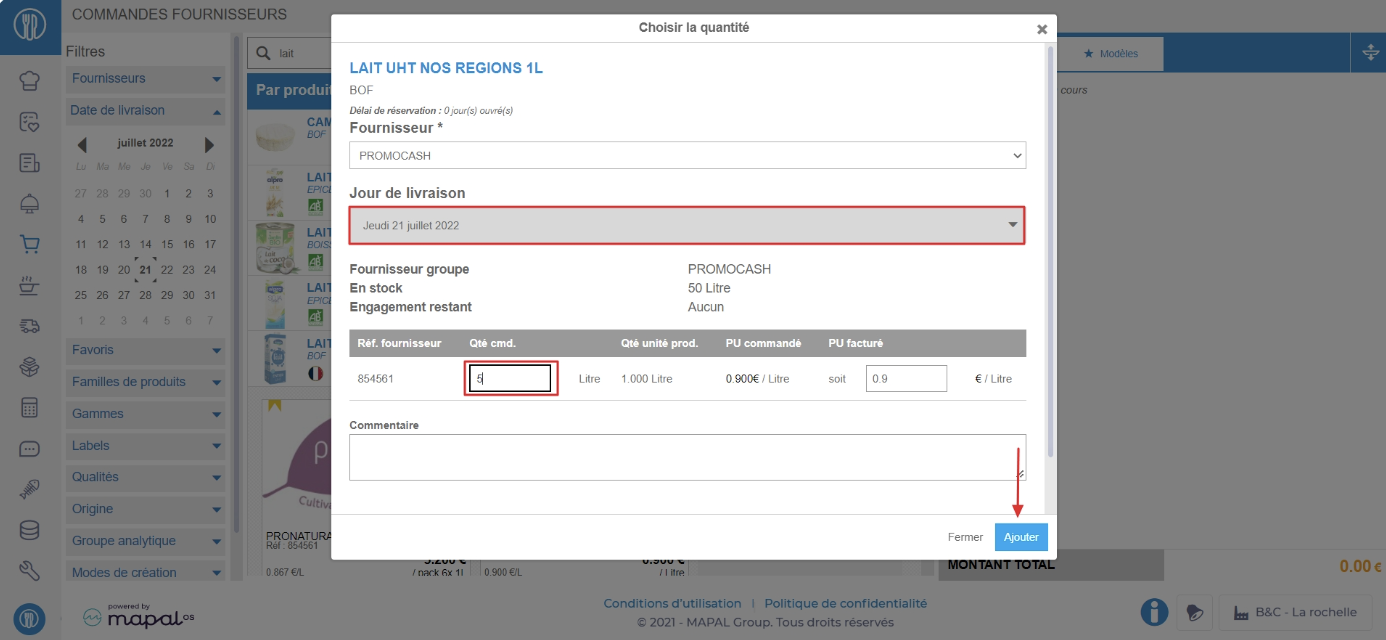
The Choose quantity window appears.
- Check that the delivery date is correct.
Note: If no other date is suggested, you need to review the supplier master record, which may be incorrectly configured. To find out more, see Create a new supplier record.
- Enter the quantity to be ordered.
- Select Add.
The shopping cart is now created and is visible in the Shopping carts section. Select the cart to open it.
Note: The order number assigned during the creation of the delivery note can either be unique across your entire organisation or unique to your site. For more information on this configuration, found under Tools > Configuration, please contact your administrator or the Support team.
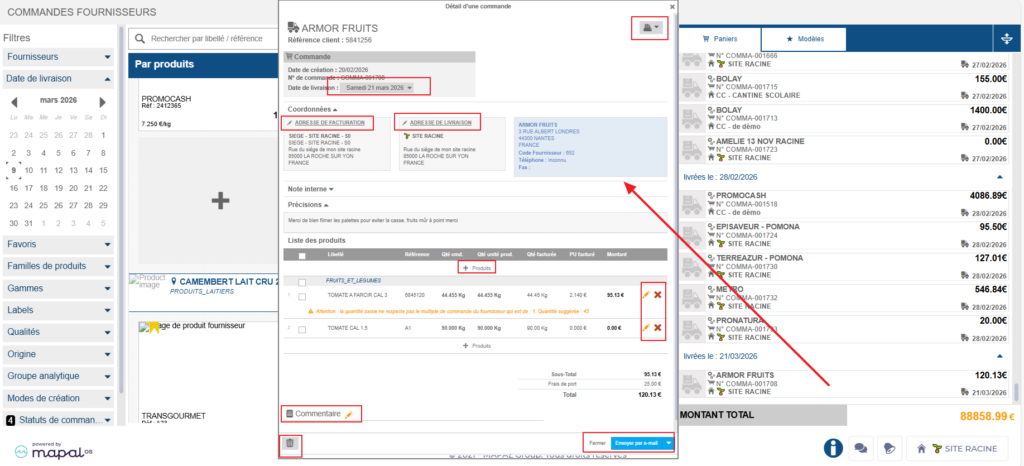
Once the shopping cart is open, you can:
Print or download the order
- Select the print icon.
- Select the desired format.
Edit the delivery date
- Select your chosen delivery date next to Delivery date.
Edit the billing site
- By default, the billing location is either the order location or the delivery location, depending on the option selected in the site settings.
- Select the desired location if the one indicated is not suitable.
Edit the delivery site
- Select the desired location if the one indicated is not suitable.
- Depending on the option selected in the site settings, changing the delivery location may or may not result in a change to the billing location.
Add further supplier products
- Select + Products to add further supplier products to this order.
Edit a line
- Select the orange pencil next to the line you want to edit.
Remove a product
- Select the red cross next to the product you want to delete.
Add a comment to the shopping cart
- Select the orange pencil next to Comment. The Update comment for this order window appears.
- Write your comment in the Comment to add to the order box.
- Select Update.
Delete the shopping cart
- Select the bin. The Delete order window appears.
- Select Delete.
Save and close to continue later
- Select Save and close.
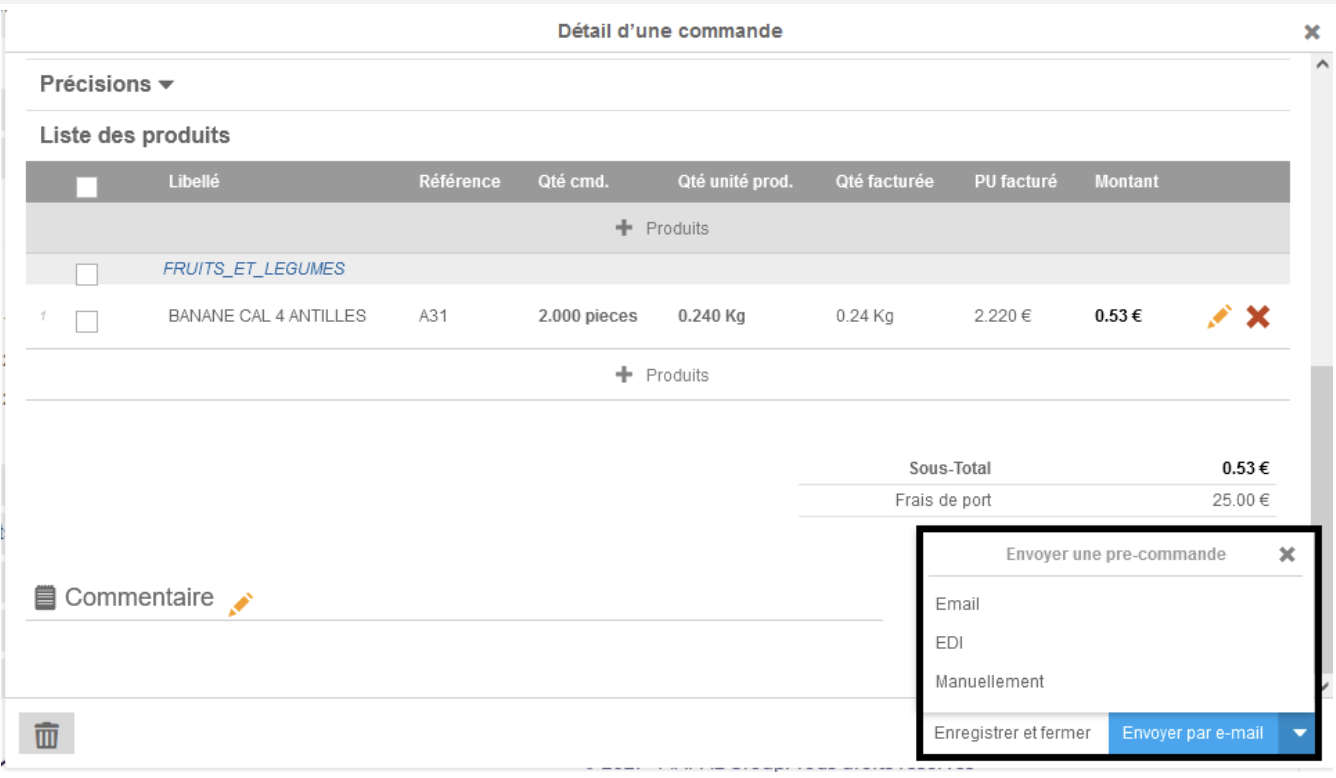
Send an order
- Select the shipping method if more than one is available.
- Select Send manually or Send by… depending on the shipping method chosen.
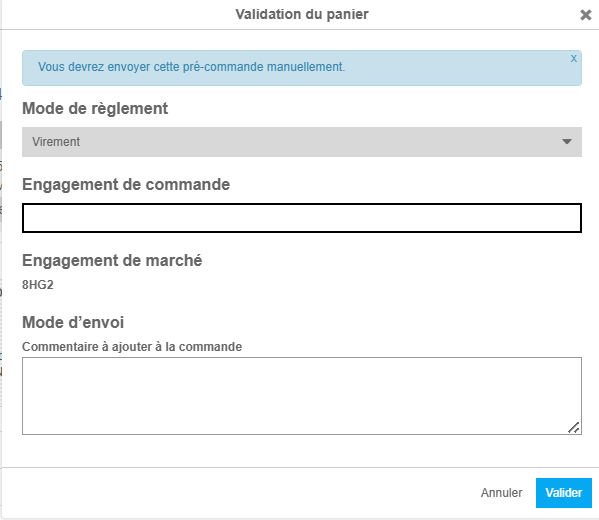
A confirmation window appears. It allows you to specify:
- The payment method (options depend on the supplier's profile).
- The order commitment (only visible if enabled in the supplier's profile).
- The comment, which will be visible to the supplier on the order form they receive.
Select Confirm to finalise and send your order.
Once confirmed, the shopping cart disappears and a confirmation message appears. Orders sent from Easilys automatically generate a receipt, which you only need to validate after delivery for all products to enter stock.
