


Note: each action performed on the application is subject to access permissions. If you are unable to carry out the recommended actions in the articles you are viewing, this may mean that the necessary rights have not been enabled for your user profile. Contact the Support team, or your administrator, to find out more.
Start from: the Easilys menu.
The loss entry report enables you to print out the contents of loss and markdown entry templates, so that you can manually transfer all losses before entering them into Easilys. This enables all losses occurring during a service to be recorded instantly and easily.
Download the loss report
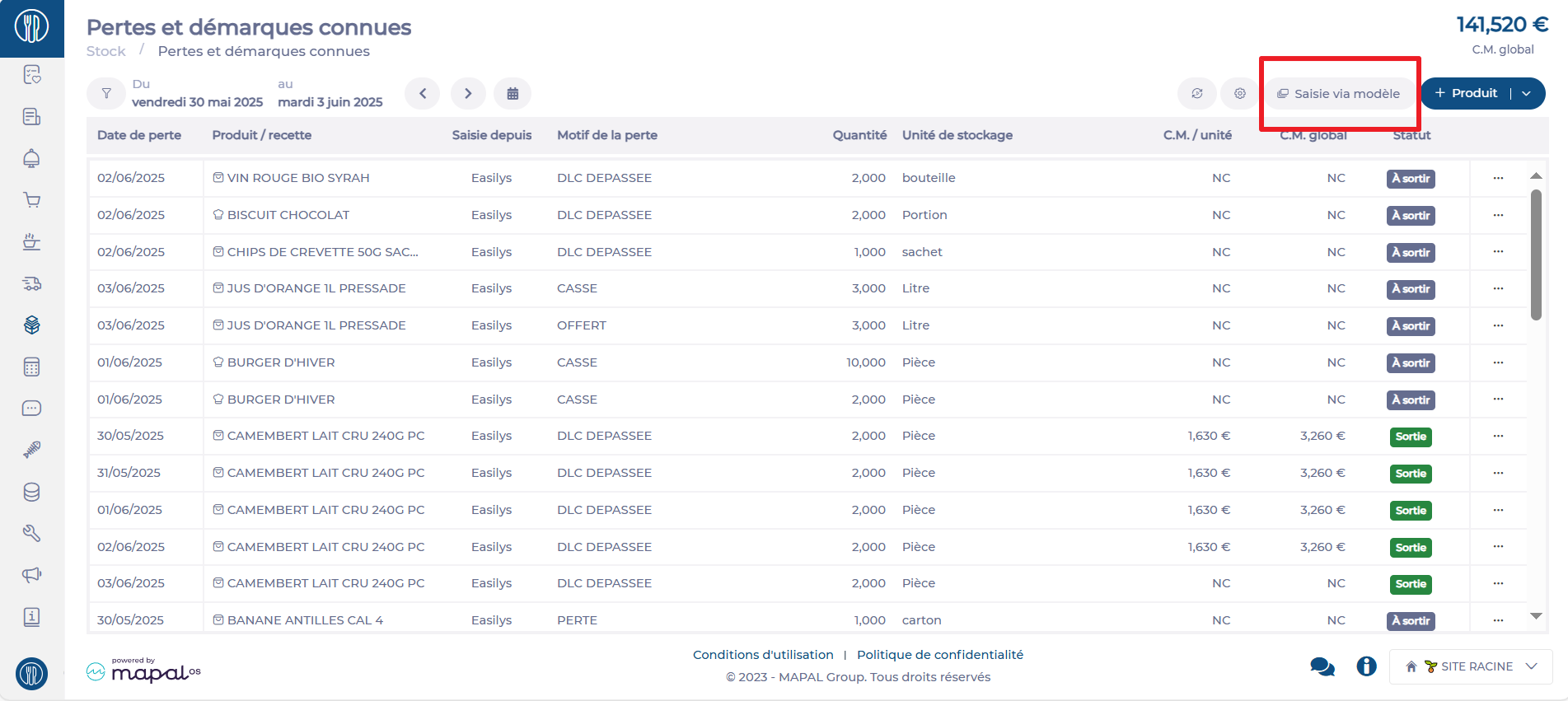
- Go to Stock > Known losses and markdowns.
- Select Input via template.
- Select the desired Date.
- Select Reports.
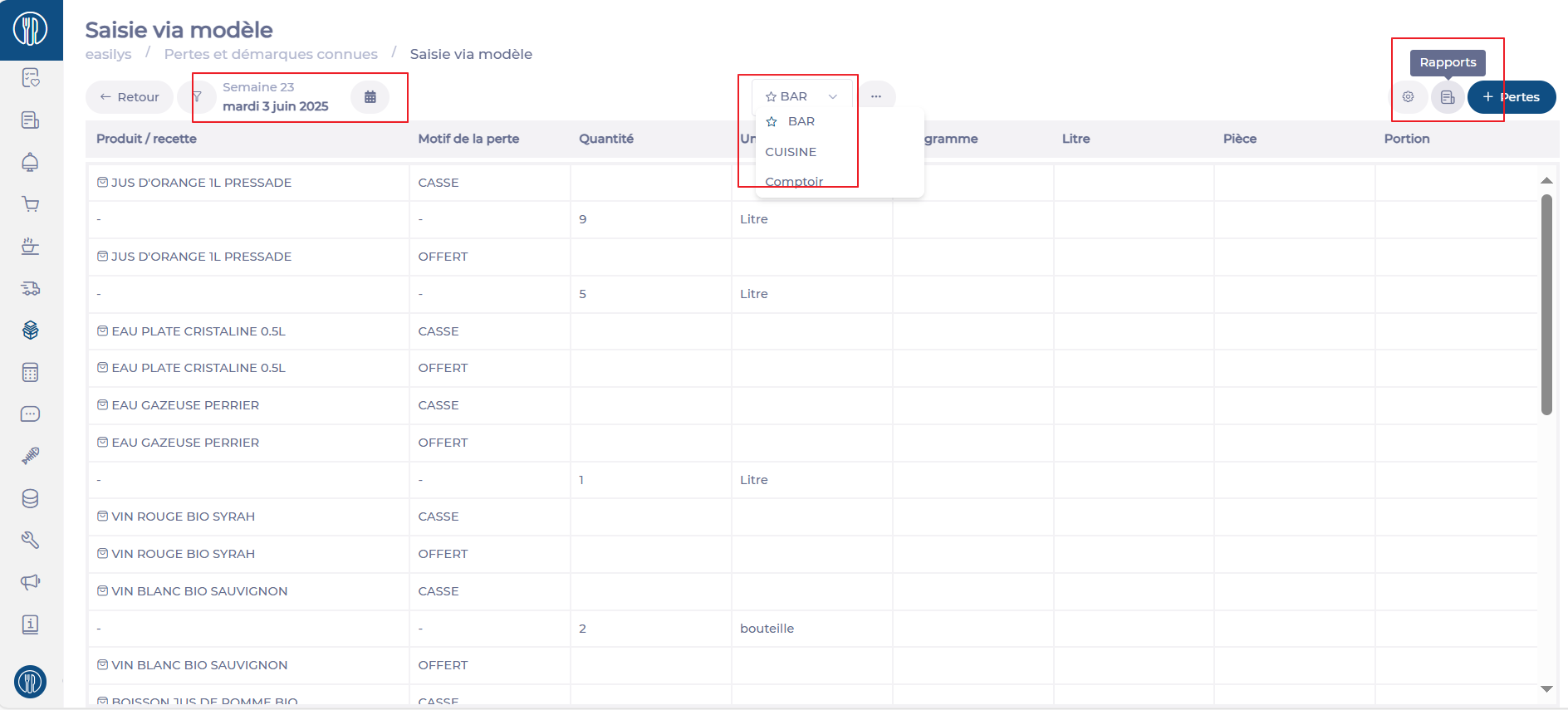
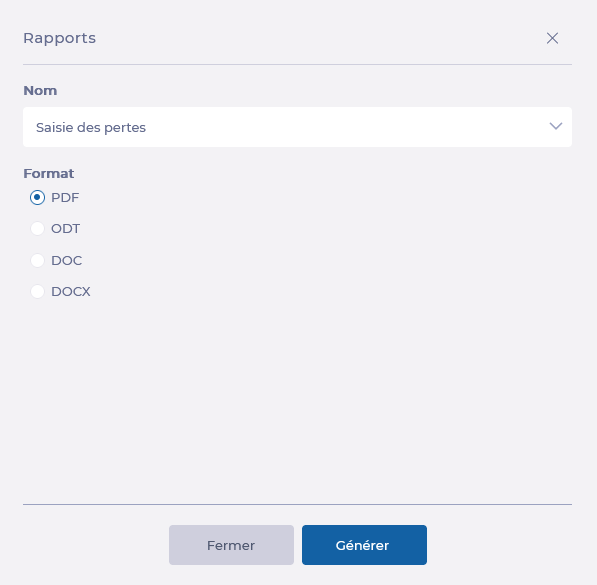
The Reports window appears on the right.
- Select the Loss Capture report and the format you want to download.
- Select Generate.
Use the loss entry report
The Loss Capture report shows several columns containing the data set in the selected template:
- Name: the name of the product or recipe concerned.
- Reason: reason for the loss or markdown.
- Quantity (Qty): quantity of the loss or markdown, to be filled in by hand.
- Storage unit of the product or recipe (Kilogram/Liter/Piece/Portion): destocking unit of the product or recipe.
- Note the quantity lost in the Qty column, specifying units if necessary.
- Transfer this data directly to the Known losses and markdowns screen, following the article Manually record known losses and markdowns.
