


Notes: every action available in the app is subject to access permission. If you cannot perform the actions recommended in the articles you consult, this may mean that the necessary permissions are not enabled for your user profile. Contact the Support team or your administrator to learn more.
Start from: The supplier portal login page.
Suppliers wishing to participate in client tenders can request access to the Easilys Supplier Portal. Once your access has been granted:
- Visit the Supplier Portal.
- Enter your username and password as provided by the customer support team.
- Click Log in to access your Supplier Portal.

Note: If you are a supplier and would like access, please contact our support team to request login credentials and information on how to get started.
Select a tender
Once logged in, the Call for tenders - Home dashboard will display, here:
- Select the client whose tenders you would like to respond to from the dropdown list.
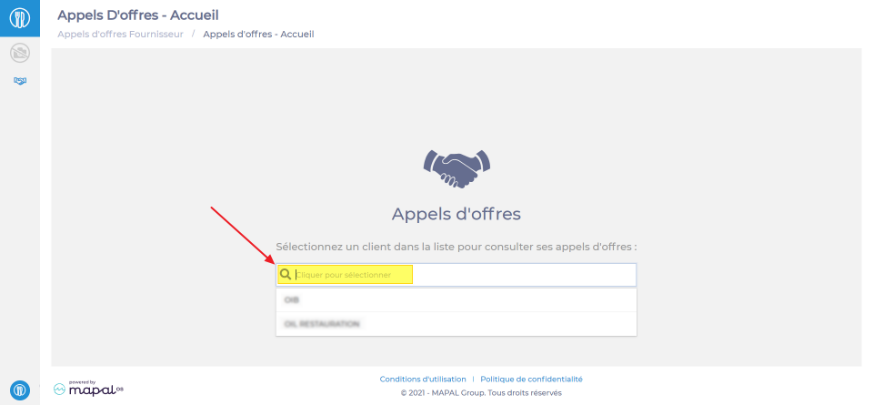
- A list of available tenders for that client will appear.
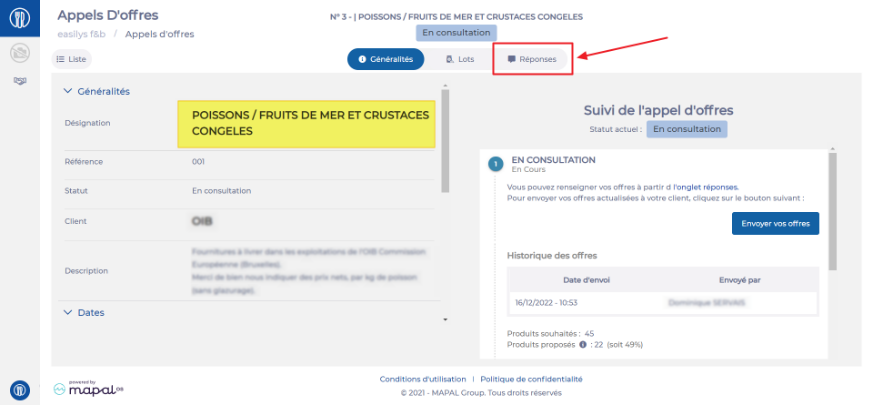
- Choose the tender with the status Consultation to open the tender details.
- Click on the Responses tab (located at the top-right of the tender details page) to begin entering your responses.
Switch between clients
To respond to tenders from different clients:
- Go to the sidebar menu on the left-hand side.
- Click on your username.
- Select Change client from the menu.
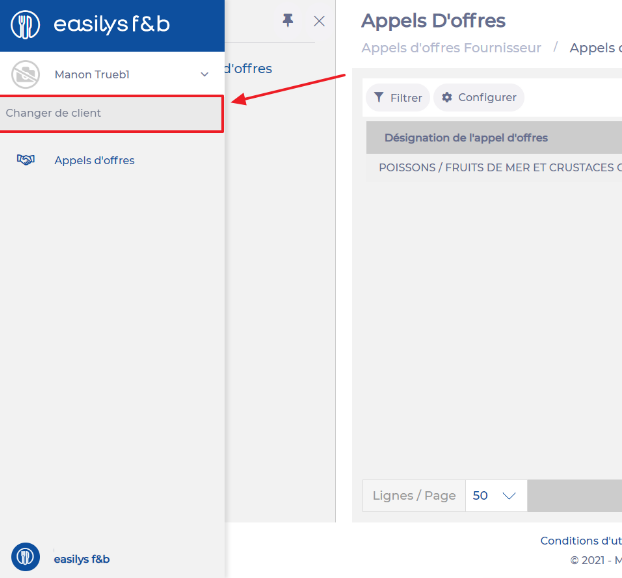
You will be redirected to the Call for Tender - Home screen, where you can choose another client.
