


Display your rights
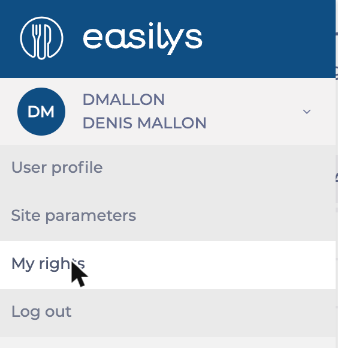
Start from: the Easilys menu.
- Select your name in the menu panel.
- Select My rights.
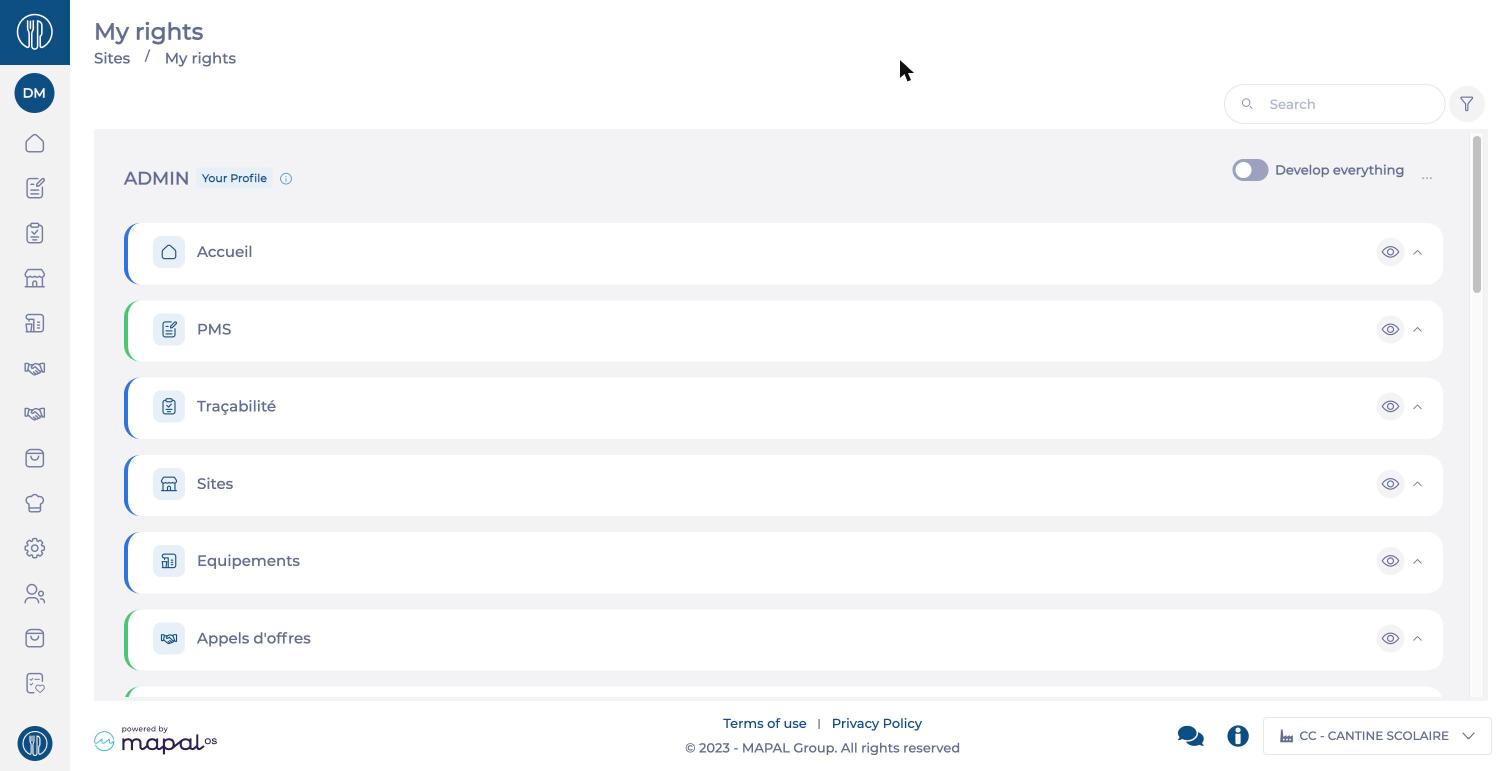
The page shows your profile name (for example ADMIN, with the Your Profile tag), then the list of Easilys modules.
Read the page
- Only the screens enabled for your profile and the rights granted to you are shown. Anything that does not appear here is not available to you.
- Select a module to show its screens, then a screen to show the actions you can carry out on it. The Develop everything switch expands or collapses everything.
- The counter next to a screen name (for example 10 / 12) shows the number of actions you are allowed out of the total number of actions available on that screen.
- For each action, a short description explains what it is for. A tag shows its type: Read, Create, Update or Delete.
- To find a screen or an action quickly, type a word in the Search field or use the filter button.
Note: This page is for viewing your rights: you cannot change them here. You can only choose which screens appear in your menu (see Hide screens from your menu). To get a right you do not have, contact your administrator.
If a screen is missing from your menu
There are two possible reasons:
- the screen is not enabled for your profile. If it does not appear in My rights, ask your administrator for it.
- you hid the screen in your navigation menu: see Hide screens from your menu.
To understand how profiles, screens and rights fit together, see Understand rights management in Easilys.
