


Note: Every action within the application is subject to user permissions. If you are unable to perform the actions described in the articles you are consulting, it may be because the required permissions are not enabled for your user profile. Contact the Support team or your administrator for more information.
Start from: The Easilys menu.
FFs (Supplier Invoices) are to be reconciled with FARs (Invoices to be Received) to identify potential anomalies.
FFs can be generated automatically upon validation of a reception if you have indicated in the supplier record that the delivery note serves as a Supplier Invoice. They can also be generated automatically if you operate with an EDI system.
Otherwise, it is possible to manually enter the FFs received from your suppliers, either linking them directly to a FAR or not.
Option 1: Create a standalone FF
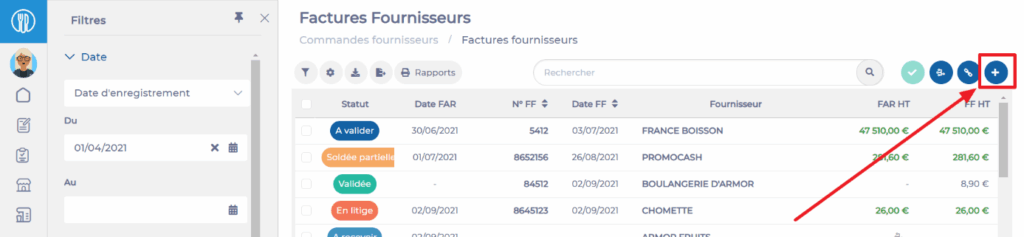
- Select Supplier Orders > Supplier Invoices.
- Select + Create at the top right of the screen.
Easilys displays a blank purchase invoice by default. You can change the invoice type to a credit note in the General section under the Type line.
- Complete the required information in the General section. Fields marked with an asterisk (*) are mandatory in order to save the new invoice.
Note: The right-hand side of the General tab displays guidance on the procedure to follow. This information updates according to the stage you are at in the invoice validation process.
- Complete the information in the Supplier Invoice section.
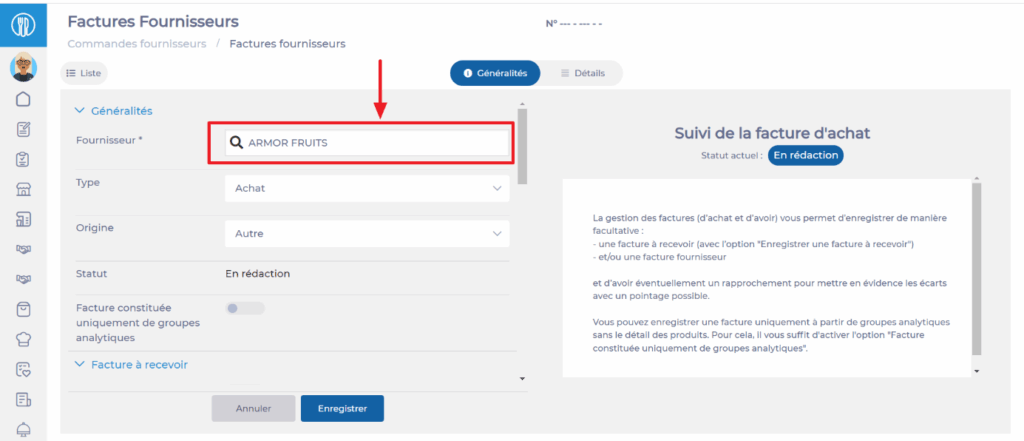
- You can then complete the information in the other sections as needed.
- Select Save.
The invoice is created.
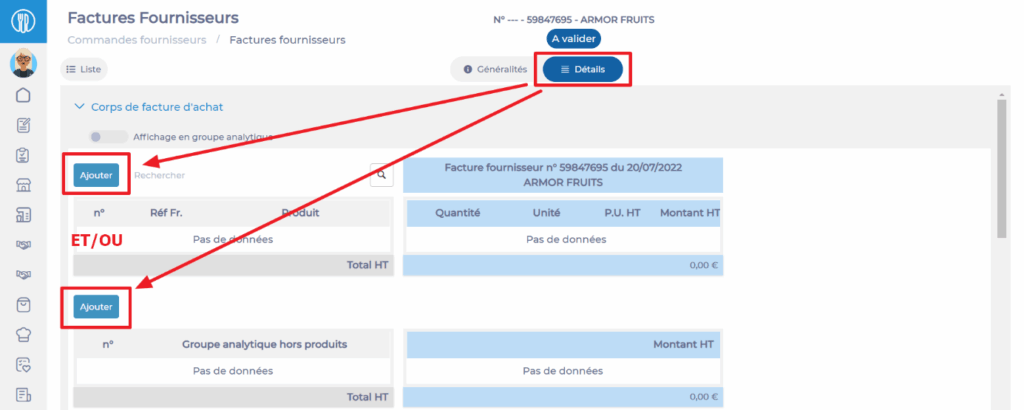
- Go to the Details tab of the invoice to add the non-product analytical groups and/or the products concerned by the invoice.
- Select Add to add a line to the invoice.
Option 2: Create an FF by linking it directly to an existing FAR
- Select Supplier Orders > Supplier Invoices.
- Select the FAR corresponding to the FF you need to enter.
The invoice details appear in the General tab.
- Select Edit.
- Complete the information in the Supplier Invoice section. The supplier invoice number is mandatory.
- Select Save.
Easilys will then offer to automatically generate the Supplier Invoice by copying the information from the FAR. You will then be able to modify the details as needed. This option can save you time, but you are free to proceed this way or enter everything manually.
- Go to the Details tab of the invoice to add or modify the lines of the FF.
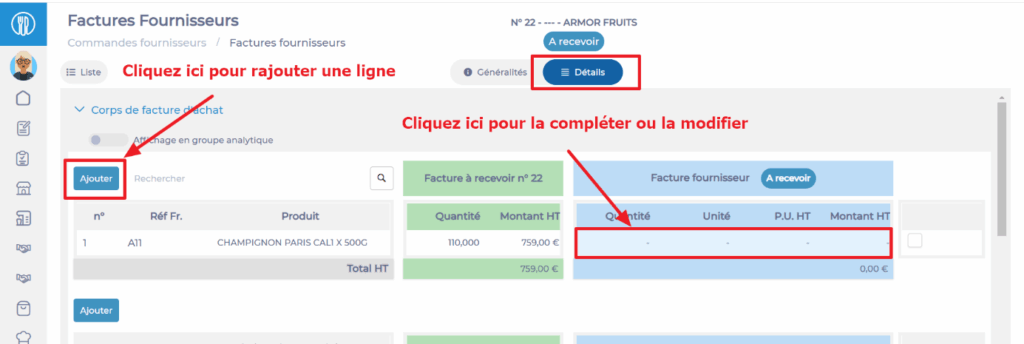
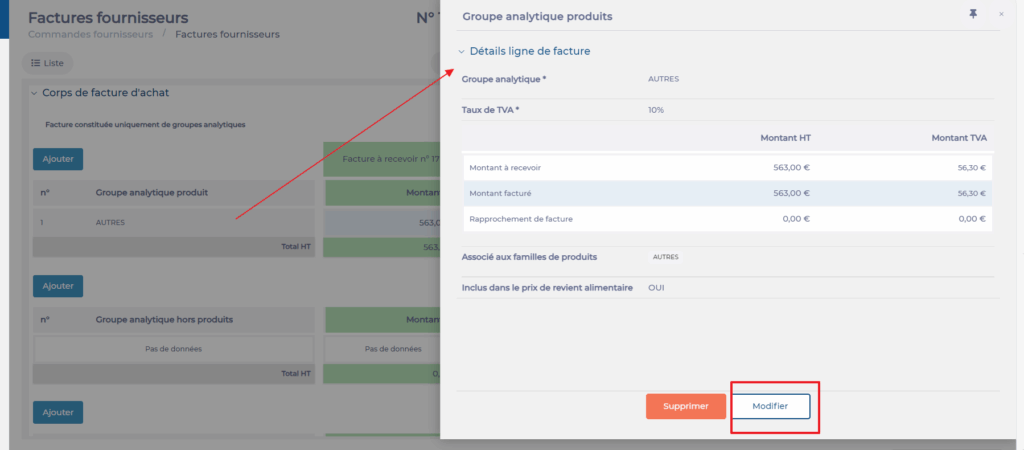
To add or modify information on a line, select the product or analytical group line. A panel will appear on the right of the screen allowing you to modify the invoicing information for both the FAR and the FF.

Once your FF has been filled in, it appears in the invoice list with the status TO VALIDATE. For more information on reconciling invoices with the status TO VALIDATE, refer to the article Reconcile a FAR and an FF to identify potential anomalies.
