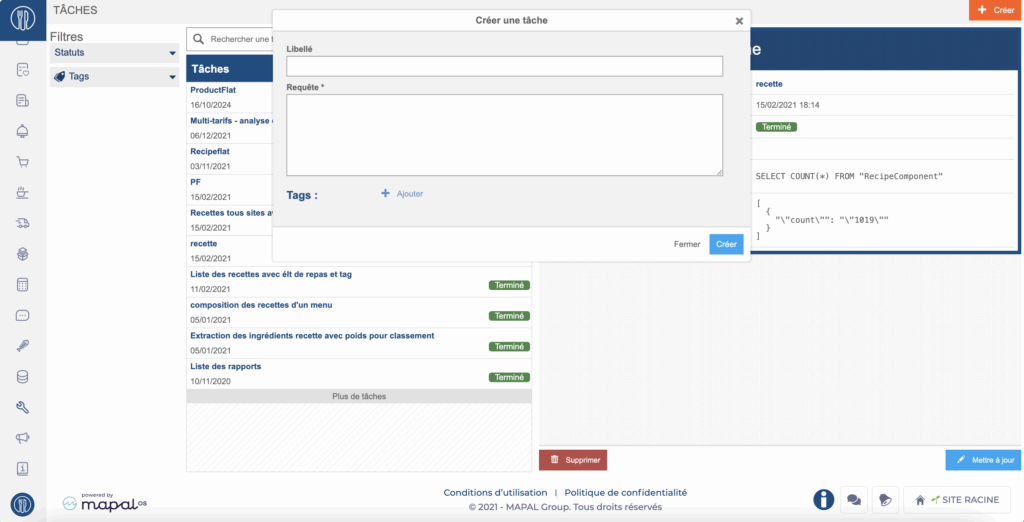
Start from: The Easilys menu.
- Select the tabs Tools > Tasks.
- From this screen, you can launch existing tasks or create them. Creating tasks requires SQL skills. If you do not have them, contact the support team.
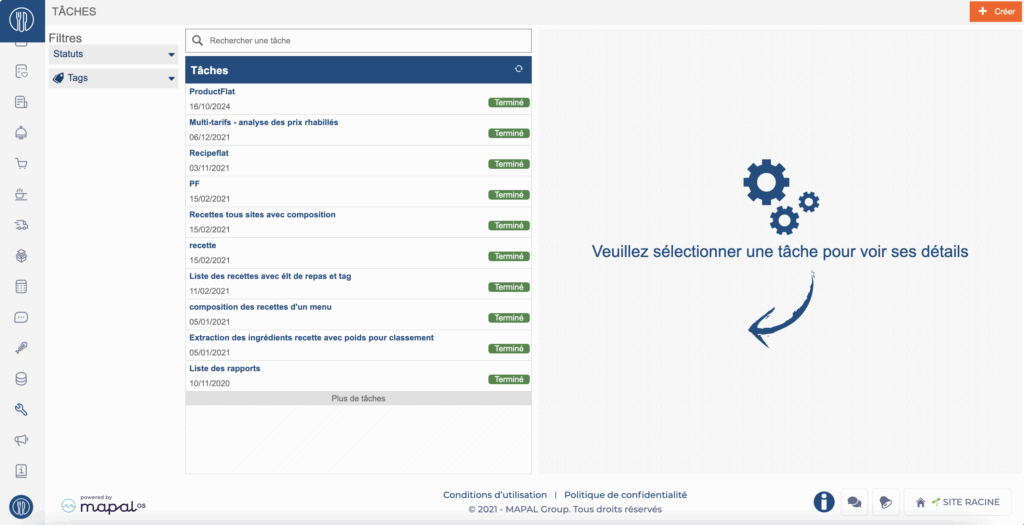
Execute an existing task
- Select the desired task using the search filters on the left and the label search area if needed.
- Click on "Restart"
- Wait for the execution to finish
- Click on "Export"
- Open the generated file
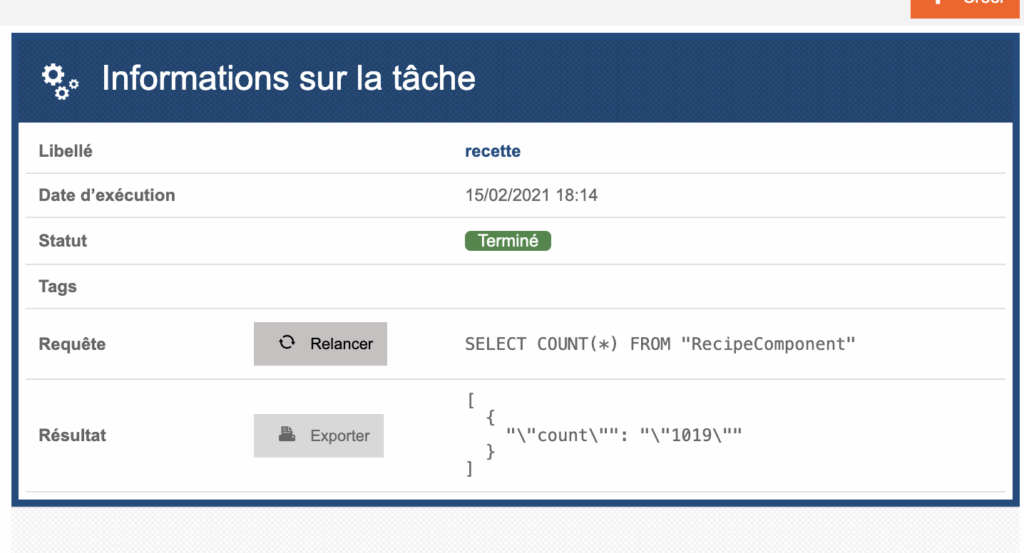
Modifying an existing task
- Select the desired task using the search filters on the left and the label search area if needed.
- Click on "update"
- Make the desired modifications.
Note: Creating tasks requires SQL skills. If you're not comfortable with this, reach out to your customer success manager for more information. - Click on "update" to validate your modifications

Create a new task
- Click on "create"
- Enter the name of the task you want to create
- Enter the query. /! Creating tasks requires SQL skills. If you do not have them, contact the support team.
- You can add a tag to your task to find it more easily through the filters
- Click on Create to validate your creation