Note: Actions on the Easilys platform depend on your user access permissions. If you cannot perform the actions below, it may be due to restrictions on your user profile. Contact the Support team or your administrator for assistance.
Start from: The Easilys menu.
- Navigate to Products > Products administration – V2.
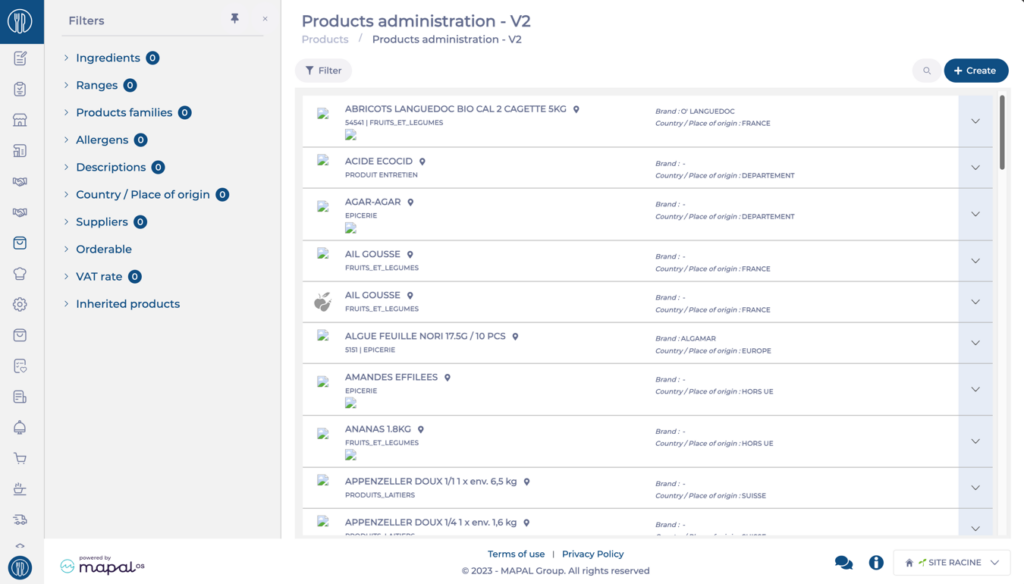
The Product Administration V2 screen offers enhanced functionality for managing industrial and supplier products. To learn more about the difference between industrial and supplier products, see The concepts of ingredient, industrial product, and supplier product.
Industrial products
The main grid shows a list of all available industrial products.
Create industrial products
- Select + Create.
- Enter the required product details.
Note: Industrial products can be created without linking them to supplier products or price lists.
- Select Save to complete the creation process.
View industrial product details
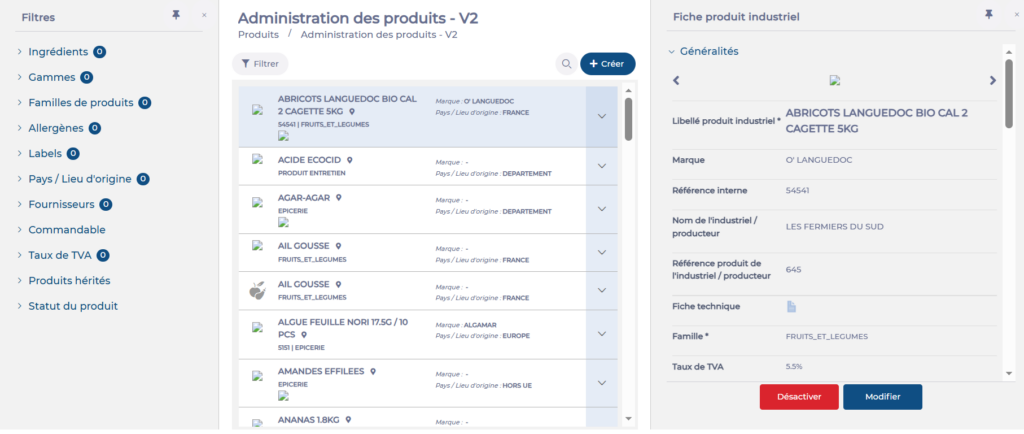
- Select an industrial product from the list.
- View details such as:
- Product information: Name, description, and characteristics.
- Traceability information: Creation date, user, last update details, and location.
- Consumption: Efficiency ratio, weight per piece, etc.
- Logistics and storage information: Appropriate storage areas, packing types and codes, etc.
Edit an industrial product
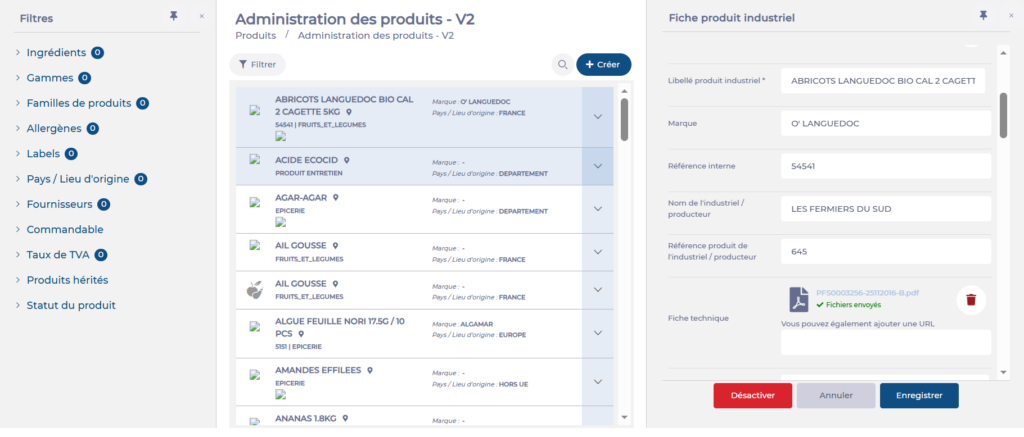
- Select the industrial product.
- Select Modify.
- Edit the required fields as needed.
- Select Save to confirm changes.
Disable an industrial product
Note: Inherited products (those created on a parent site) cannot be disabled.
- Select the industrial product.
- Select Disable.
- Confirm the action by selecting Yes in the pop-up window.
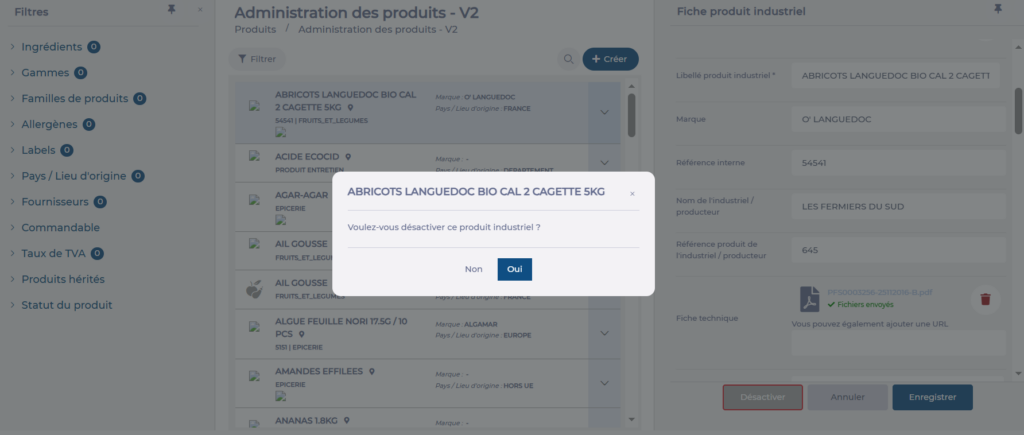
Note: Disabling an industrial product automatically disables all supplier products linked to it. A disabled product no longer appears in the product list on the Product Administration V2 screen, but can be shown again using the Product status filter.
Reactivate an industrial product
- Select the Product status filter.
- Check the Disabled option.
- Select the desired product.
- Select Reactivate.
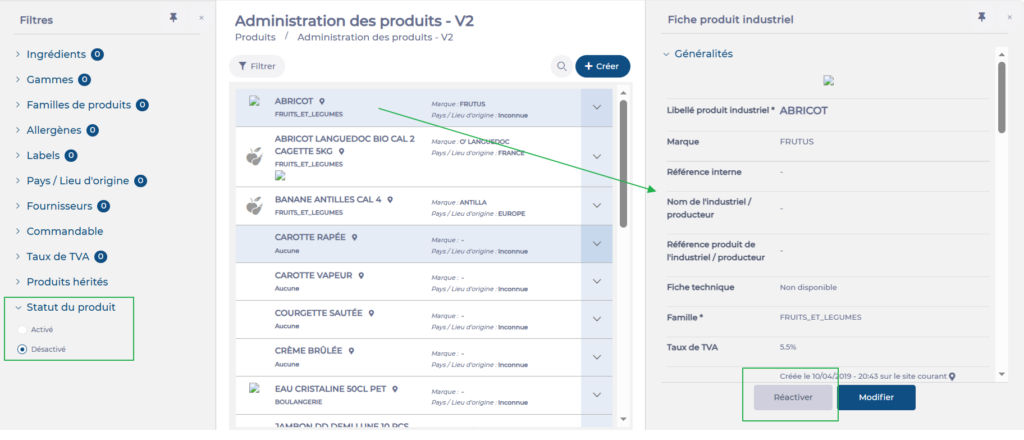
If the industrial product had linked supplier products, these are automatically reactivated at the same time.
Supplier products
To view supplier products, first select an industrial product. Supplier details will be displayed below.
Create supplier products / Link industrial products to suppliers
- Select an industrial product to view details such as potential suppliers, pricing, order, and billing units.
- To create a new supplier product or link this product to a new supplier, select + Create a supplier product.
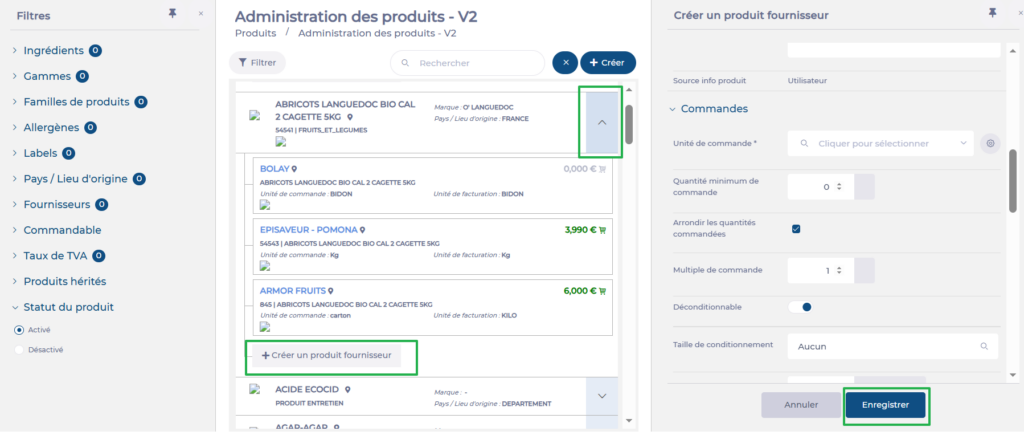
- Select a supplier from the list.
- Add supplier-specific details, including price and attributes.
- Select Save to finish creating your supplier product.
View supplier product details
- Select an industrial product from the list.
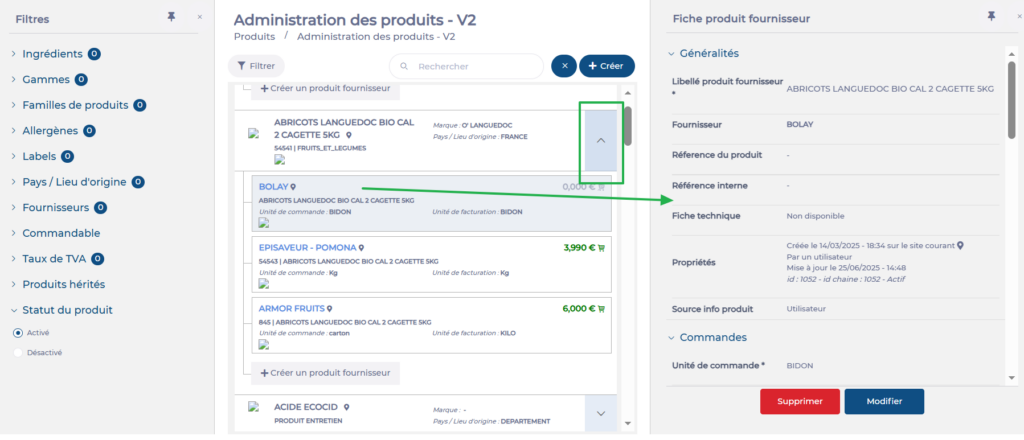
- Select the specific supplier product name.
- View details such as:
- Product information: Name, description, and attributes.
- Traceability information: Creation date, user, last update details, and location.
- Ordering and invoicing information: Order units, minimum order quantity, reservation periods, billing units, etc.
- Stock information: Storage units.
- Commercial conditions: Pricing and price lists associated with this product.
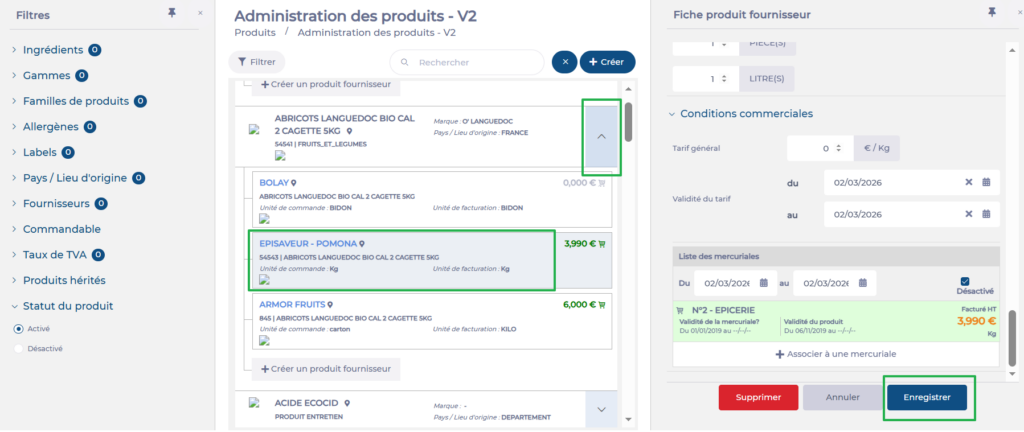
Edit a supplier product
- Select an industrial product from the list.
- Select the specific supplier product name.
- Select Modify.
- Edit the required fields as needed.
- Here, you can also modify the pricing in the List of price lists field (for example, associate the product with a price list, modify current price lists, or disassociate from them).
- Select Save to confirm changes.
Delete a supplier product
Note: Inherited products (those created on a parent site) cannot be deleted.
- Select an industrial product from the list.
- Select the specific supplier product name.
- Select Delete.
- Confirm the action by selecting Yes in the pop-up window.