


Note: Every action that can be carried out in the application is subject to permissions. If you are unable to perform the actions described in this article, it may be because the required permissions are not activated for your user profile. Contact the Support team or your administrator for more information.
Note: Contexts have their own rights: list, create, edit and delete the context of a consumption day (site or menu), and list, create, edit and delete context reasons. If you can't see the context icon, or you can't save, these rights are probably not activated for your profile. To activate them, see Configure a profile's rights.
Site context or menu context
A context can apply to the whole site or to a single menu. This depends on what is displayed when you save it:
- When All menus is displayed, the context applies to the whole site.
- When a menu is selected in Menu(s) of the selected site, the context applies to that menu only. The window then also shows the Menu field.
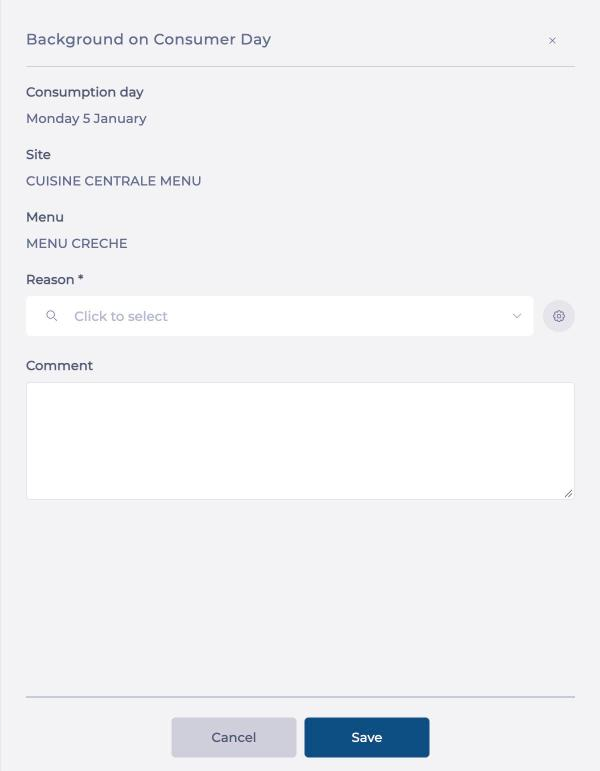
Enter a context
Start from: Menus > Menu quantities
- Select the site in the Sites list, then the week with the arrows or the calendar.
- For a menu context, select the menu in Menu(s) of the selected site.
- Select the context icon next to the consumption day. The Background on Consumer Day window opens. It shows the consumption day, the site and, where relevant, the menu.
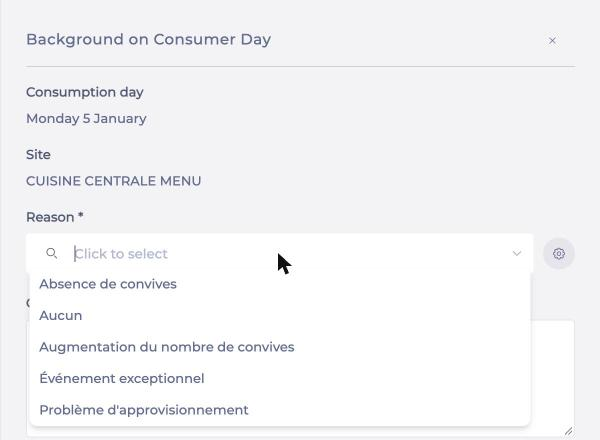
- In Reason, select a reason from the list.
Note: This field is mandatory. If it is empty, a message tells you a reason is required to save the context.
- In Comment, add more detail if needed (for example "Snow").
- Select Save.
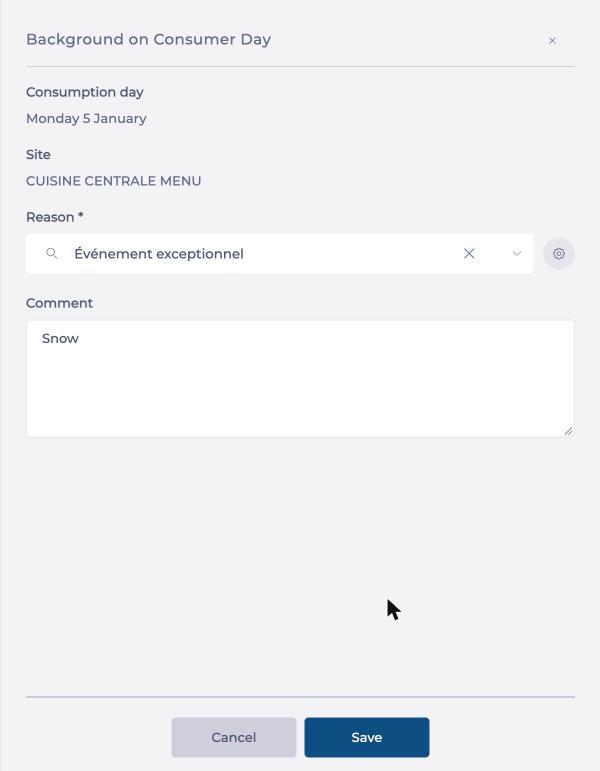
Once the context is saved, a coloured dot appears on the context icon to show that a context exists for that day.

To enter the headcounts themselves, see Enter forecast, ordered and invoiced quantities.
Edit or delete a context
- Select the context icon for the day.
- Change the reason or the comment, then select Save.
- To delete the context, use the delete option in the same window. This requires the right to delete the context of a consumption day.
Manage the available reasons
You manage reasons from the context window, without leaving the screen.
- In the Background on Consumer Day window, select the cog icon next to the Reason field. The Reasons for a Context window opens.
- To create a reason, type its name in Search or create, then select +.
- To edit a reason, select the pencil icon. To delete it, select the bin icon.
- Select Close.
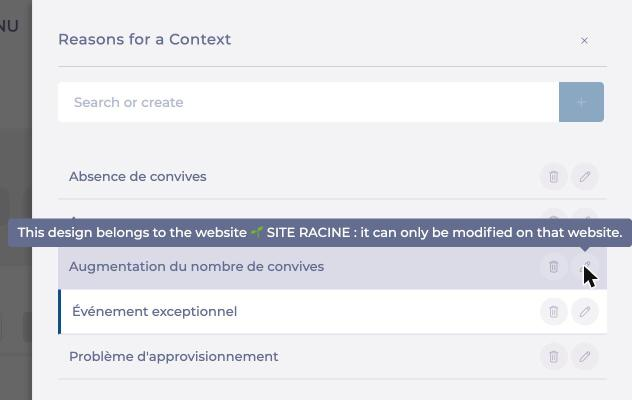
Note: The list combines reasons inherited from parent sites and the site's own reasons. A reason created on a parent site appears on its child sites, but can only be edited from the site that created it. A message tells you this when you hover over it.
