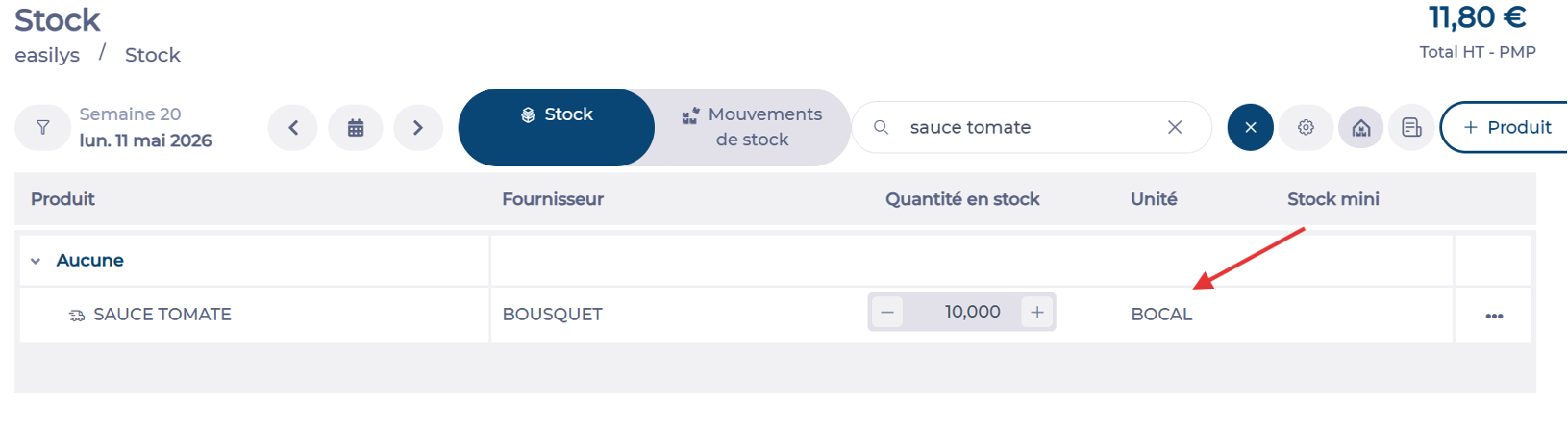
"I have just changed the storage unit of the tomato sauce from kg to jar, but it isn't working — the product still shows in kg in my stock!"
Start from: The Easilys menu.
Example
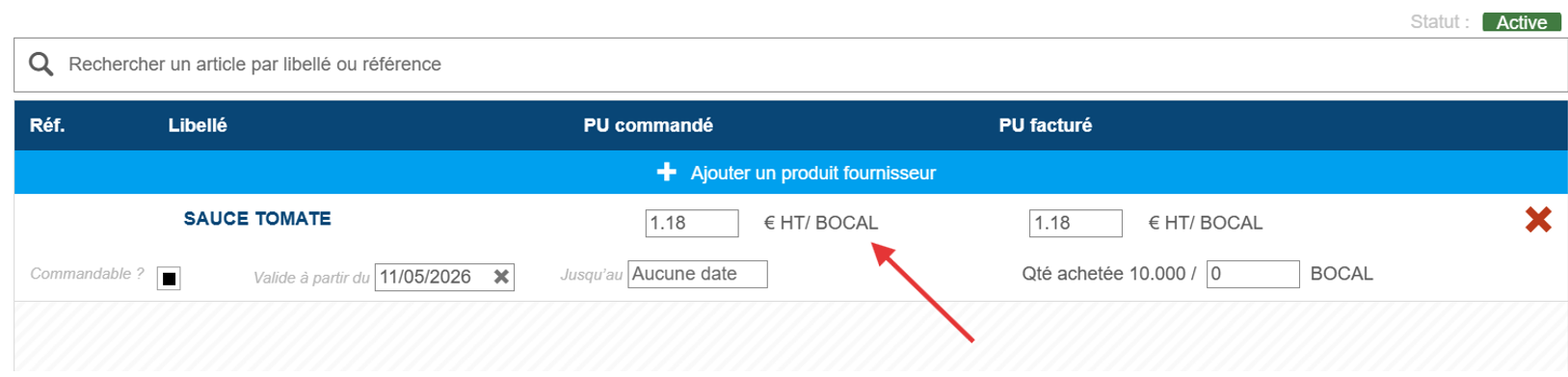
The storage unit of SAUCE TOMATE is changed from kg to jar. Easilys creates a new version of the supplier product with the new storage unit. The stock still holds sauce tomate received previously under the kg unit. That line becomes greyed out, indicating the old version of the product. The stock is corrected by clearing the old line and adding the new version at the correct quantity.
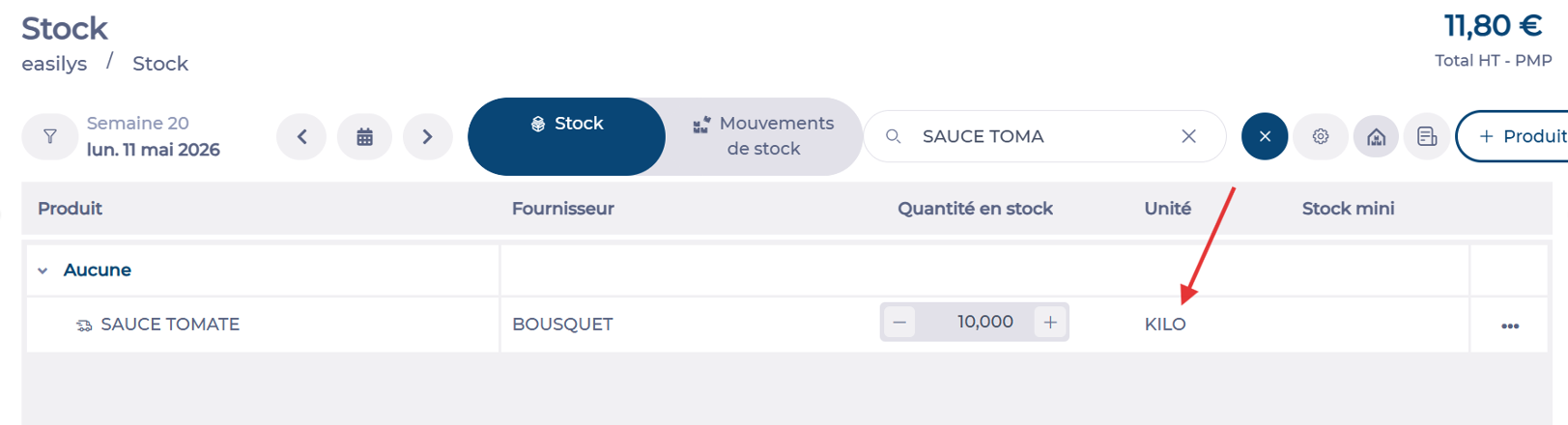
Method 1: Adjust from the Stock screen
Remove the old version:
- Navigate to Stock > Stock.
- Search for the product.
- Select – to record a stock outgoing.
- In the Decrease quantity window, select Regularisation as the movement type.
- Select the Empty stock option.
- Select Validate.
The old version of the product is removed from stock.
Add the new version:
- Select + Add a supplier product.
- Select the product.
- In the Increase quantity window, select Regularisation as the movement type.
- Enter the quantity.
- Select Validate.
The new version of the product is now in stock. Future receptions add to this line without creating a duplicate.
Method 2: Adjust from the original reception
- Reopen the reception in which the product was originally entered.
Note: For guidance on reopening a completed reception, see Reopen a completed reception.
- Set the quantity of the old version of the product to 0.
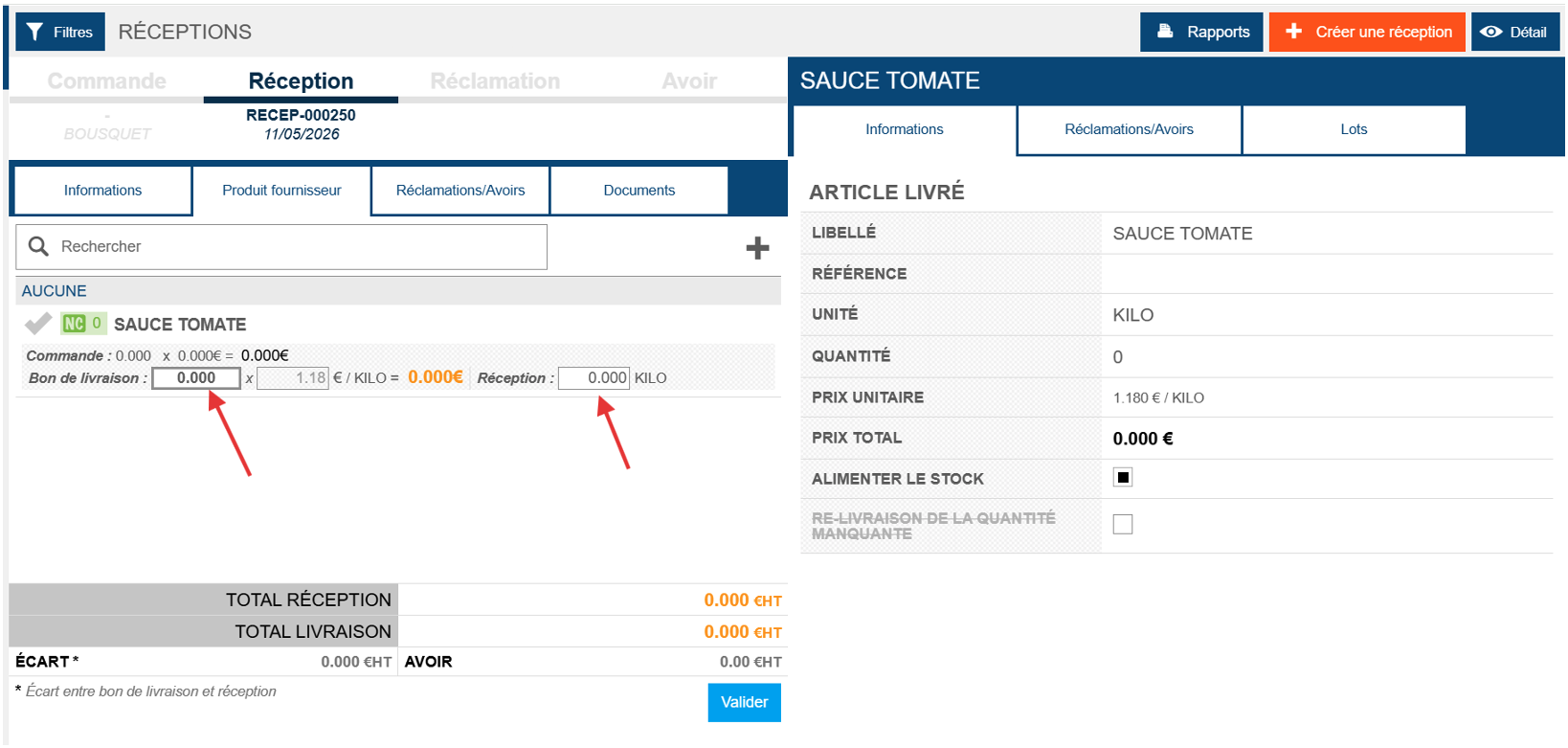
- Select + to add the new version and enter the correct quantity.
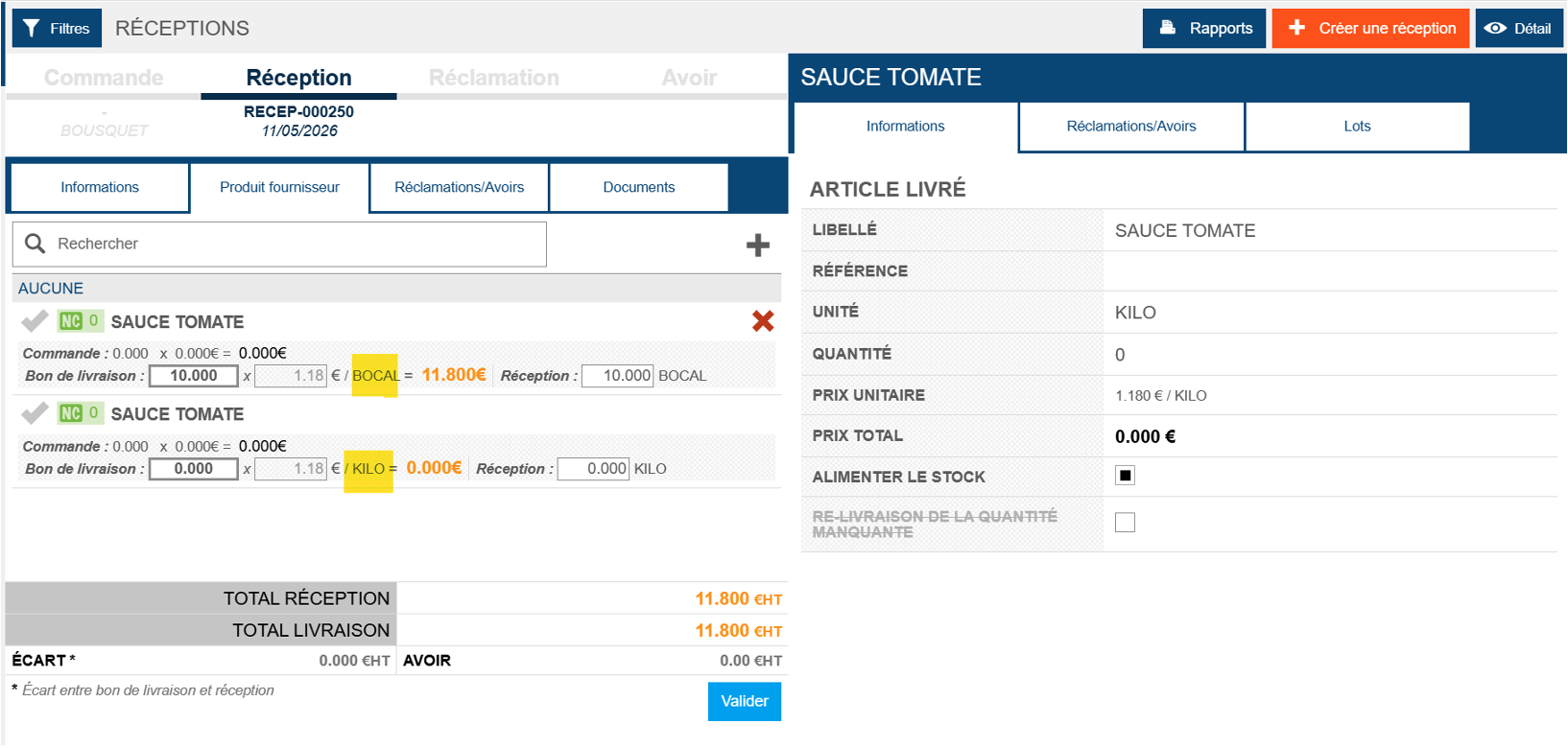
- Validate the reception.
Two lines remain on the reception: the old version at 0 and the new version at the correct quantity. The stock is now correctly updated.