


Note: Actions on the Easilys platform depend on your user access permissions. If you cannot perform the actions below, it may be due to restrictions on your user profile. Contact the Support team or your administrator for assistance.
Start from: The Easilys menu.
- Select Stock > Stock.
- Select the Stock movements section to display the relevant movements (see Consult stock movement details).
- Target a movement with the origin Known losses and markdowns using the filter if needed.
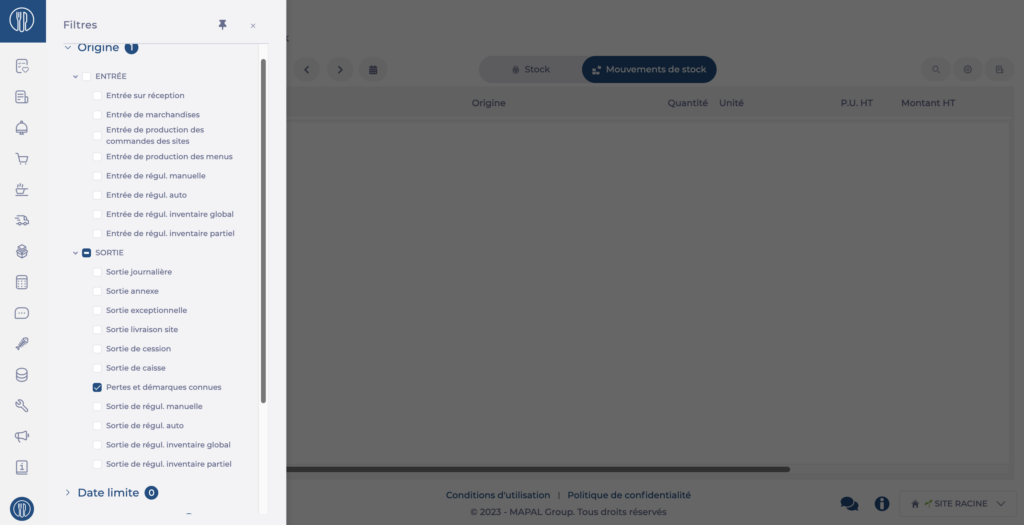
- Select the loss movement for which you want to know the cause. To do this, select Known losses and markdowns directly on the line, or use the … button to access View details.
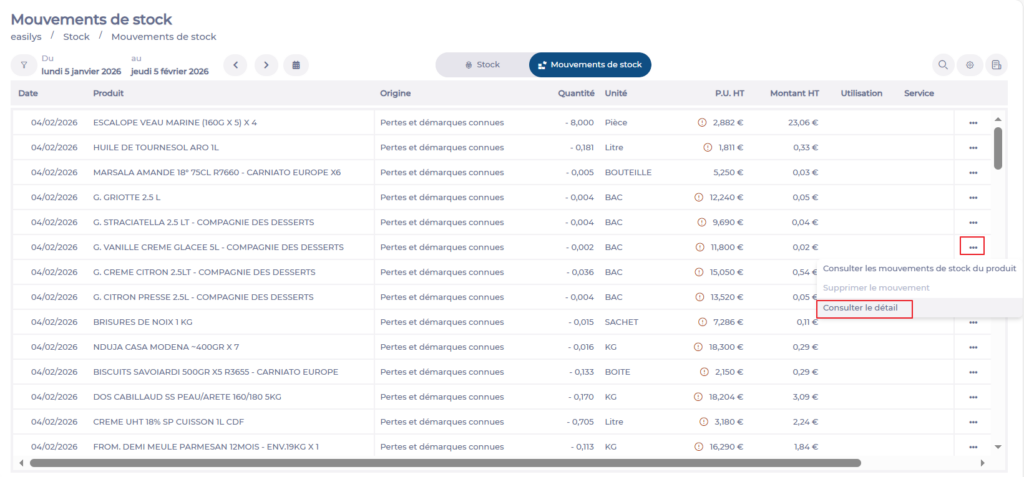
The Output details panel appears, displaying:
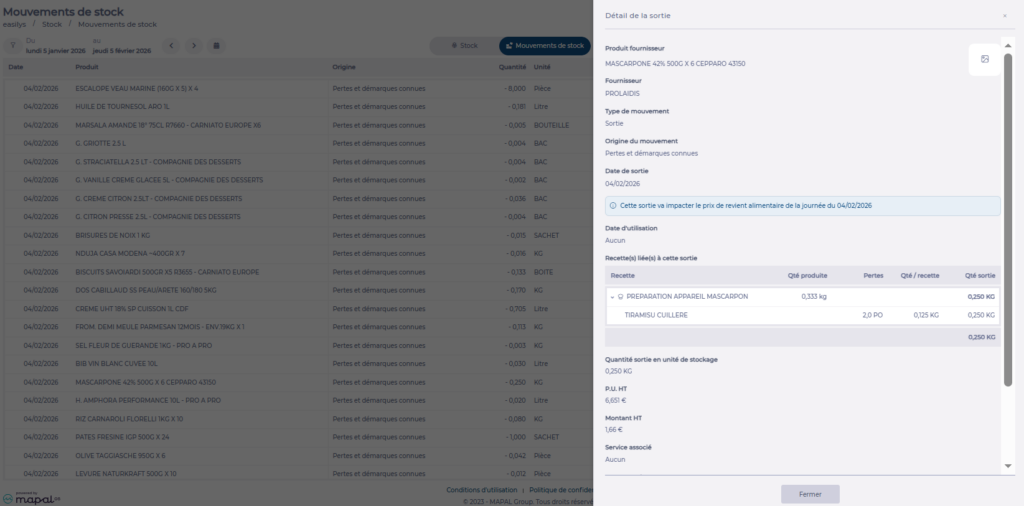
- The name of the supplier product removed from stock.
- The date of the stock movement.
- If the movement is linked to a recipe loss, the list of recipes associated with this movement is displayed, including:
- Recipe names.
- Number of recipes lost.
- Quantity of product per recipe unit.
- Quantity of product deducted for the quantity of recipe lost.
- If all or part of this deduction is not linked to a recipe loss but constitutes a direct product loss, the corresponding quantity is displayed.
