


Note: Each action within the Easilys application depends on your user access permissions. If you are unable to perform the actions described in this article, it may be due to access restrictions on your user profile. Contact the Support team or your administrator for further assistance.
Start from: The Easilys menu.
You can manage the reasons for known losses and markdowns so they better reflect operational realities. This management can be done either from the loss entry panel or from the template management screen.
Method 1: From the loss entry panel
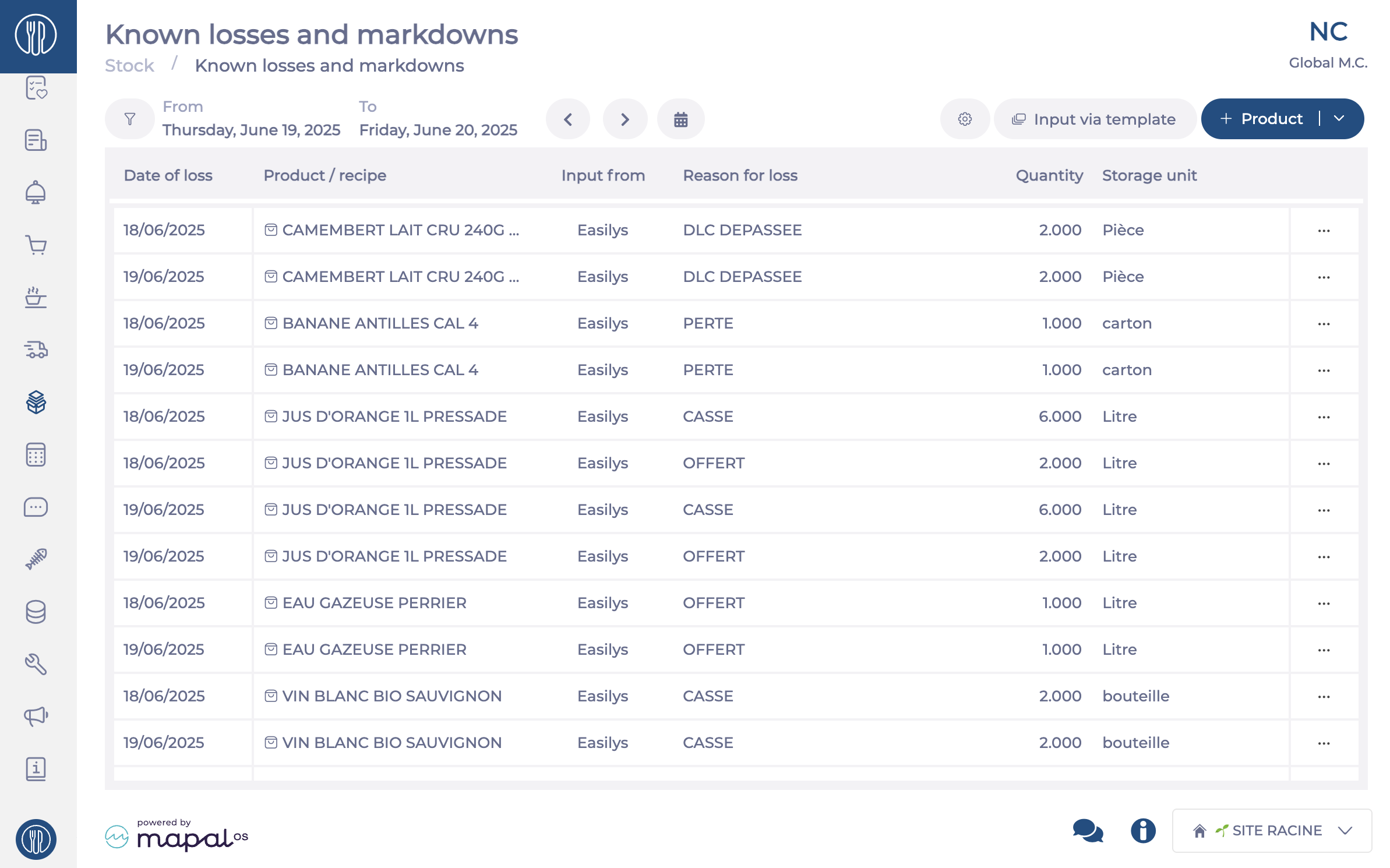
- Select Stock > Known losses and markdowns.
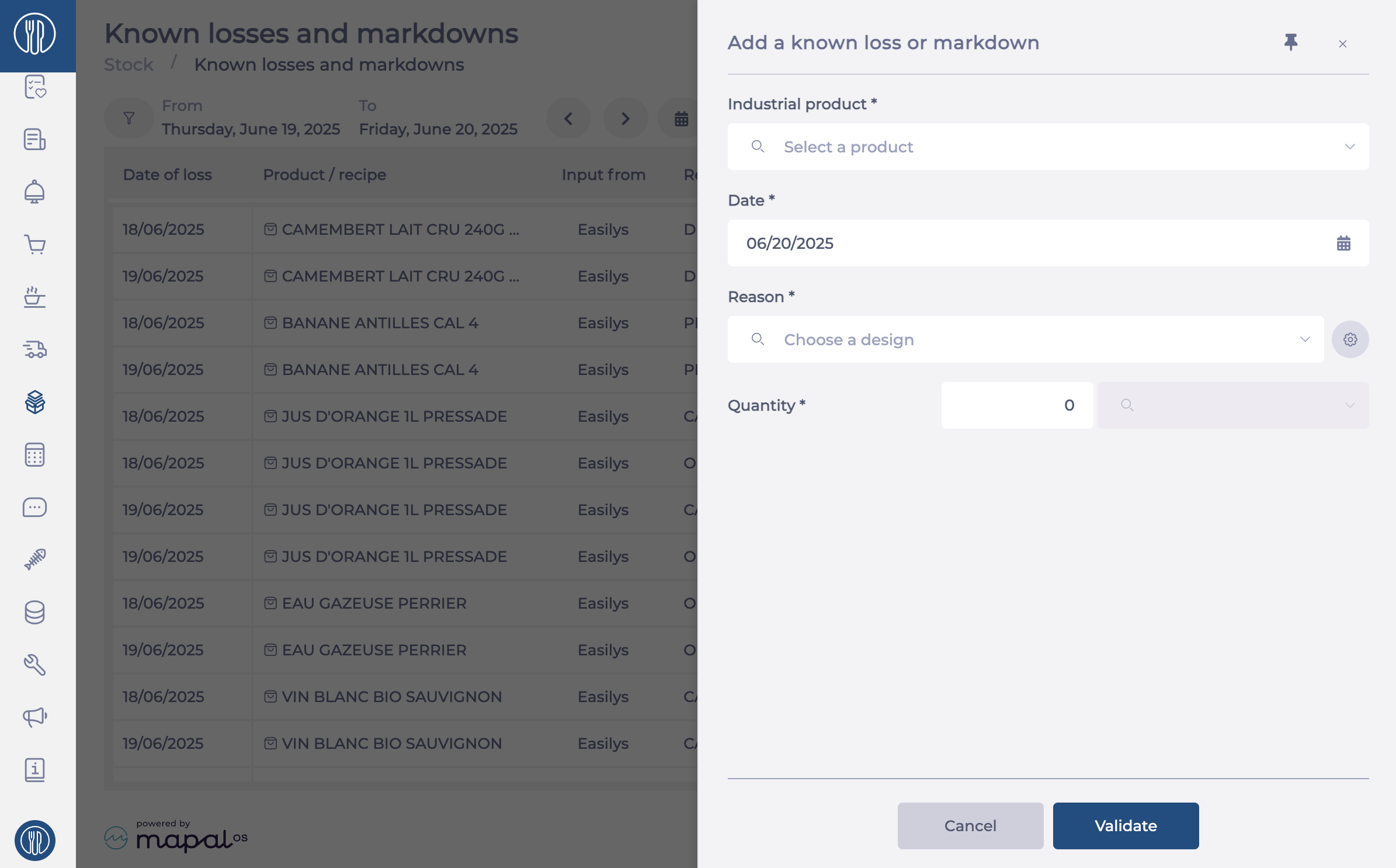
- Select + Product, then choose Industrial product or Recipe.
- Select the gear icon next to the Reason field.
A management panel will appear, allowing you to:
- Delete a reason by selecting the bin icon.
- Edit a reason by selecting the pencil icon.
- Create a new reason by typing the label into the search bar, then selecting +.
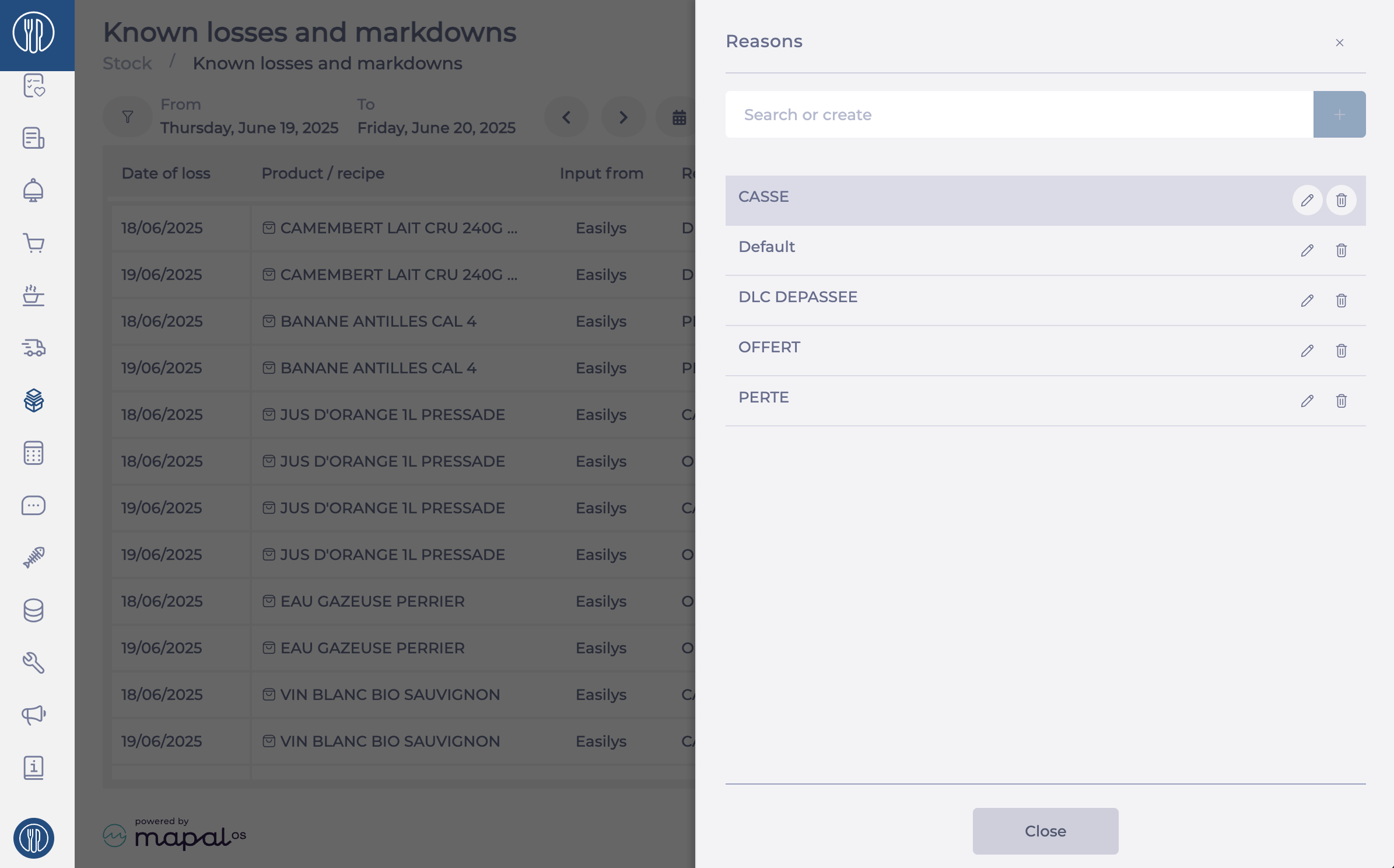
Once finished, select Close at the bottom of the panel.
Method 2: From template management
- Select Stock > Known losses and markdowns.
- Select Input via template.
- Select the three dots above the loss table.
- Select + New template or Edit.

- Select the Reasons tab.
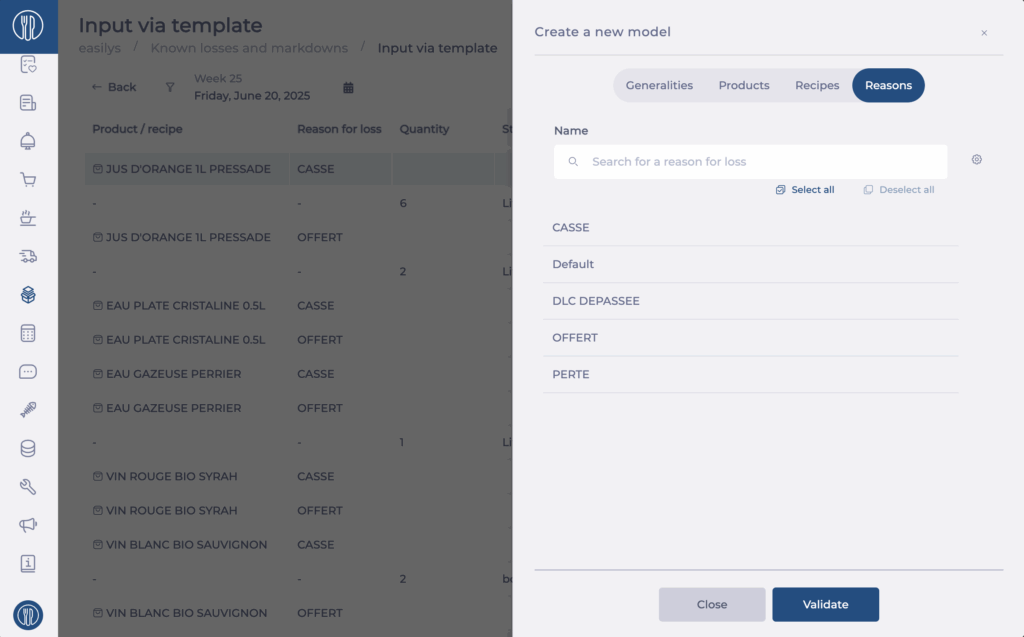
- Select the gear icon next to the label search bar.
You can now:
- Delete a reason by selecting the bin icon.
- Edit a reason by selecting the pencil icon.
- Create a new reason by typing it into the search bar and selecting +.
Select Close once your changes are complete.
