


Note: Every action that can be carried out in the application is subject to permissions. If you are unable to perform the actions described in this article, it may be because the required permissions are not activated for your user profile. Contact the Support team or your administrator for more information.
Note: If the Rights management screen is not yet available to you, see Manage Easilys user account profiles.
This article explains the key concepts and points you to the detailed articles.
Key concepts
- A profile groups a set of rights (for example ADMIN or ADMIN RESTAURATION). Each user is assigned to one profile and has that profile's rights.
- A screen is a page of the application, grouped by module (Accueil, PMS, Traçabilité, Sites, Equipements…). A screen can be enabled or disabled for a profile.
- An access right is a specific action on a screen. Each right has a type, shown as a tag:
- Read: view the information.
- Create: add an item.
- Update: change an existing item.
- Delete: remove an item.
A profile's access rights are therefore organised as: module > screen > access right.
Two screens, two uses
| Screen | For whom | What it is for |
|---|---|---|
| Rights management | Administrators | View and configure the rights of each profile, compare profiles, and copy, import and export rights. |
| My rights | Every user | See your own rights and choose which screens to keep in your navigation menu. |
Access My rights
Start from: the Easilys menu.
- Select your name in the menu panel.
- Select My rights.
To find out more, see View your rights and see Hide screens from your menu.
Access Rights management
Start from: the Easilys menu.
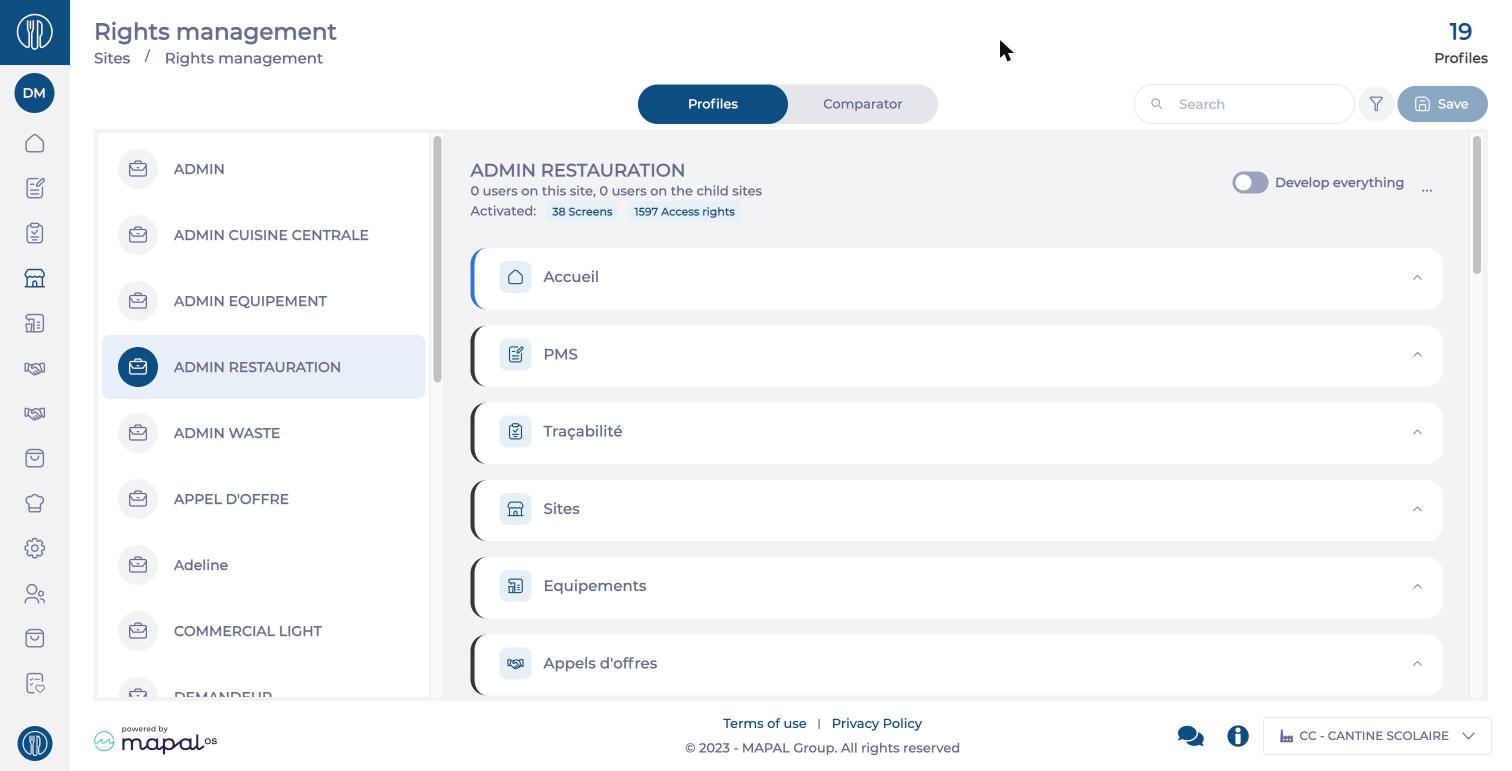
- Select Sites > Rights management in the main menu. The Profiles tab opens.
Explore the Rights management screen
The screen has two views, available from the Profiles and Comparator tabs:
- Profiles: select a profile in the profile list to view its rights, module by module. Use this view to configure a profile. The total number of profiles is shown in the screen header.
- Comparator: display several profiles side by side (up to 6) to see at a glance how they differ.
In the Profiles view, for the selected profile, you find:
- the number of users assigned to the profile on the site and on its child sites.
- the number of enabled screens and access rights (for example 38 Screens and 1597 Access rights).
- the list of modules, which you expand to show their screens, then each screen's access rights. The Develop everything switch expands or collapses everything.
- the Search field and the filter button, to find a screen or a right quickly.
- the Save button, which applies your rights changes.
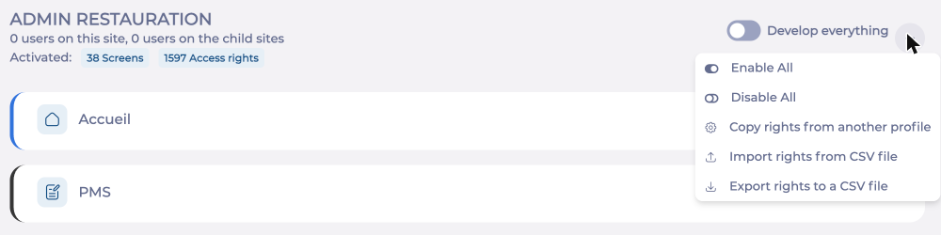
- the action menu (...), next to Develop everything, which groups the profile actions: Enable All, Disable All, Copy rights from another profile, Import rights from CSV file and Export rights to a CSV file.
Ways to configure rights
You can configure a profile's rights in several ways, depending on what you need:
- manually, profile by profile, by enabling screens and ticking access rights: see Configure a profile's rights.
- from the Comparator, useful when several profiles need setting up: see Compare the rights of several profiles.
- by copying the rights of another profile, to start from an existing configuration: see Copy rights from another profile.
- by exporting and then importing a CSV file, mainly useful when Easilys is being set up: see Export and import a profile's rights.
Create, rename or delete a profile
The Rights management screen configures the rights of existing profiles. Profiles are created, renamed and deleted in Mapal OS: see Manage user profiles in Mapal OS. If your organisation does not use Mapal OS, contact the Support team.
Your organisation's administrator assigns users to profiles. If you use Mapal OS, see Create an Easilys User on Mapal OS. Otherwise, see Create a user account on a site.
