


Start from: The Easilys menu.
The principle is as follows:
- You define the periods (date, type, tag) in the calendar management.
- Bank holidays are taken into account for supplier orders.
- You can use the periods for the configuration of delivery rounds and menu templates.
- It may be necessary to use location tags to refine how periods are applied to sites or suppliers (Tag "Localisation").
Manage periods
This action allows you to identify date ranges that have a specific (non-standard) type.
- Select the Sites > Calendars tabs.
- If periods already exist, you can edit or delete them by selecting the icon at the end of the row, provided you are on the site where they were created.
- To create a new period, select + Create.
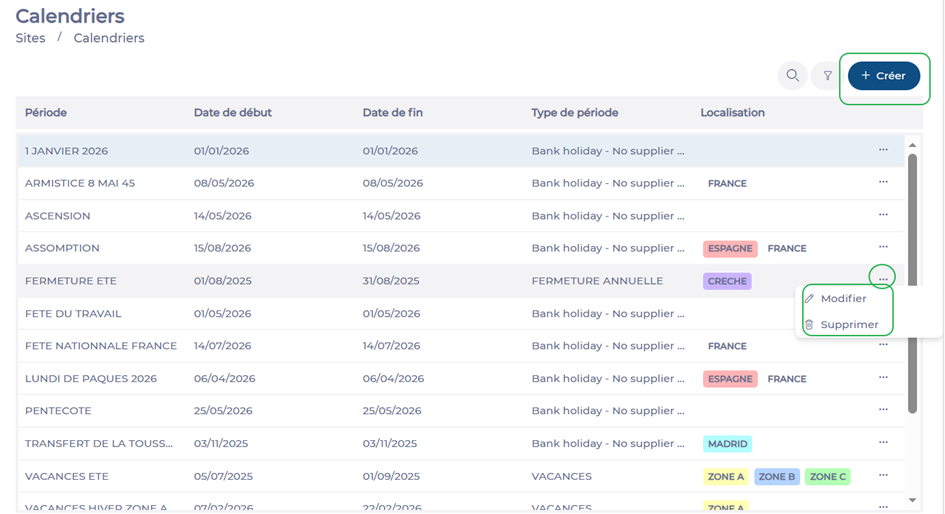
The Calendar entry panel appears on the right-hand side.
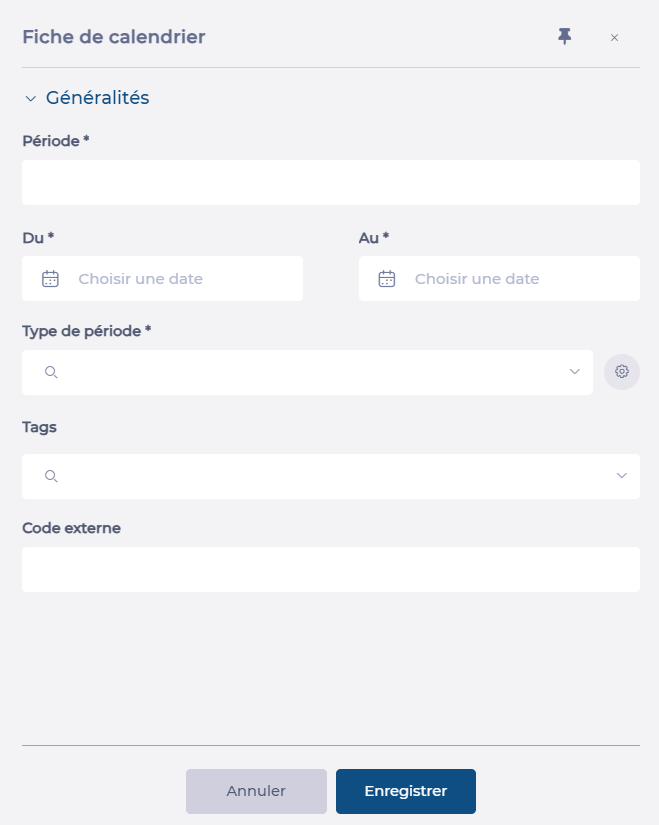
- Fill in the required information.
- The Period name *, Date range * and Type * fields are mandatory.
- The Tags field allows you to target, if necessary, the location where this period applies. This can be a zone, region, country, etc. For example, if you add a FRANCE tag to periods, they will only be taken into account for sites that have this location tag. For more information on location tags, see the articles Location tag.
- The External code field may be required for interfaces or imports.
- Select Save to finalise the creation of the period.
About period types:
- By default, there is a period type "Bank holiday — No supplier delivery". Periods with this type are the only ones taken into account when suggesting delivery dates when you place an order with a supplier.
- You can create as many other types as needed by selecting the gear icon. These will be available in the menu template and delivery round configuration screens.
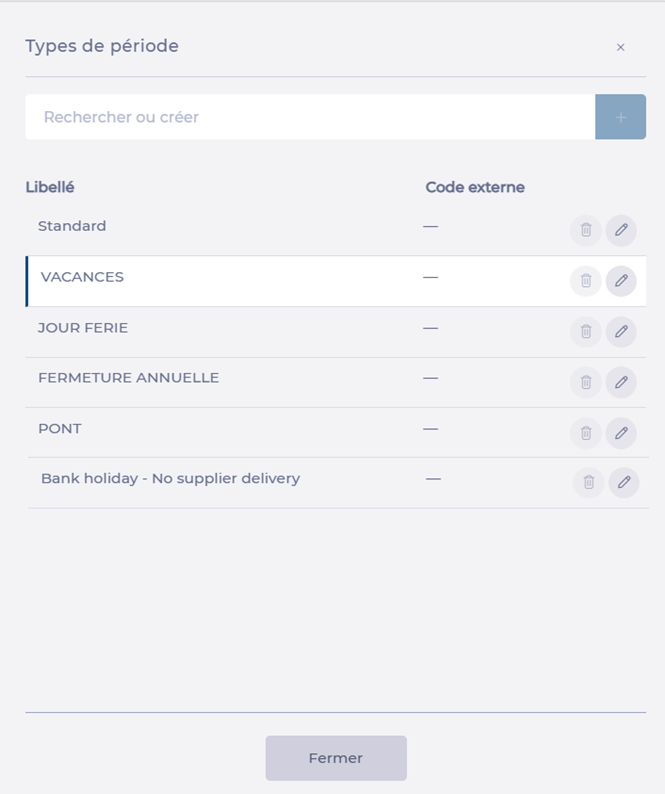
Example: A HOLIDAYS period type allows you to link all periods corresponding to school holidays across the entire territory. On each period, you indicate via the tag which school zone is concerned. When you define headcounts for this period type, for example, this will be automatically applied to all sites with this location tag for all periods (date ranges) of this type.
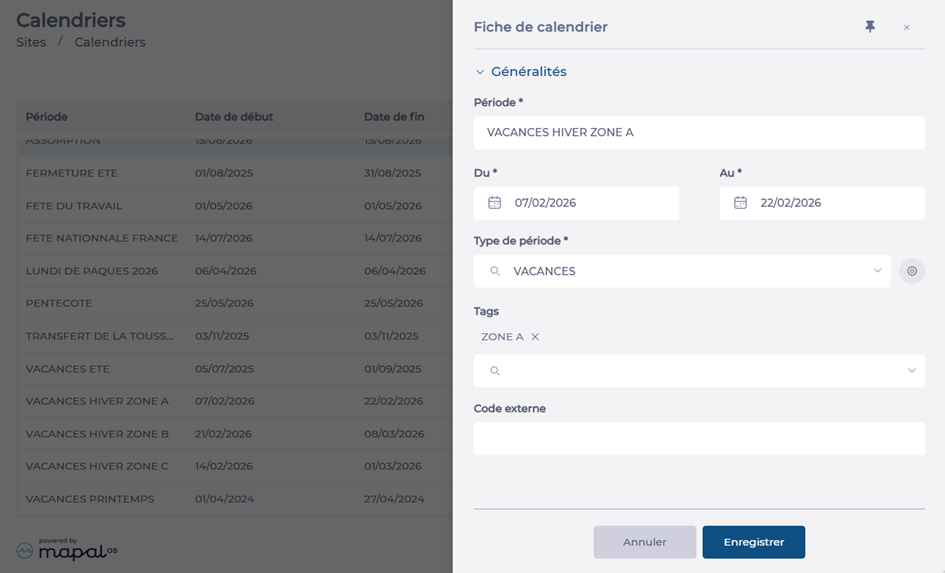
Use periods
Once your periods have been defined, you can use them in certain screens:
- In the Menu templates screen (Menus > Menu templates tabs), you can define different headcounts or uptake rates depending on the period type. For example, during "short holidays" headcounts are lower for certain menus. Create a menu template from the Menu templates screen.
- In the Delivery rounds screen (Dispatch > Delivery rounds tabs), you can define different delivery rounds depending on whether you are in a "Standard" period or in a selected period type.
- When creating supplier orders, the bank holidays taken into account are those defined in the Calendar (Manage delivery tours).
- It may be necessary to use location tags to refine how periods are applied to sites or suppliers (Tag "Localisation").
