Note: Every action within the application is subject to user permissions. If you are unable to perform the actions described in the articles you are consulting, it may be because the required permissions are not enabled for your user profile. Contact the Support team or your administrator for more information.
Start from: The Easilys menu.
Reconciling a FAR (Invoice to be received) and an FF (Supplier Invoice) consists of a line-by-line check to verify the conformity of the invoice. To proceed with the reconciliation, the FAR and the FF must be linked together.
If this is not the case, you must start by linking the FAR to the FF.
- Select Supplier Orders > Supplier Invoices.
- Select the invoice to check, that is, the invoice that has both a linked FAR and FF.
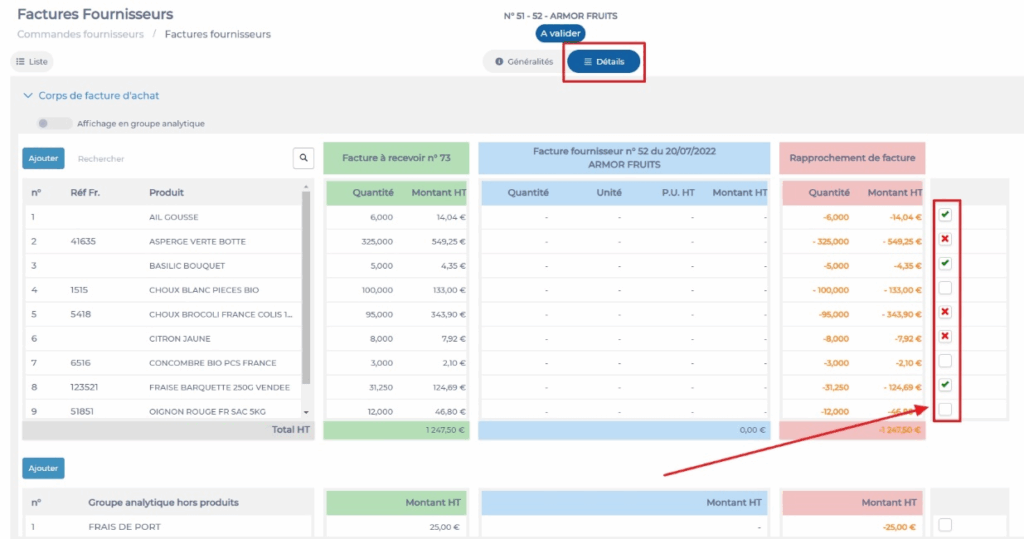
- Select the Details tab of the invoice.
The pink section summarises the reconciliation. It highlights the differences between the FAR and the FF.
You can modify a line if you notice an error: select the line to modify and a panel will appear on the right of the screen allowing you to make changes.
Note: Modifications are not possible if the FF originates from an EDI (Electronic Data Interchange) transmission.
- You can use the checkboxes on the right of each line to indicate whether you validate or reject the line. One click adds a tick, two clicks add a cross, and a third click leaves the box empty. This has no particular effect on the system and is purely a visual aid to help you keep track of where you are in the invoice reconciliation.
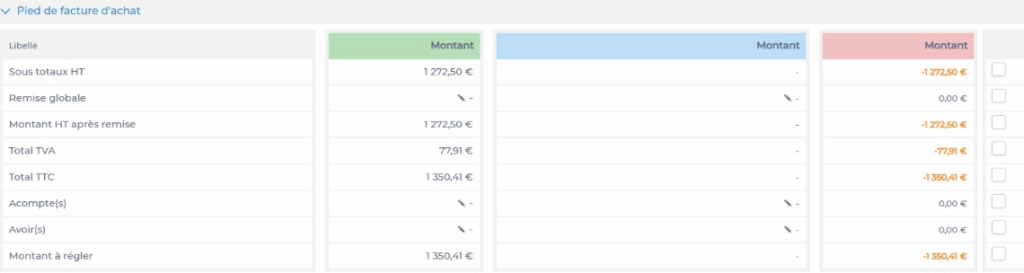
Note: The reconciliation can also be performed on the invoice footer.
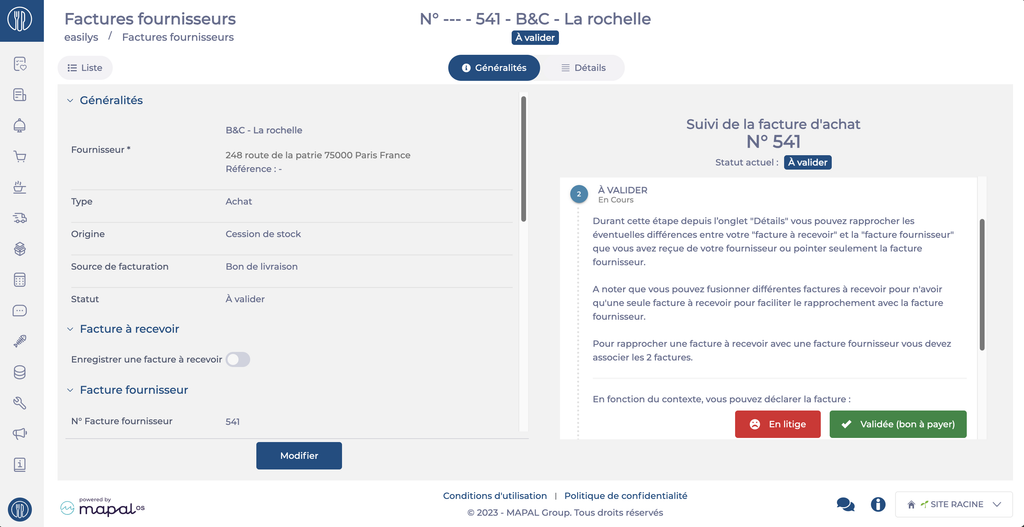
- Once the reconciliation is complete, go to the General tab of the invoice.
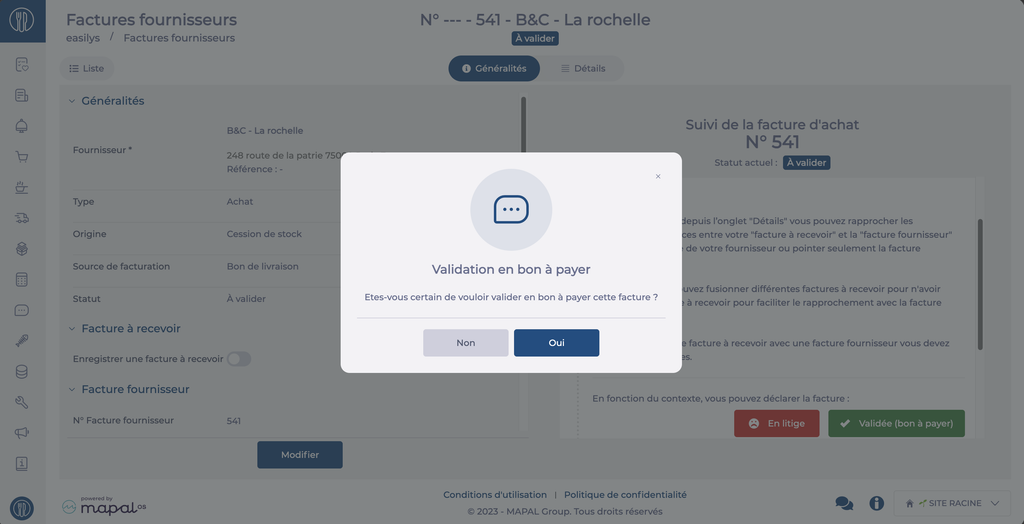
- Select In dispute or Validated (ready to pay) depending on the situation.
Note: When you select Validated (Ready to Pay), a message may appear indicating that validation is not possible due to the amount discrepancy between the Supplier Invoice and the Invoice to be received. The site parameter Invoice validation control for ready to pay, available in the Invoice section of the global site administration, allows you to define from what discrepancy amount this message should appear. Refer to the article Manage your global site settings for more information on accessing this parameter.