Note: each available action in the application is subject to access permissions. If you are unable to perform the recommended actions in the articles you are viewing, it may be that the necessary rights are not activated for your user profile. Contact the Support team or your administrator for more details.
Start from: The Easilys menu.
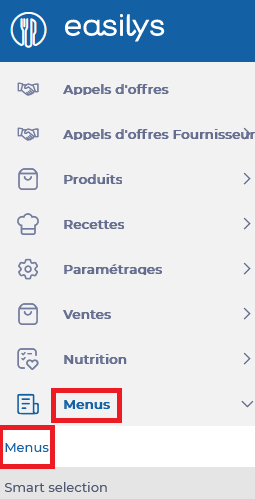
From the Menus screen
- Select the tabs Menus > Menus.
- Select the menu template you want to disable.
- Select the cogwheels to open the "Menu template options".
- Select Modify the selected menu template.
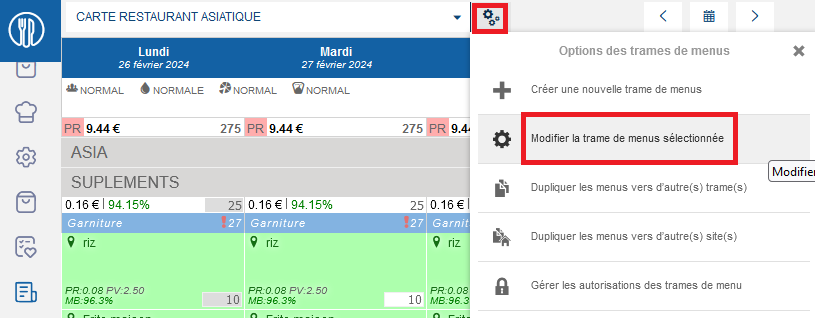
The "Update menu template" window appears on the screen.
- Select Disable this menu template at the bottom of the window.
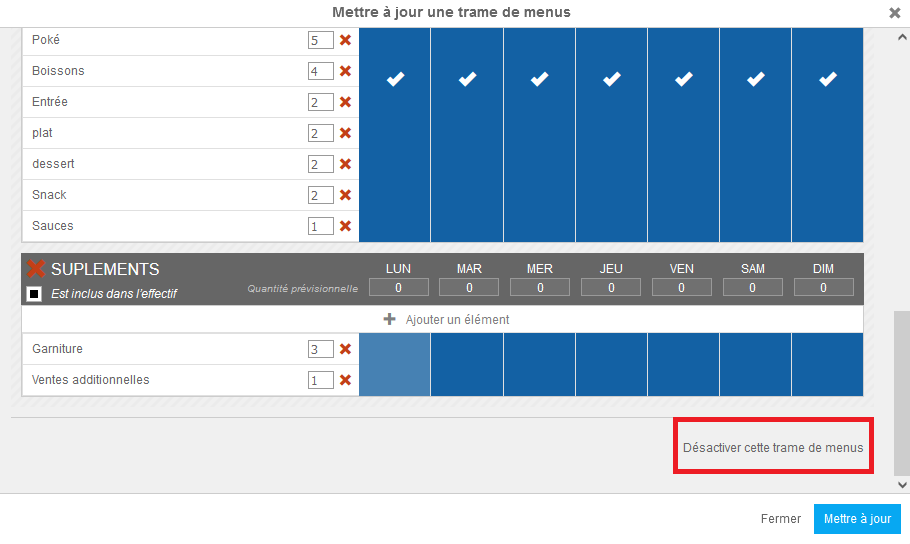
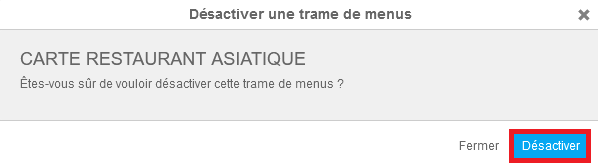
- Confirm your choice by selecting Disable again in the "Disable a menu template" window that appears on the screen.
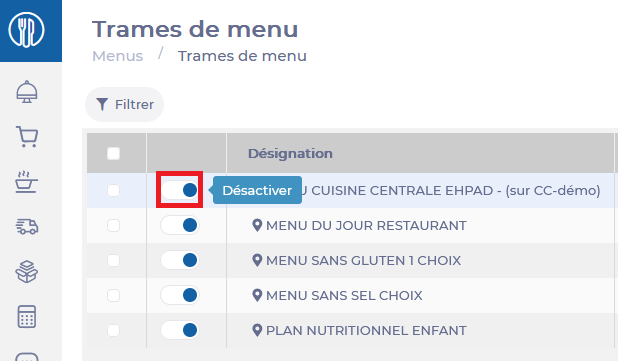
From the Menu Template screen
- Select the tabs Menus > Menu templates.
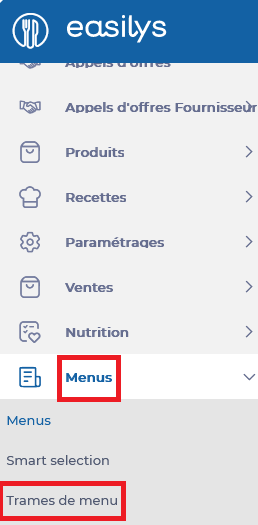
- Select the menu template you want to disable.
The "Template details" window appears on the screen.
- Select Disable in the "Template details".
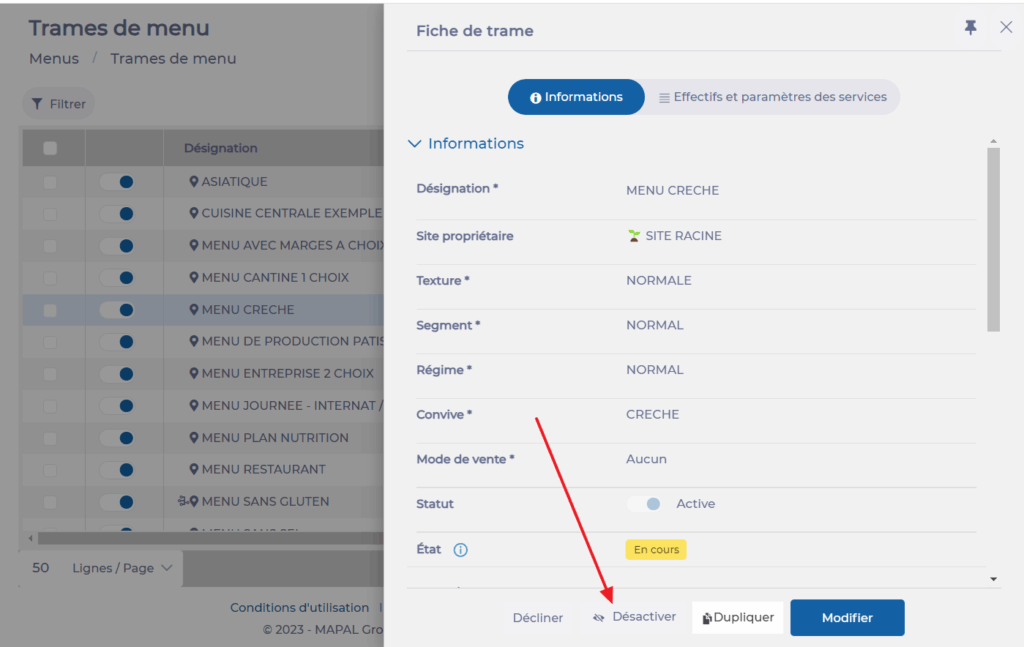
- Alternatively, you can also select the toggle button located next to the name of the menu template you want to disable.