


Start from: The Easilys menu.
Prerequisites to view the margin and cost price of a recipe
- The generic ingredients must be linked to products.
- The sub-recipes must be valued and therefore their own generic ingredients must also be linked to products.
- The selling price of the recipe must be set.
- The hourly labor cost must be set.
- The preparation time must be indicated.
- The various potential costs related to production must be entered.
View the margin and cost price of a recipe according to the menu it is in
- Select Recipes in the main menu > Recipes.
- Select the recipe for which you want to view the margin and/or cost price.
The recipe sheet detail is displayed on the right of the screen.
The margin and the cost price of the recipe are displayed in the Financial information section.
To view this margin and cost price for a specific menu:
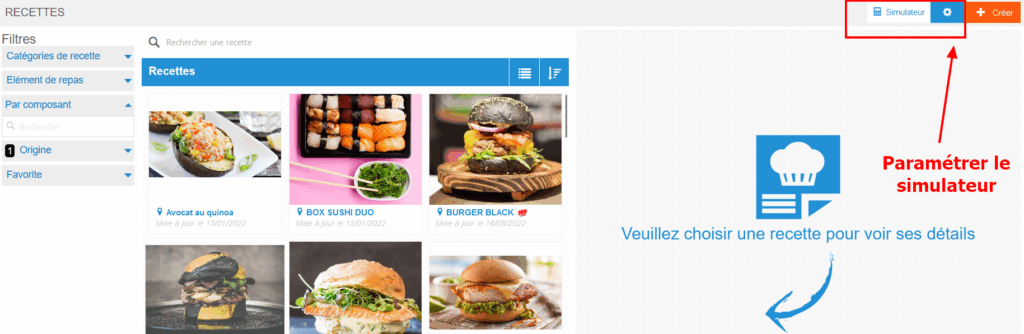
- Select the gear icon visible at the top right of the screen.
The Simulation options window is displayed on the screen:
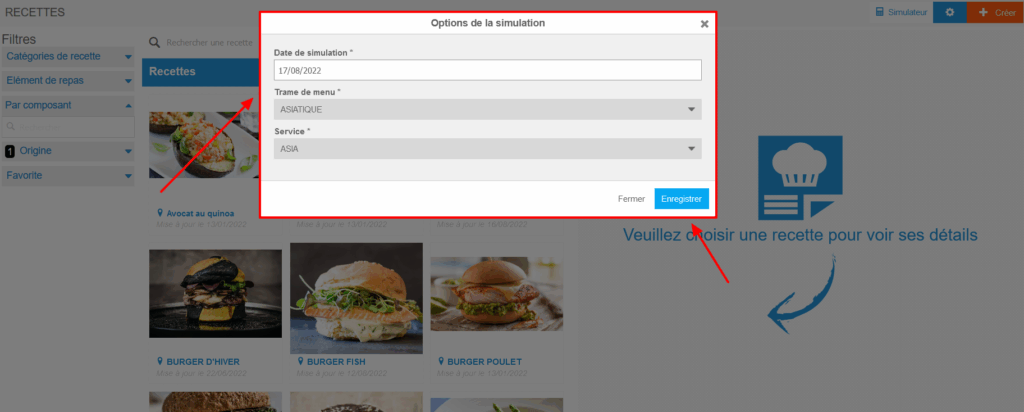
- Enter a simulation date.
- Select the menu template for which you want to view the margin and/or cost price of the recipe.
In Easilys, we talk about menu templates and menus: this corresponds, in commercial catering, to a menu template and menus.
You must therefore select the menu for which you want to simulate the financial information of the recipes.
- Select a meal type.
- Select Save.
All financial information for all recipes will now be simulated based on the chosen menu template.
- Modify the simulation options again if you want to view the financial information of another menu template.
Modify the selling price of a recipe for a specific menu
It is possible to update the selling price of a recipe based on the menu it is in. This allows you to manage prices based on the recipe.
To do this, simply update the recipe sheet after having previously set the simulator on the desired menu template as explained in the corresponding part of this article.
Note: It is strongly recommended to add the selling prices of each recipe from the Selling price of site parameters section. To learn more about this method, please consult the article Manage the selling prices of recipes.
Note: The modification via the Recipes screen is intended for occasional modifications. Be sure to properly set the simulator of this screen if you have multiple menus.
Modify the labor cost of a recipe
It is possible to indicate a labor cost directly on a recipe sheet. This will then be specific to it: indeed, by default, the labor cost is based on that entered in the My budgets section of the site parameters.
By manually modifying it on a recipe sheet, you then modify it only for this recipe sheet.
If you want this labor cost to be updated for all recipe sheets, you will need to go through the settings available in the My budgets tab of the site parameters.
