


Note: Every action within the application is subject to user permissions. If you are unable to perform the actions described in the articles you are consulting, it may be because the required permissions are not enabled for your user profile. Contact the Support team or your administrator for more information.
Start from: The Easilys menu.
- Select Stock > Known losses and markdowns from the main menu.
- Adjust the date range using the arrows or the calendar if needed.
- Use the filter panel and/or the label search bar to select the losses you wish to view.
- Select the configuration gear icon to show/hide columns or rearrange their order as needed.
You can now view:
- All product and recipe losses for the selected period, including those entered manually, via templates, or imported from your point-of-sale system if integrated.
- The status of each loss (Posted or To be posted).
- Amounts by line item and totals.
- Entry dates and loss dates.
- The source (POS or Easilys).
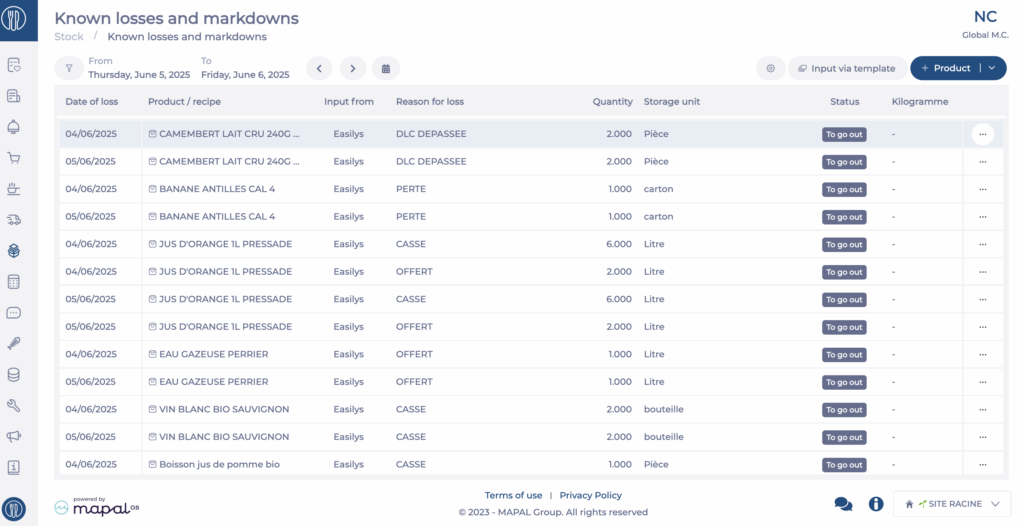
- Select the ellipsis (...) at the end of a row, then select Detail to view detailed information about a loss.
Notes:
- Loss lines with the status To be posted can be deleted via the ellipsis (...) at the end of each row.
- To enable loss tracking from your POS system, contact your administrator or Customer Support.
