


Note: This action depends on your access rights. If you can't see the move icon, your profile doesn't have the required rights. Contact the Support team or your administrator.
Two other limits apply:
- You can't move your own account. Ask another administrator.
- You can only choose sites you have access to yourself.
Move a user
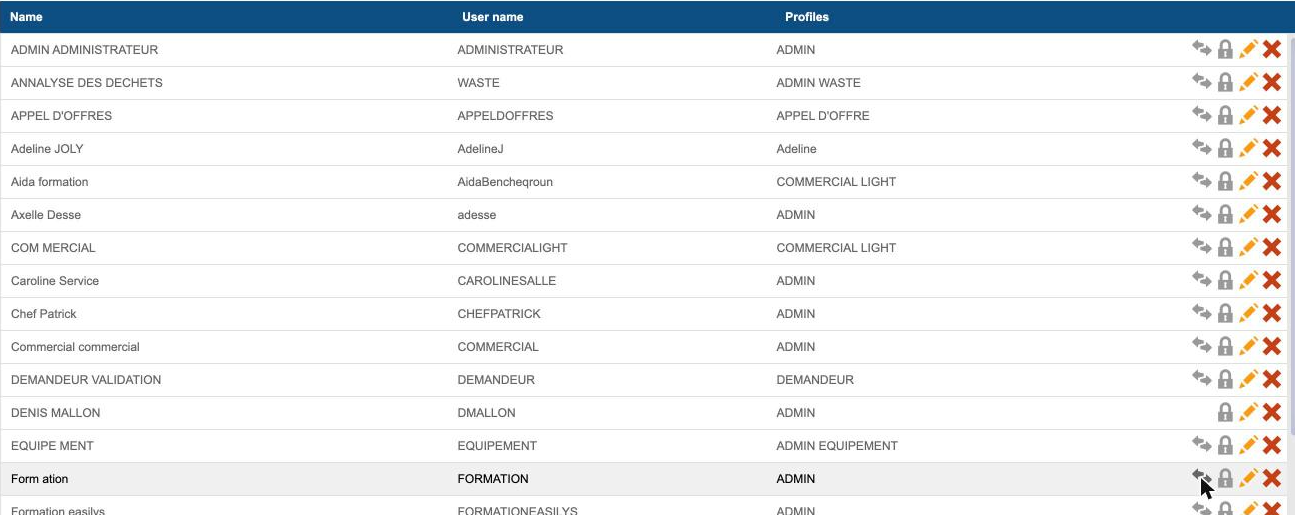
Start from: Your name > Site parameters > Users
- On the user's row, select the Move the user to another site icon.
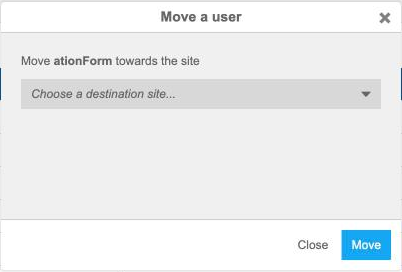
- In the Move a user window, choose the site in Choose a destination site....
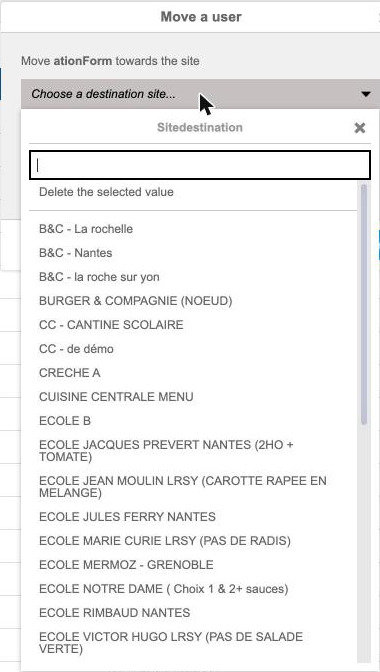
Note: If your organisation uses virtual sites, they can also appear in this list. For more information, see Manage virtual trees and virtual sites.
- If the user's profile doesn't exist on the destination site, you may be asked to choose another profile from those available on that site. If the profile already exists there, the user keeps it.
- Select Move. The user list is updated.
What changes for the user
Their home site becomes the destination site. Their rights on the old site are replaced by rights on the new site, with the same profile or the one you chose. To manage profiles, see Manage Easilys user account profiles.
If you can't move the user
- No move icon: see the note above, or it's your own account.
- The site you want isn't in the list: you don't have access to it, or the user can't be linked to that site from this screen. Contact your administrator or Support.
- A message asks you to choose a destination site: no destination site is selected.
