


Note: Each action performed on the application is subject to user permissions. If you are unable to carry out the recommended actions in the articles you are viewing, this may mean that the necessary rights have not been activated for your user profile. Contact the Support team, or your administrator, to find out more.
Start from: The Easilys menu.
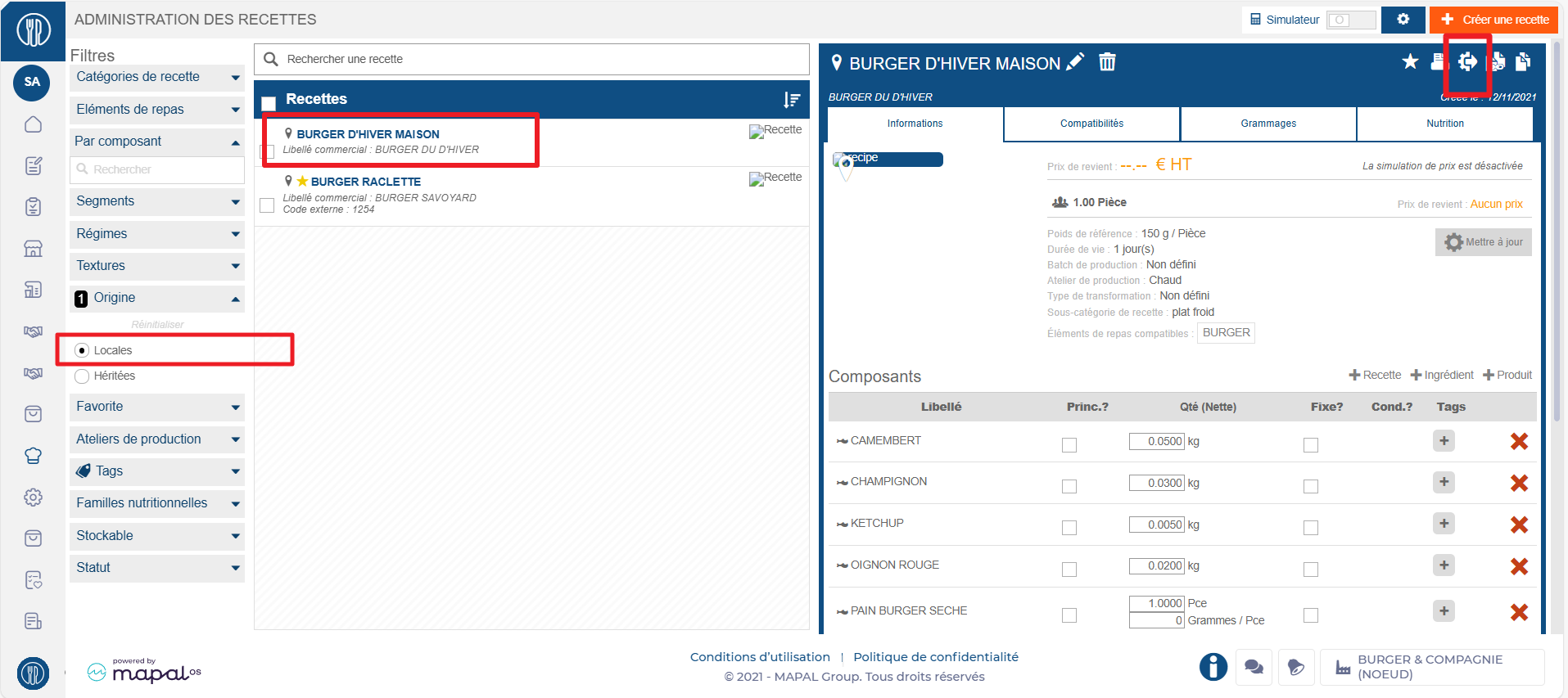
- Select Recipes in the main menu > Recipe management.
- Select the local recipe you wish to transfer.
The recipe card is displayed:
- Select the transfer icon at the top right of the recipe card.
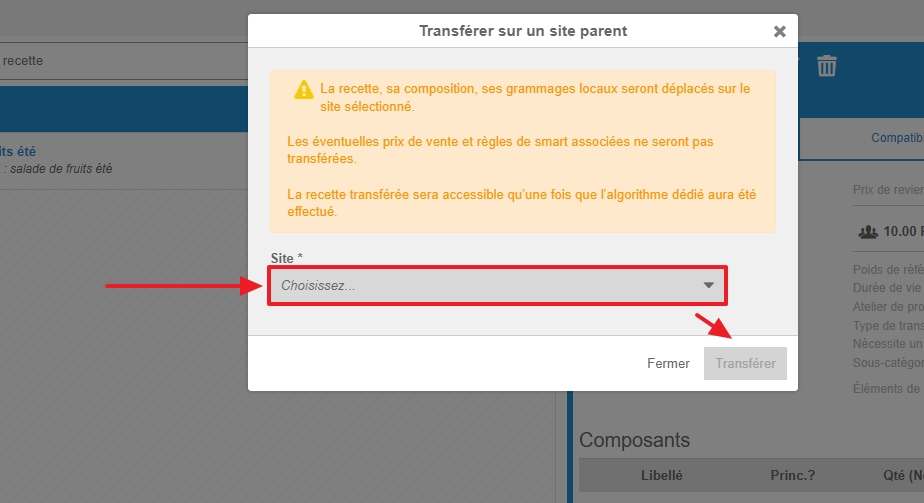
The Transfer recipe to parent site pop-up window appears:
- Select the parent site to which the recipe is to be transferred.
- Select Transfer.
Transferring a main recipe also transfers all of its derived recipes, which are moved to the parent site together with it.
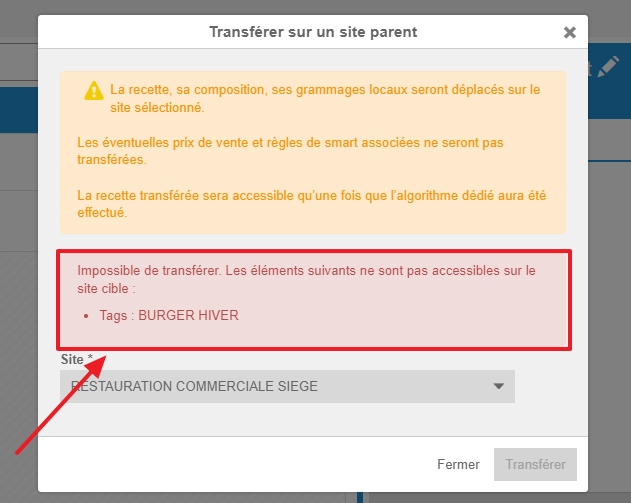
Notes: in some cases the transfer cannot be completed: an element required by the recipe (or by one of its derived recipes) may not be available on the parent site. The transfer is then impossible, and an Impossible to transfer message appears in the window. This message lists the blocking elements that are not available on the target site, giving each one's type (component, production workshop, tag, and so on) and its name. Make these elements available on the parent site, then run the transfer again.
GOOD TO KNOW: If the recipe being transferred to the parent site is stockable, then the associated finished product is also transferred to the same parent site. From then on, it can be added to price lists (mercuriales) from that level of the site hierarchy.
