Note: each action performed on the application is subject to a fee. If you are unable to carry out the recommended actions in the articles you are viewing, this may mean that the necessary rights have not been activated for your user profile. Contact the Support team, or your administrator, to find out more.
Start from: The Easilys menu.
- Select Equipment items > Contracts.
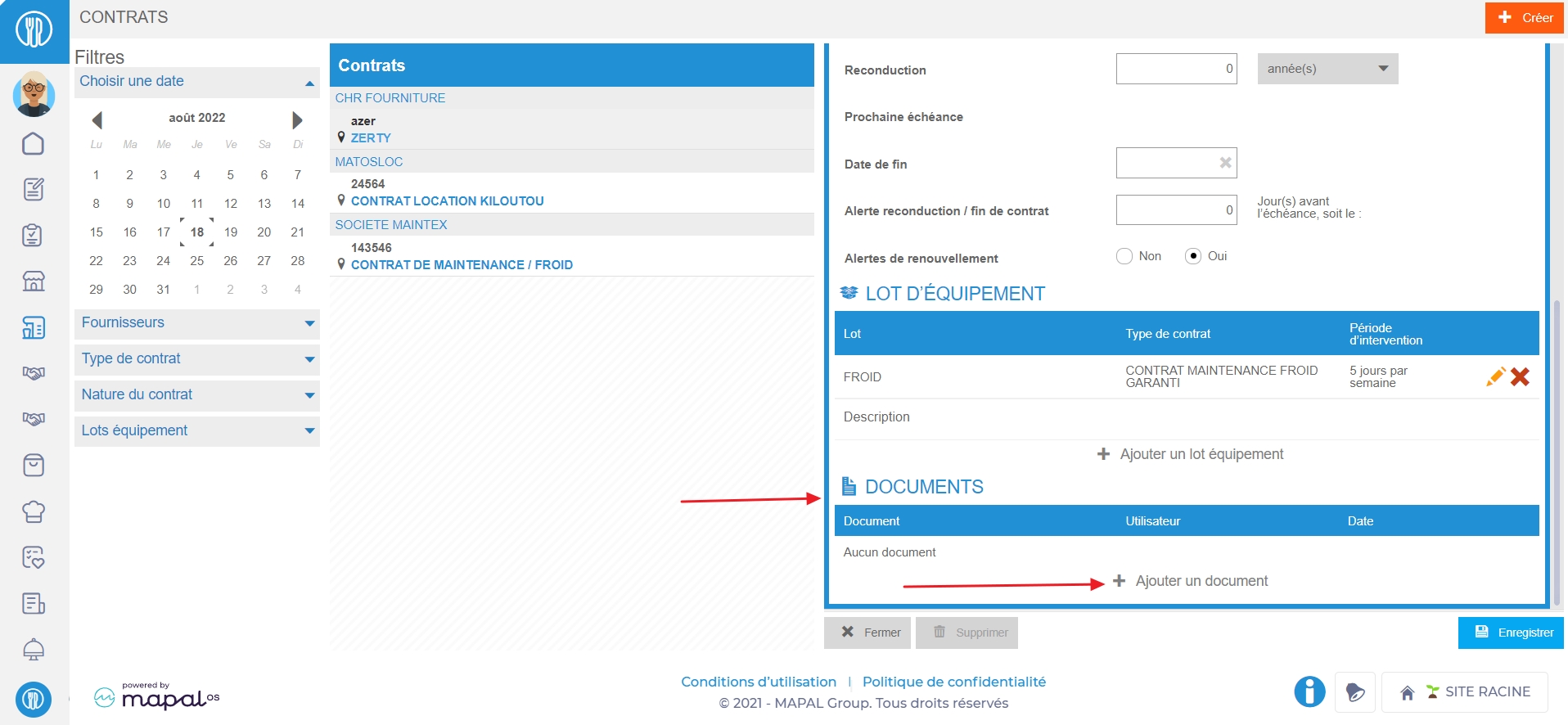
- Select the contract to which you wish to attach a document from the list.
The contract form is displayed on the right-hand side of the screen.
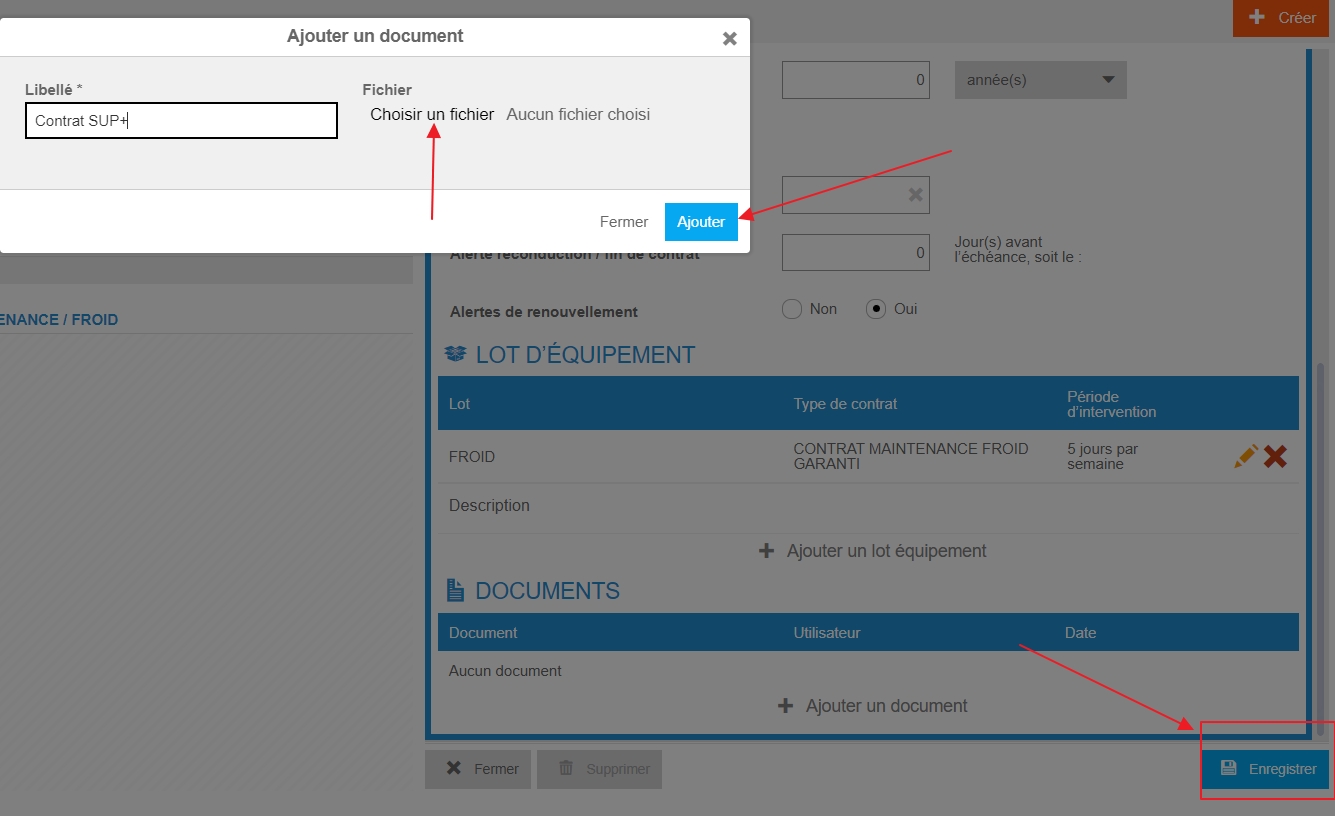
- In the "Documents" section, select Add a document.
The "Add Document" window is displayed on the screen.
- Enter a name for the document in the "Name" field.
- Select your file on your device by selecting Choose file.
- Select Add.
- Select Save.