


Start from: The Easilys menu.
Note: Actions performed on the Easilys platform are subject to user access permissions. If you are unable to carry out the actions described in this article, this may be due to insufficient rights on your user profile. Contact the Support team or your administrator for assistance.
Find a validated voucher
- Navigate to Stock > Exit vouchers.
- Select the filters.
- Select the Exit completed (Sortie effectuée) status.
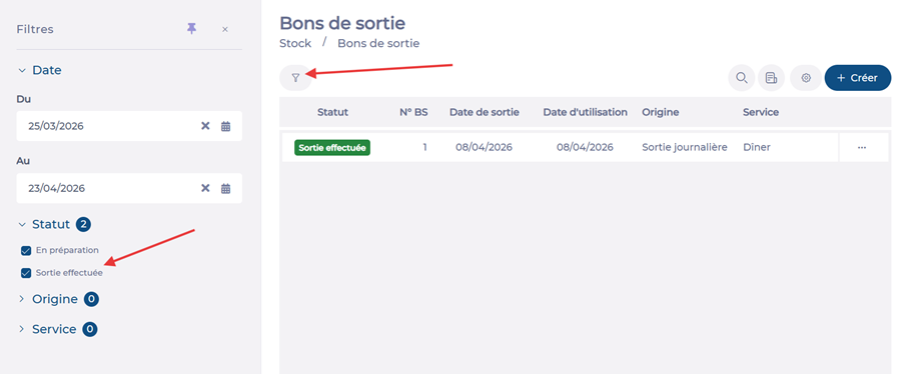
Your exit voucher is now visible.
- Select the relevant voucher, then select Return to preparation (Retour en préparation).
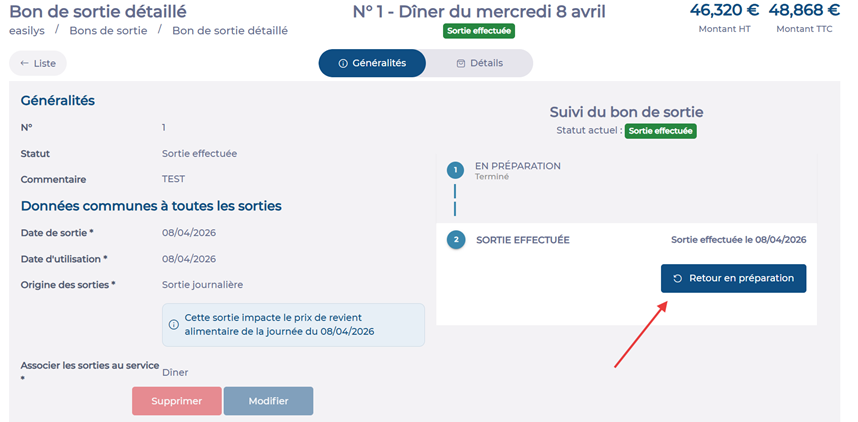
The voucher is reopened. You can now access the details to adjust or modify your quantities.

Note: After modifying your voucher, return to the General tab to validate it again.
