


Note: Every action possible in the application is subject to specific user rights. If you cannot perform the recommended actions described in the articles you read, it may mean that the necessary rights are not enabled for your user profile. Contact the Support team or your administrator for more information.
Start from: The Easilys menu.
CASE 1: From the Stock screen
- Navigate to Stock > Stock.
- Some product lines appear in grey and italics.
- Hover over the (i) icon — a message appears.

CASE 2: From the Inventory screen
- Navigate to Stock > Inventories.
- Select an inventory.
- Some product lines appear in grey and italics.
- Hover over the (i) icon — a message appears.
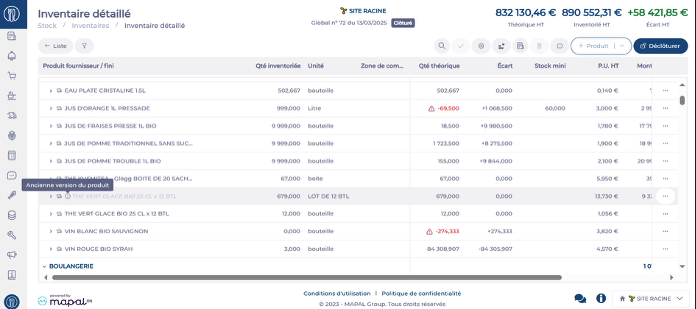
Explanation:
Sometimes it is necessary to change the configuration of a supplier product. For example, if you want to manage the stock of a given product by the box rather than by a lot of 12 boxes.
When you make this type of change, the quantity currently in stock will still appear in the old storage unit (this is the old version of the product), while new stock entries will be recorded in the new storage unit (the new version of the product, which appears in black).
Being able to distinguish, in stock and inventory, items in their old version (inactive items) from active items allows you to adjust your quantities on each line with full transparency. Usually, during an inventory, if there are inactive products, it is best to adjust their quantity to 0 and update the stock value on the active version of the product. This is because all future purchases will be added to this active version.
This way, you will have only one line for each product in stock, ensuring clear and efficient management.
