


Start from: The Easilys menu.
FROM THE PERSPECTIVE OF THE PERSON SUBMITTING FOR VALIDATION
Note: The validation of claims can be limited to certain suppliers, certain sites, or certain non-compliance criteria. See the article on activation of the validation feature.
- Create the claim, with or without the credit note request, in the goods receipt. For more information, see the article Record a claim and/or credit note request linked to a receipt.
- Once the goods receipt is completed, if it contains at least one non-compliance for which the creation of a claim is subject to the validation workflow, then the Submit button will appear instead of the Validate button.
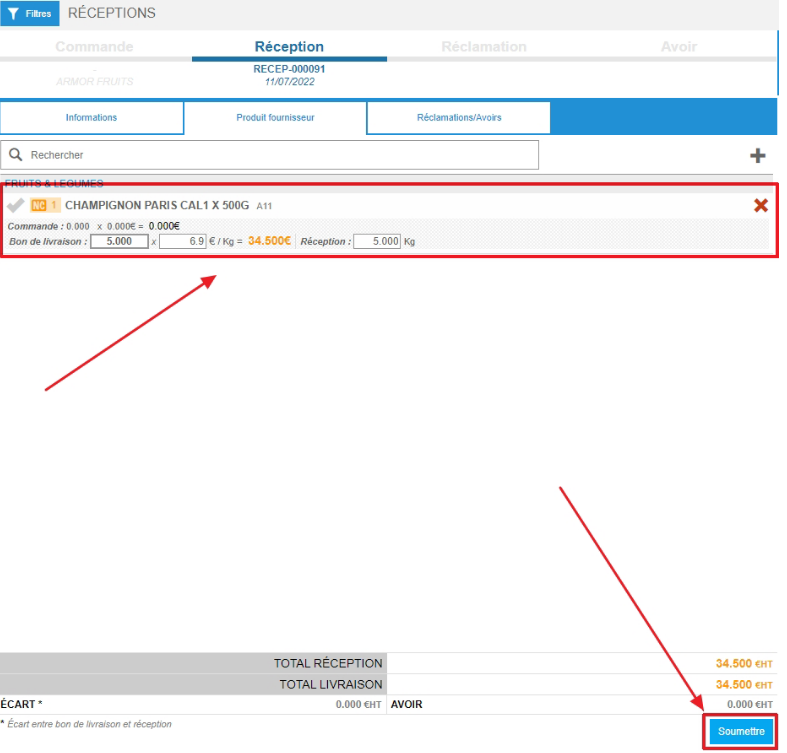
The "Send for validation" window appears.
- Enter the delivery note number.
- Check and, if necessary, modify the receipt date.
- Select Send.

- A claim is created with status "Pending".
Note: If there is a credit note request, the credit note request will only be created when the claim giving rise to this request is validated by the manager.
FROM THE PERSPECTIVE OF THE VALIDATION MANAGER
Note: If email notification is enabled in the validation workflow settings, an email will be sent to the specified address(es) as soon as validation is required. See the article on activation of the validation feature.
- Select the Supplier orders > Claims tabs.
- Use the "Status" filter and select the "Pending" status. Only claims with "Pending" status appear in the list.
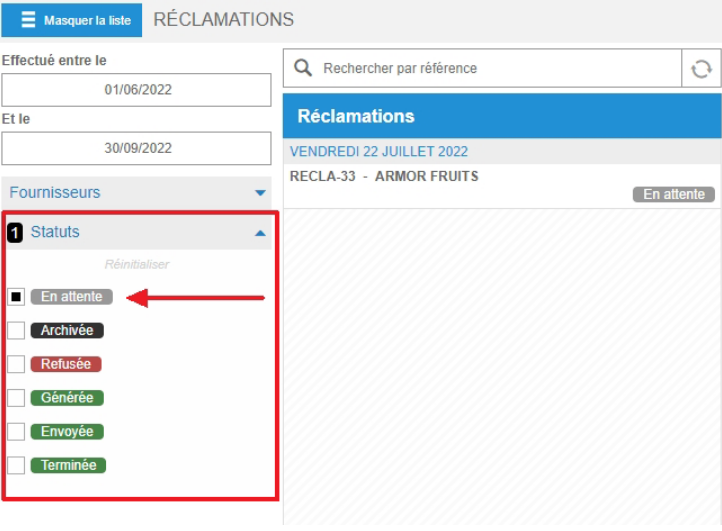
- Select a claim.
If you need to make changes, modify the figures in the Ordered, Delivered, Received, and Credit note request fields.
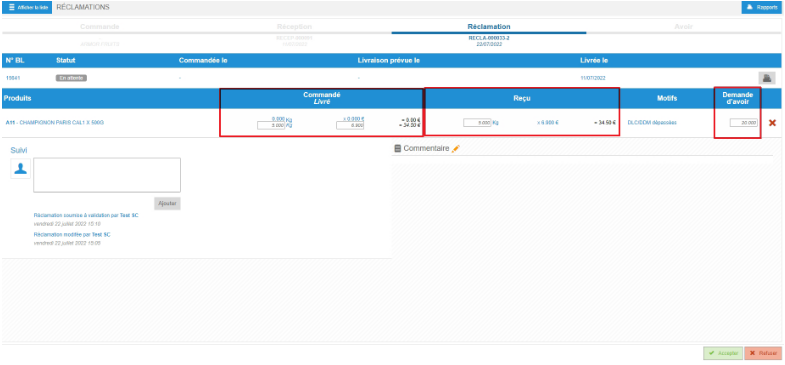
Note: It is possible to communicate between the user submitting a validation and the manager via the "Follow-up" area.
- You can select the line to display the claim details and add or edit a comment.
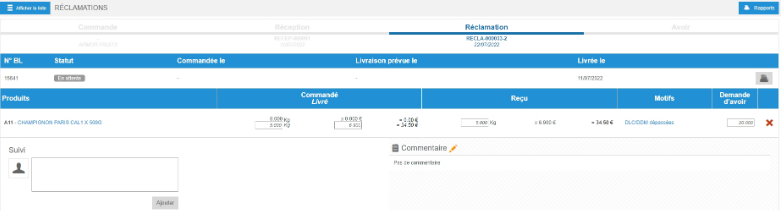
- Select Accept to validate the claim.
If a credit note request is linked, then the credit note request form is created.
- Select Reject to refuse the claim.
When you select Reject, the receipt opens again. The user who sent the validation request will need to redo their goods receipt and request claim validation again if necessary.

- To reject the claim without asking the user to redo their goods receipt, you can delete the claim line you consider rejectable by selecting the red cross.
- Then select Accept. The claim will be validated, but empty or partially.

