


Start from: The Easilys menu.
Creating a supplier product normally happens from the price lists or product administration.
To learn more, see the article Create a product.
However, there is a simpler and faster creation method that we will see in this tutorial, but this one is therefore less complete.
To complete all the information, it is necessary to go through the price lists to update the elements.
ATTENTION: Creating a product in a simplified way is subject to a particular permission to be activated if needed, at the level of the profile settings defined for the user concerned. If this permission is not activated, do not hesitate to contact us.
To learn more, see the article Modify product information: units, labels, origins, VAT, etc.
Before creating a product, make sure that it does not already exist. You would risk multiplying duplicates otherwise.
These duplicates will impact orders and stock since you will have multiple lines for the same product.
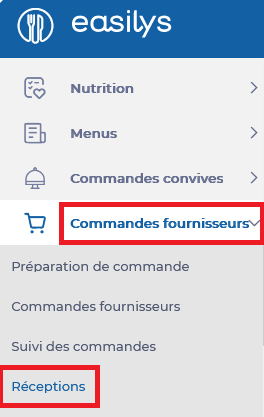
- Select the tabs Supplier orders > Receptions.
Select a reception in "In progress" status.
The reception slip details are displayed on the right side of the screen.
- Select "+" in the reception.
A list of supplier products is displayed on the screen.
- Ignore the existing products, select Create at the bottom of the list.

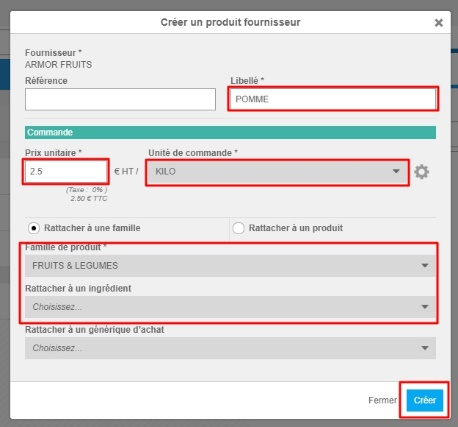
The "Create a supplier product" window is displayed on the screen.
- Complete the requested information. Those followed by an asterisk are mandatory.
- Select Create.
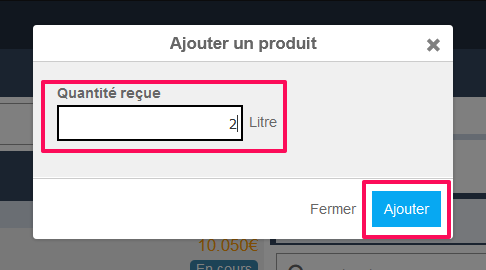
The "Add a product" window automatically appears on the screen.
- Indicate a quantity and select Add if you need to add this supplier product to the reception slip. Otherwise, select Close.
To complete all the information, it is necessary to go through the price lists to update the elements.?
To learn more, see the article Modify product information: units, labels, origins, VAT, etc..
