


Note: Every action that can be performed in the application is subject to access permissions. If you cannot perform the recommended actions in the articles you consult, it may mean that the necessary permissions are not enabled for your user profile. Contact the Support team, or your administrator, to learn more.
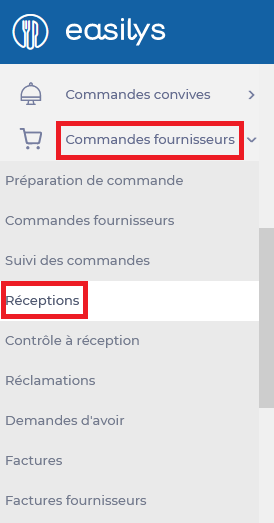
Start from: The Easilys menu.
- Select the Supplier Orders > Receptions tabs.
- Select the reception in which you want to substitute one product for another.
- If the reception is already validated, you can no longer modify it without reopening it first. Refer to the article REOPEN A COMPLETED RECEPTION for more information on reopening a completed reception.
- Select the double arrow button to the right of the product name you want to replace with another.
The list of products available from the supplier is displayed.
- Select the product that should replace the first one.
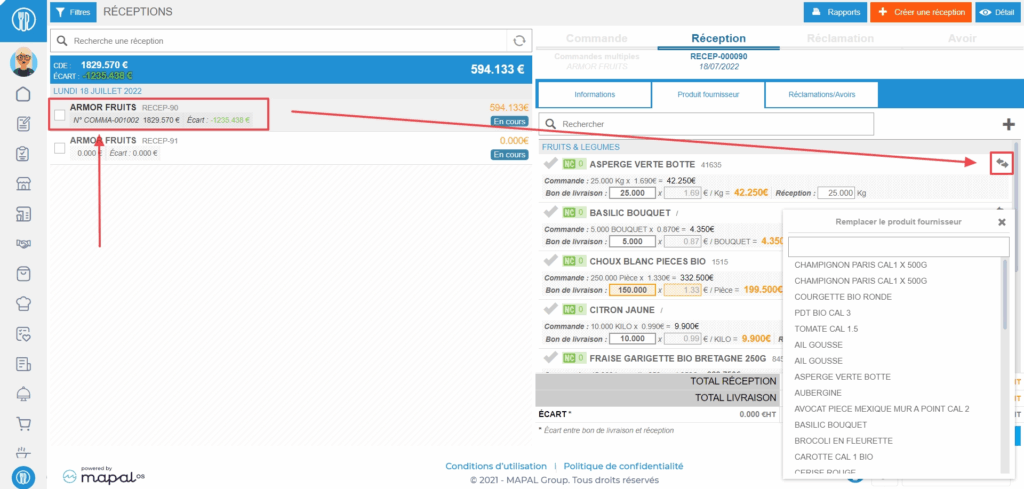
- Fill in the delivered quantity, price, and received quantity.
- Select Save now.

This method applies to products present in the original purchase order for the reception. If the product was not on the purchase order and was added manually, you can select the red cross to remove it and add another in its place.
