


Note: every action that can be performed in the application is subject to access permissions. If you are unable to perform the actions recommended in the articles you consult, it may mean that the necessary permissions are not enabled for your user profile. Contact the Support team, or your administrator, to find out more.
Start from: The Easilys menu.
Duplicating an order allows you to quickly generate, on the Supplier orders screen, as a shopping cart, an order equivalent to an order that has already been sent.
Duplication is useful on an ad hoc basis. If you want to duplicate, for example, the same yogurt order every week to replenish your stock, then creating an order model might be of interest to you. For more information, see the article Order models.
- Select the Supplier orders > Track orders tabs.
- Select the order you want to duplicate to view its details.
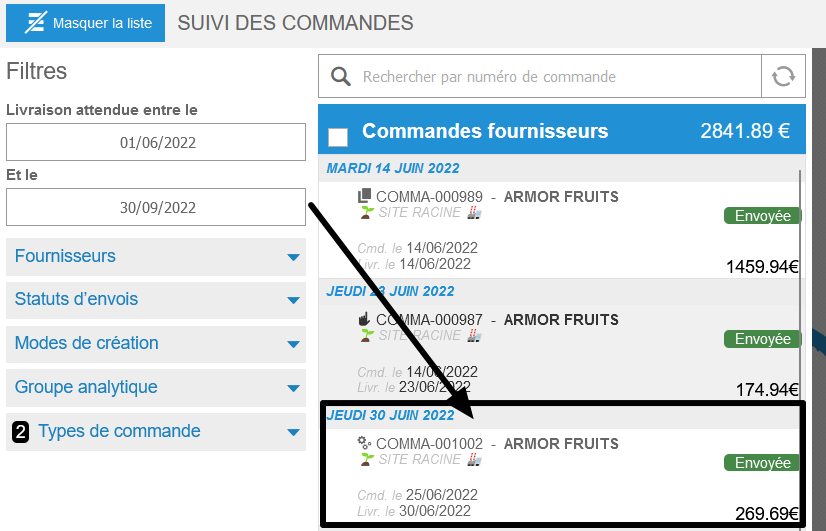
Note: You can only duplicate orders that have already been sent.
An order with the status "In progress" is still a shopping cart on the SUPPLIER ORDERS screen and is therefore not considered sent.
- In the order details, select Duplicate.

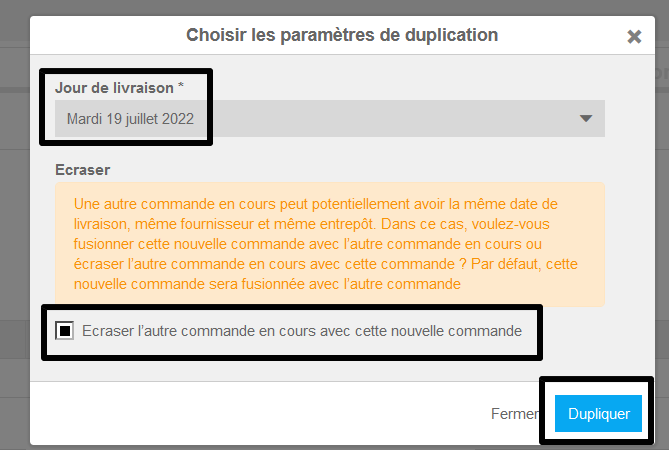
The "Choose duplication settings" window appears on the screen.
- Select the desired delivery date.
- Optionally check the box to indicate to Easilys that you want to overwrite any existing order from the same supplier already being prepared for the same date. (If you do not check it, the two shopping carts will be merged into one.)
- Select Duplicate.
You can now find, modify if necessary, and send your order form from the SUPPLIER ORDERS screen (SUPPLIER ORDERS section).
This duplication can be useful when placing a similar order or regenerating an order for which the delivery note was accidentally deleted. In fact, by resending the same order with the "Send manually" mode, a new delivery note is generated. This avoids having to manually create a delivery note without an order and fill it in completely by hand.
