Start from: Workforce App
-
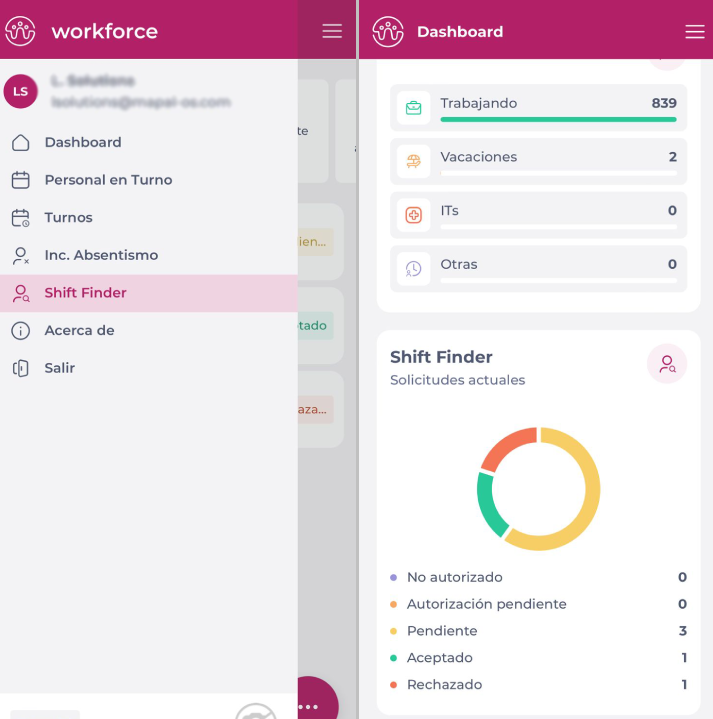
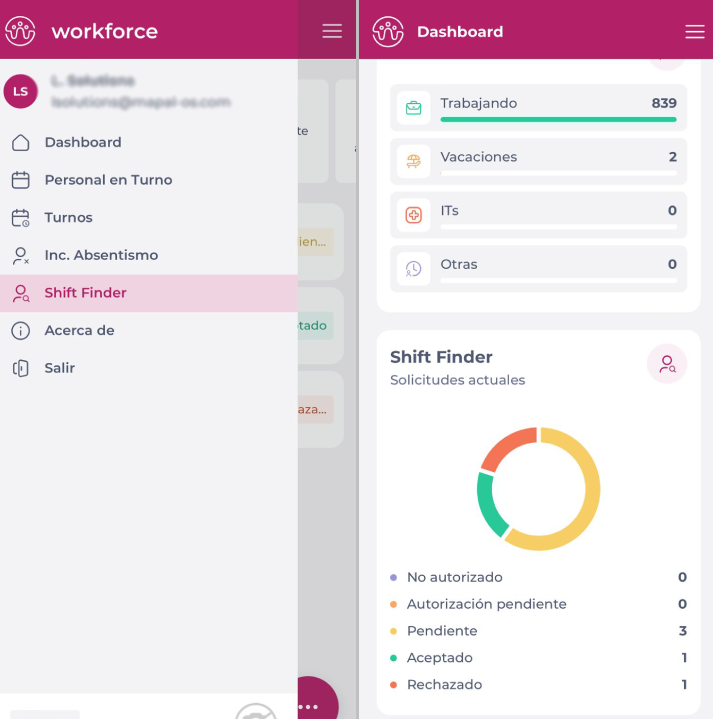
Select Shift Finder from the main menu OR navigate to the Shift Finder section in the application Dashboard.
-
As soon as a proposal is created and approved, the users selected in the proposal will receive a push notification informing them that the new proposal has been created.
-
Once on the Shift Finder home page, you will see the current requests.
-
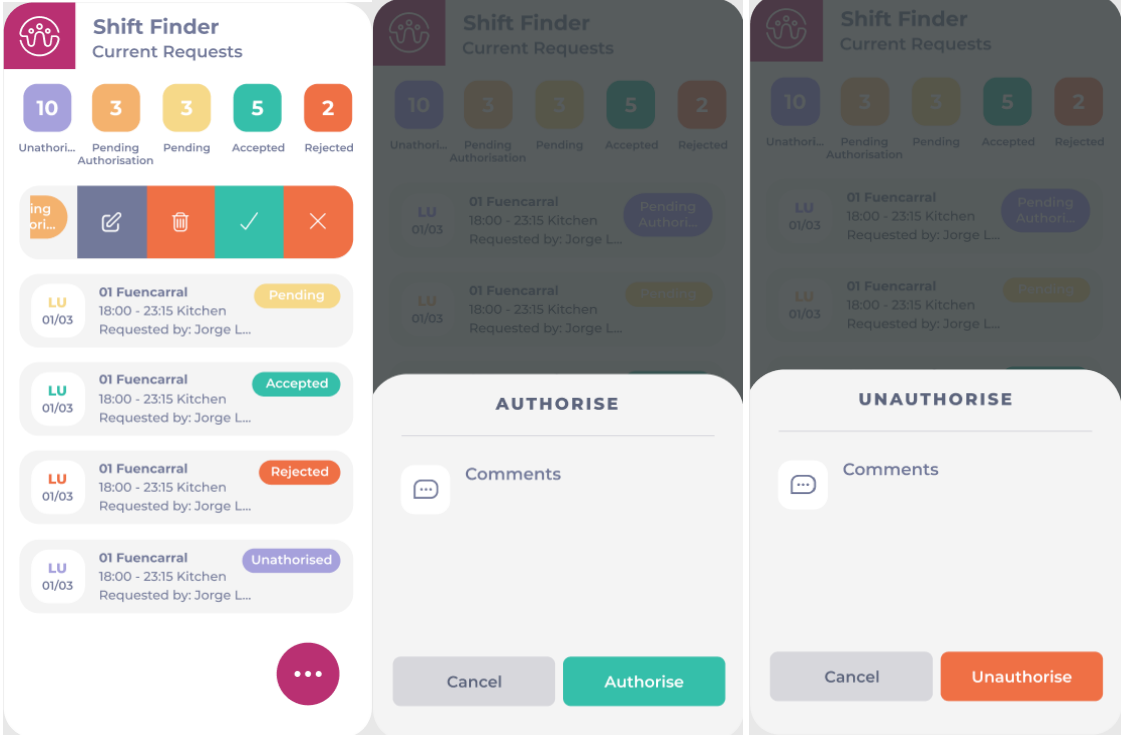
Locate the proposal, select it and slide it to the right until two icons become visible.
-
Select the green icon to accept the shift proposal OR the red icon to reject it.
-
In both cases, a confirmation message will be displayed.
Filter proposals
-
Select Shift Finder from the main menu OR navigate to the Shift Finder section in the application Dashboard.
-
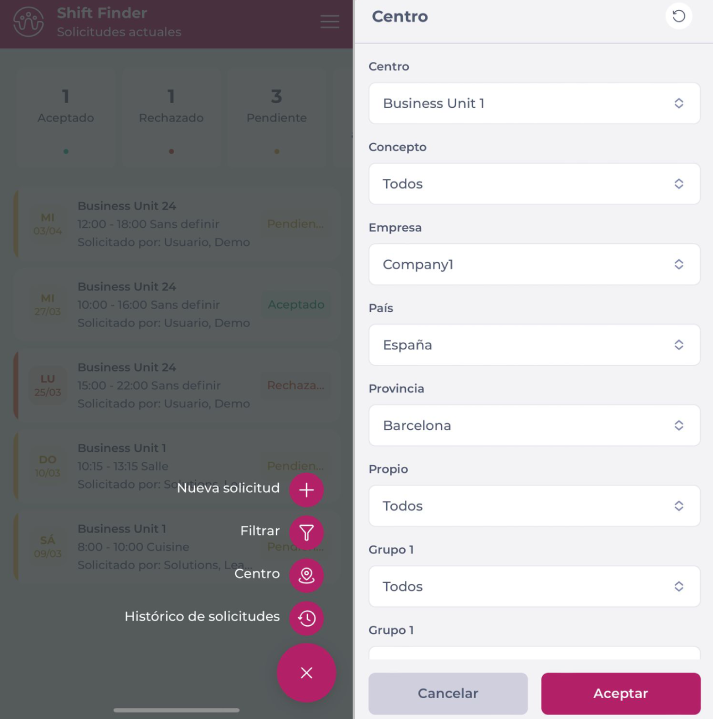
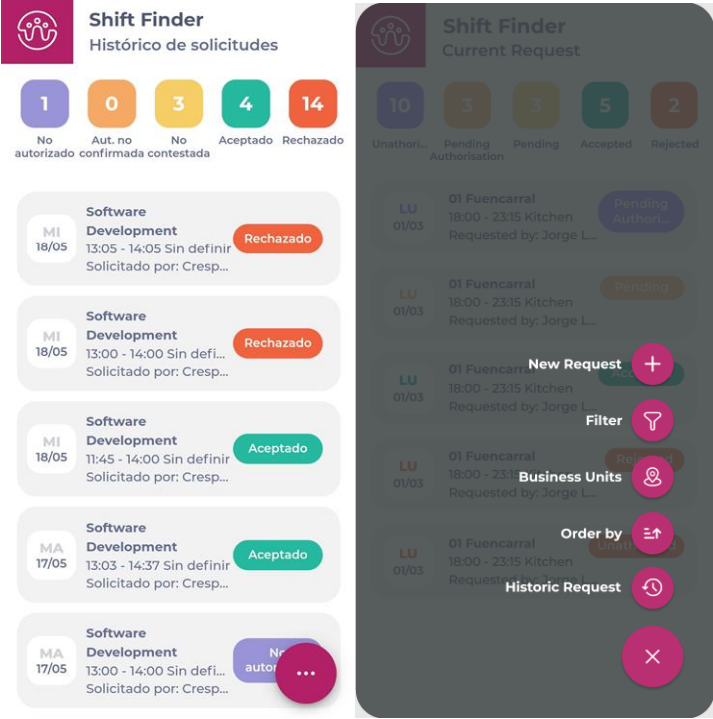
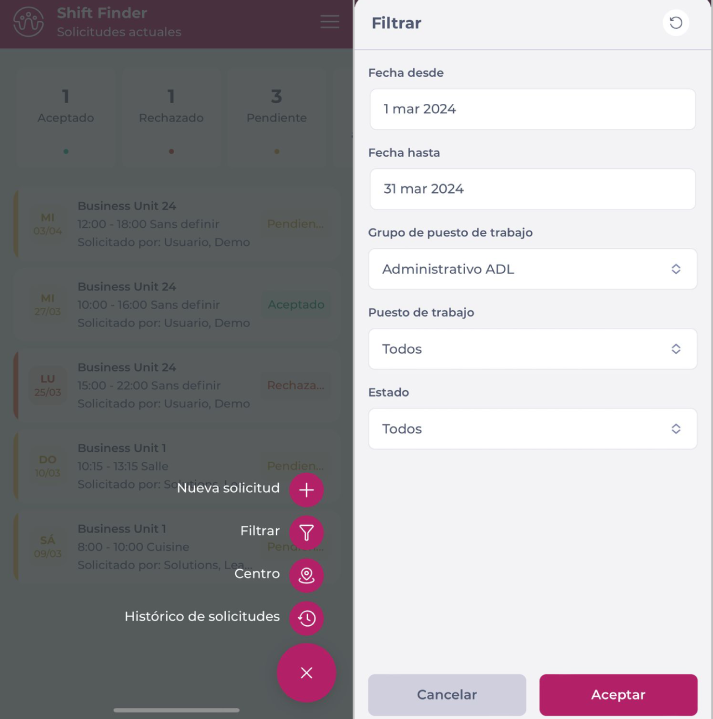
Open the floating menu by pressing the + button and select Filter. The following filtering options will be displayed:
-
Date from: To filter proposals with shifts after this date.
-
Date to: To filter proposals with shifts prior to this date.
-
Business unit group: Work center group to which the selected work center belongs for the proposed shift.
-
Business Unit: Work center selected for the proposed shift.
-
Expiration: Whether the proposal has expired or not.
-
Requested by: Proposal originator.
-
Status: To filter by the current status of the proposal.
-
-
To filter by business unit, select Business Unit from the floating menu.