Start from: The Workforce module.
- Select Workforce > Scheduler 2.0 from the main menu.
- Set up the scheduler so you can access the main grid. To complete the setup, see Overview: Scheduler 2.0.
- Once in the main grid, you can start scheduling employees' shifts.
There are two methods for creating manual shifts in the scheduler:
- Drag a line: lets you create shifts quickly by dragging across the scheduling grid. This option is only available in the daily view.
- Add shift: lets you create a shift using the creation form. This option is available in all scheduler views.
Drag a line
Lets you create shifts visually by selecting the required time interval on the scheduling grid with the cursor. This option is only available in the daily view.
- Locate the employee and the shift start time on the grid.
- Select the start time and hold while you drag the cursor to the shift end time.
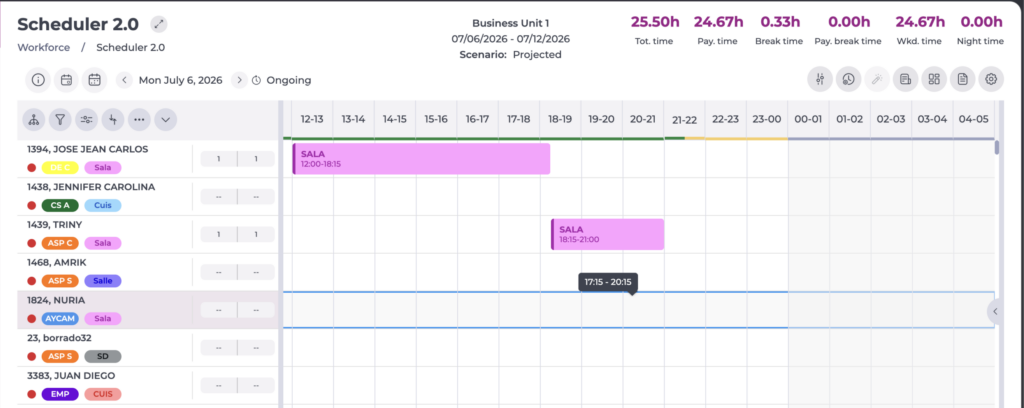
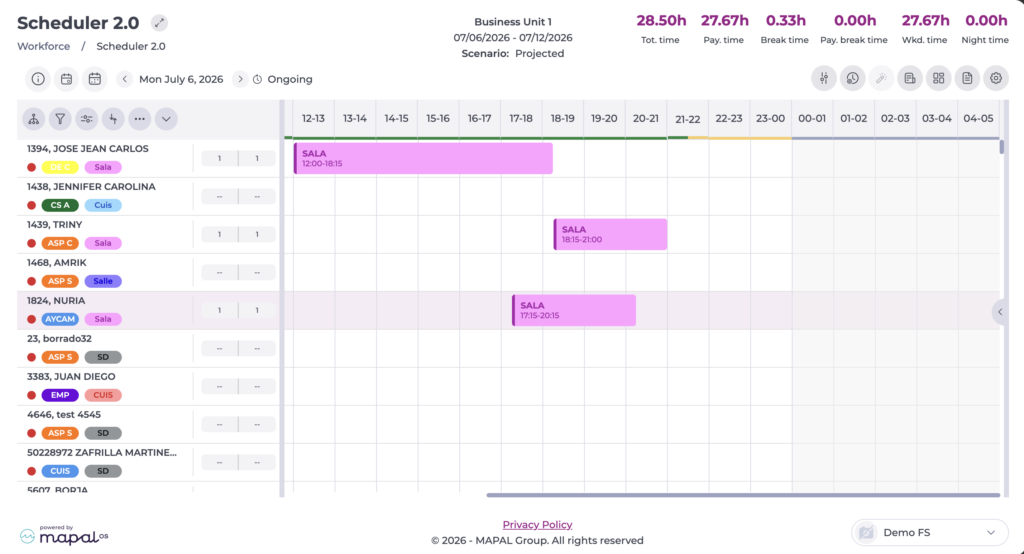
Once the shift is created, you can adjust its duration by dragging the start or end time.
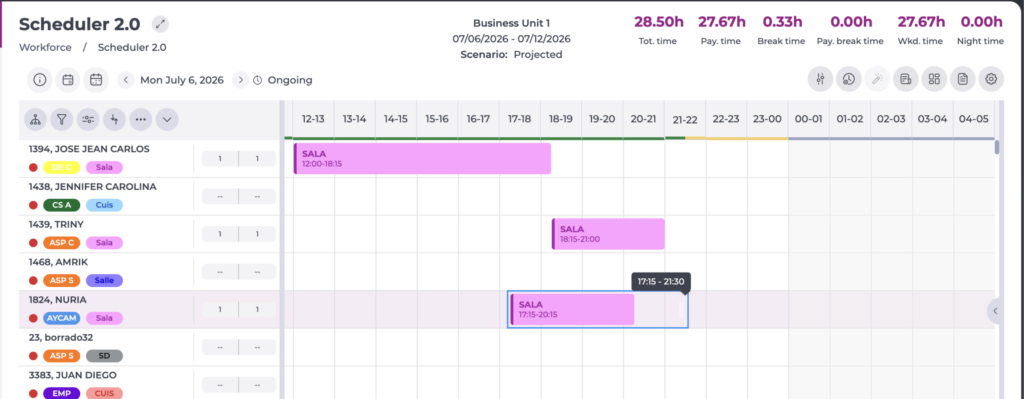
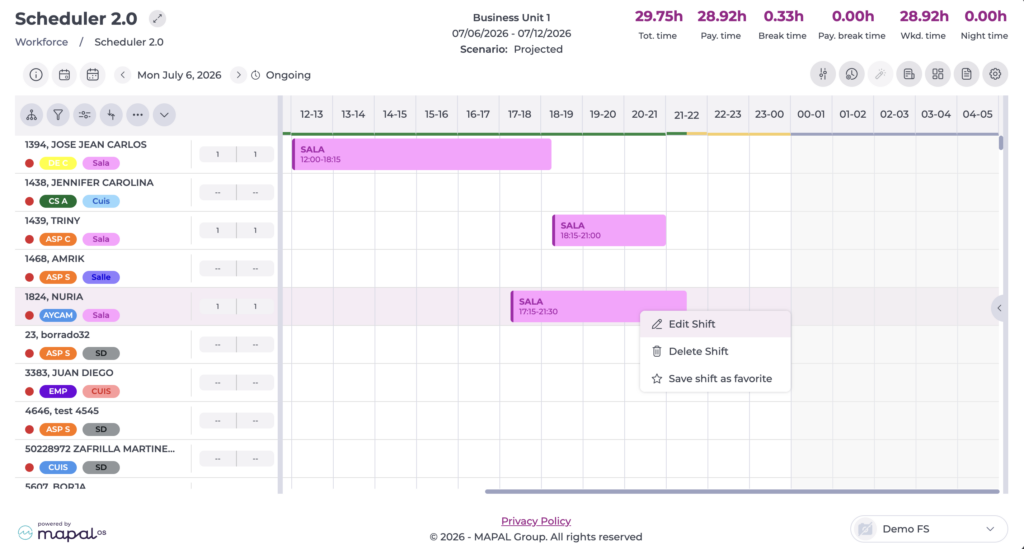
You can also edit its details by right-clicking the shift and selecting Edit shift.
Add shift
Lets you create a new shift by entering the required information in the creation form. This option is available in all scheduler views.
- Locate the employee and the day where you want to assign the shift on the grid.
- Right-click the box for the relevant day and select Add shift.
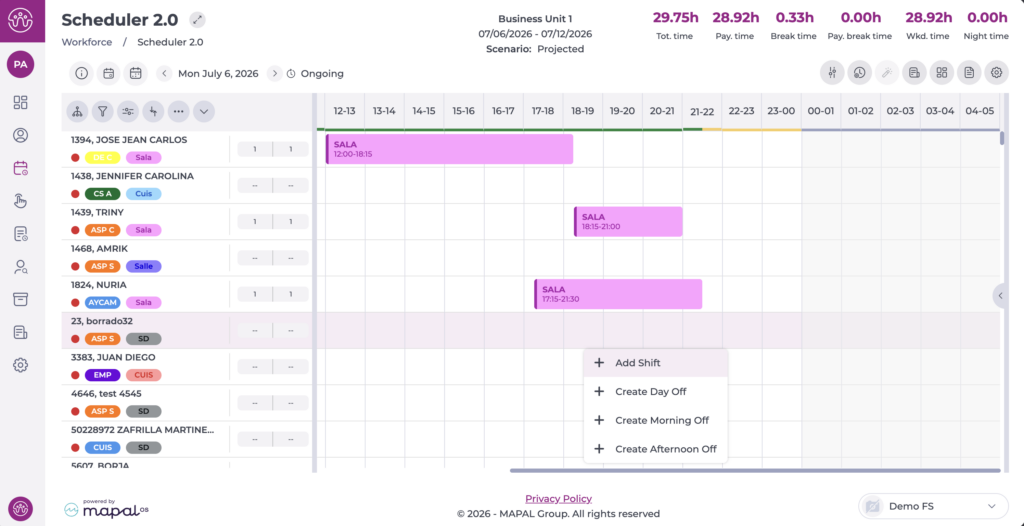
- In the pop-up, set:
- the shift Start and End time.
- the activity (job role) to be carried out during the shift.
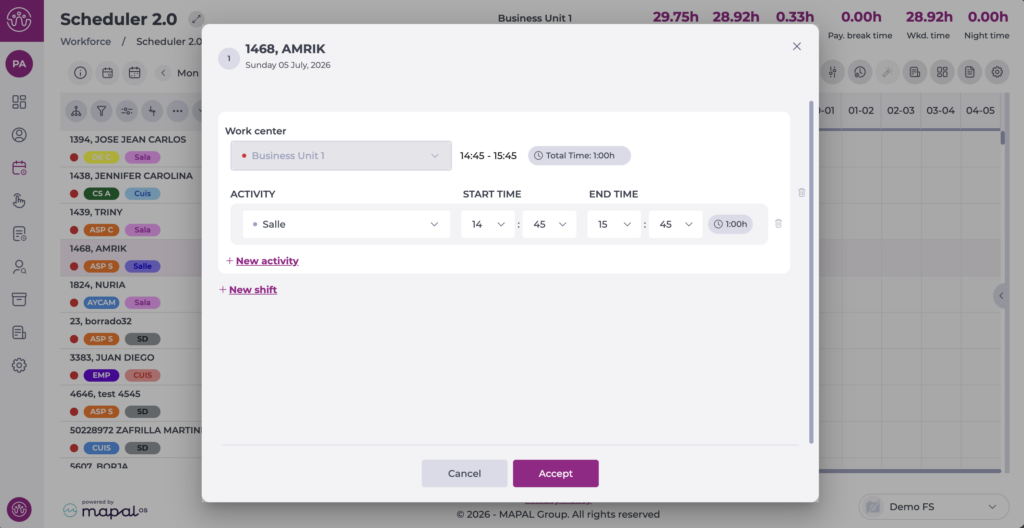
- Select Accept to save the shift OR Cancel to discard it.
Note: While creating the shift, you can add extra activities or time slots as needed:
- + New activity: lets you add a new job role within the same shift, keeping continuous timing. For example, an employee can start their day in one role and continue in another without interruption.
- + New shift: lets you add a separate time slot, making it easier to create split shifts or days with breaks between working periods.
Delete shifts
There are two methods for deleting shifts, provided the shift status is in progress:
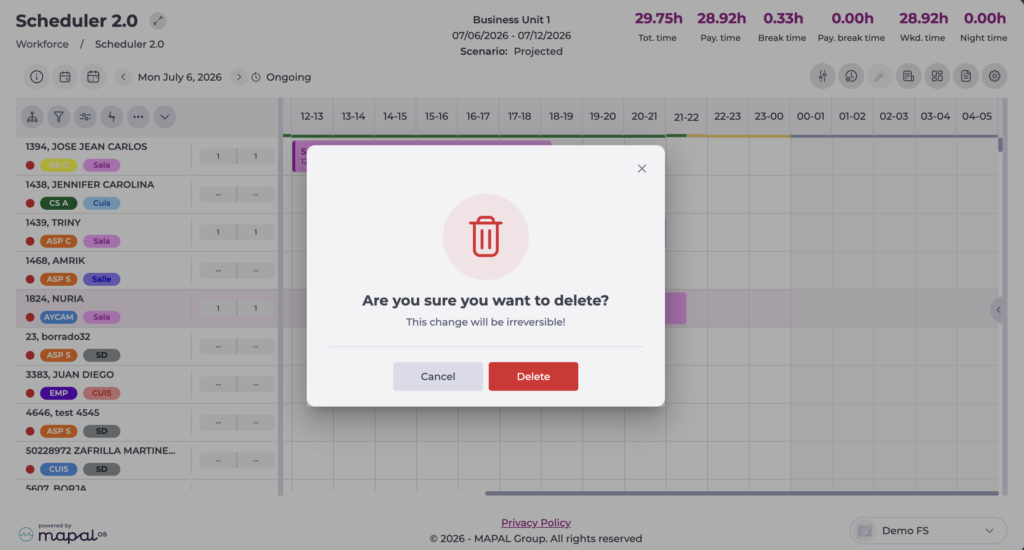
- Individual: lets you delete a specific shift for an employee by right-clicking the shift to delete and selecting Delete shift.
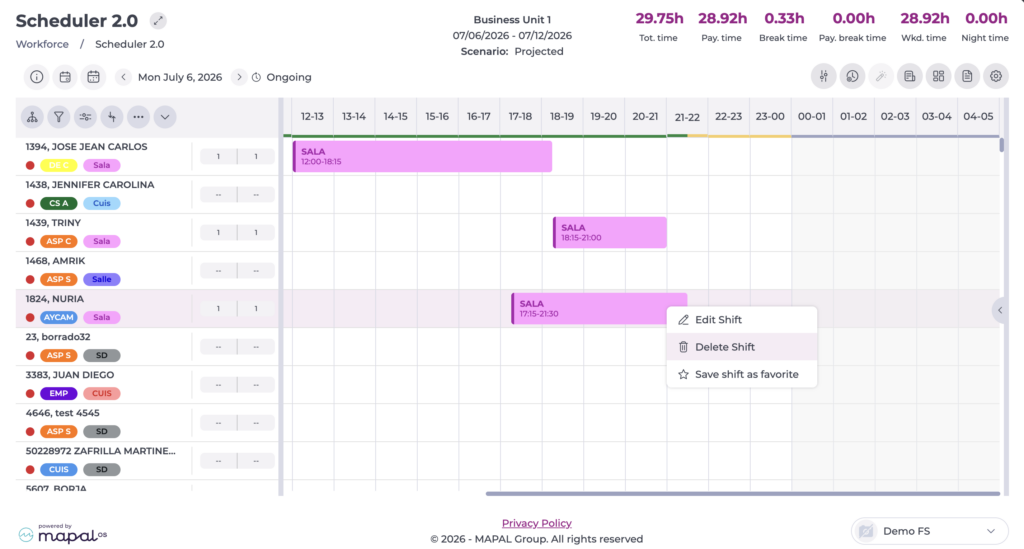
- Bulk: lets you delete shifts for several employees at once across the selected period, speeding up management. To do this, select the Delete shifts option from the action menu (...) in the top bar.