


Start from: The Workforce module.
Note: To create templates, your role needs the Access Templates and Create/Edit/Delete Templates permissions. An administrator assigns these permissions in Configuration > Roles. For more information, see Permissions and actions: Document templates.
Template requirements
Each template must meet these requirements:
- Format: Word document (.docx).
- Variables: at least one, and every variable must be one that Workforce recognises. See Use variables in employee documents.
- Size: up to 20 MB per file.
- Quantity: up to 10 templates at a time.
- Storage: free space must remain in the Documentation module. To check it, see Manage storage in the Documentation module.
Create the template
- Select Documentation from the main menu.
- Select the Templates tab.
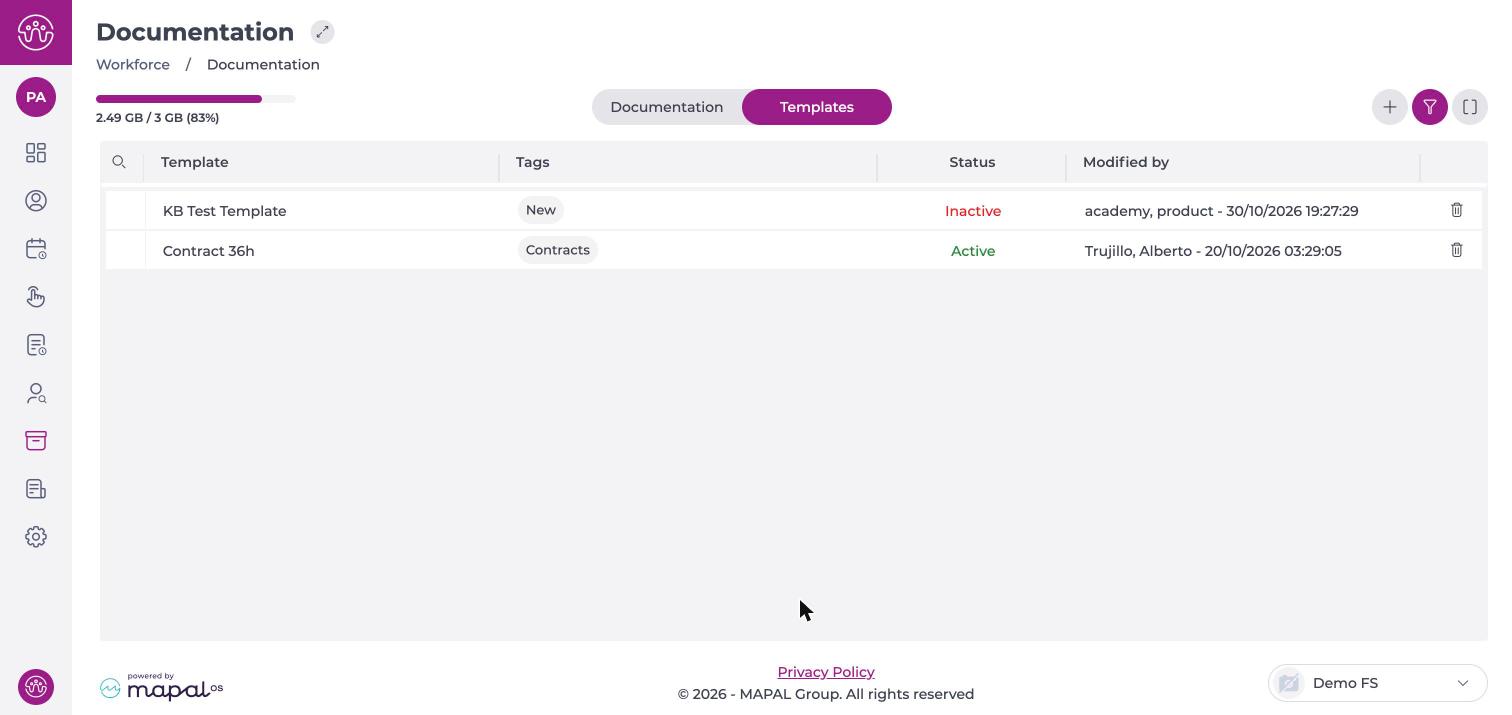
- Select the + button. The New Template window opens.
- Select Click here to upload, or drag and drop one or more Word files. Each file appears in Added Documents with its Variables detected.
Note: If a file has no variables, or contains a variable that Workforce does not recognise, the file is not added and a message lists the unrecognised variables. Replace them with available variables and upload the file again.
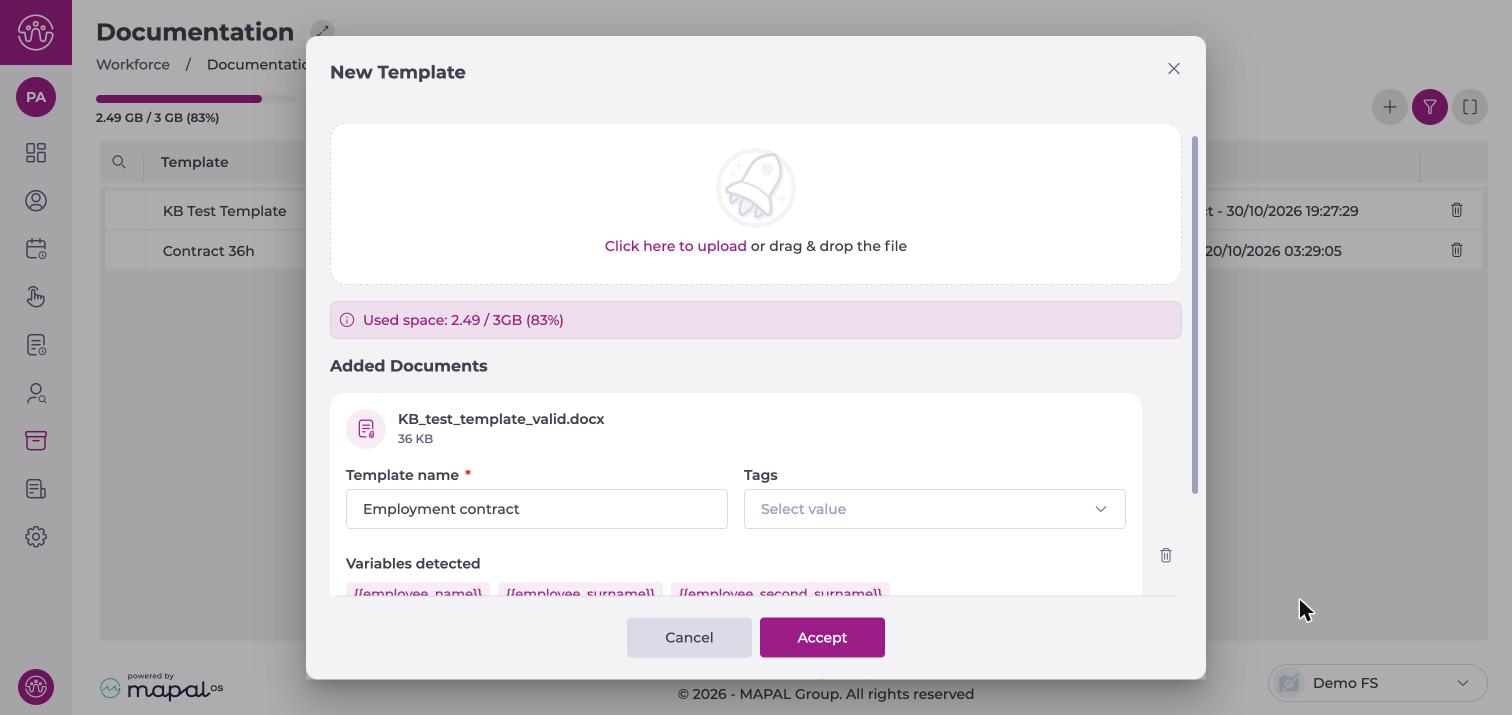
- For each file, complete these fields:
- Template name.
- Tags (optional). To set up tags, see Manage tags in employee documentation.
- Generated file name. To add a variable, select + Insert variable and select Name, Surnames or Second surname.
- To remove a file before saving, select the bin icon next to it.
- Select Accept.
New templates are saved as Active and are ready to assign.
The generated file name
The generated file name sets how each employee's file is named when you assign the template. Combine text and variables:
- You can only use the employee name and surname variables: {{employee_name}}, {{employee_surname}} and {{employee_second_surname}}.
- The name can have up to 255 characters.
- Do not add the file extension. Workforce adds it automatically.
For example, with the pattern {{employee_surname}} {{employee_name}}, Ana García's file is named "García Ana".
Note: If you use a variable that is not allowed, the message The format of this value is not correct appears and you cannot save the template.
To assign the template to employees, see Upload and assign a document.
