


Start from: The Easilys menu
To manage a call for tenders from Easilys, you must first create the call for tenders and then compose it of lots and products. Finally, remember to publish it so that the concerned suppliers can view and respond to it.
Create a call for tenders
- Select the Calls for tenders tab.
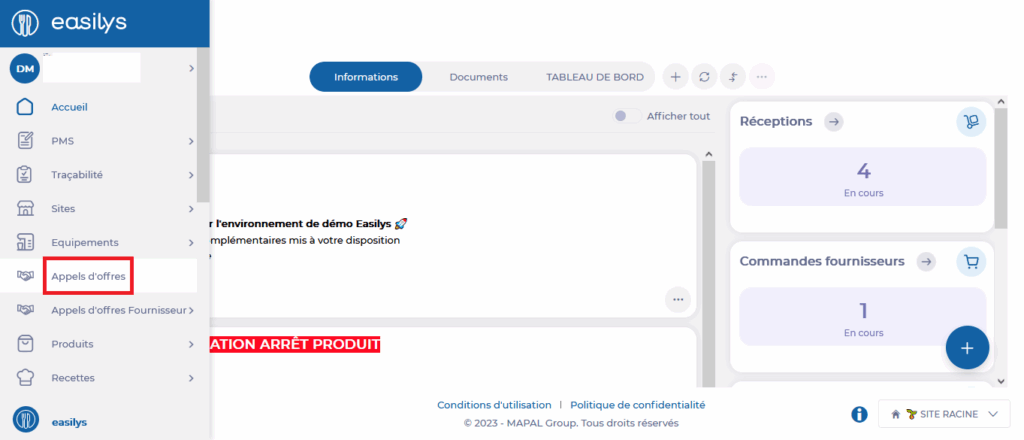
The list of calls for tenders is displayed.
- Select + Create.

A blank call for tenders creation form is displayed.
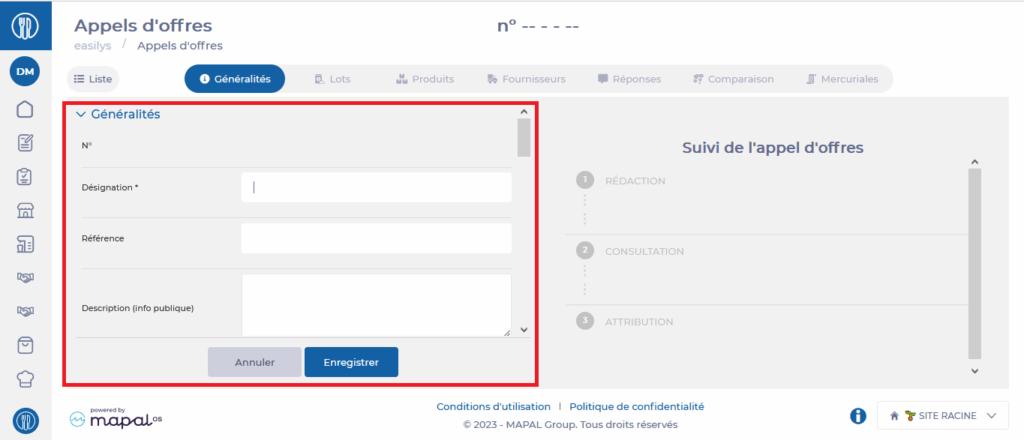
- Complete the requested information. Those followed by an asterisk (*) are mandatory.
Details of the requested information
General information
- Designation *: The name of the call for tenders. You can name it as you wish.
- Reference: Allows you to provide a reference for your call for tenders.
- Description (public info): Allows you to specify the nature of the call for tenders for informational purposes. This description will be visible to the supplier.
- Estimated purchase amount: Allows you to indicate the estimated purchase amount for informational purposes.
- Public information: Allows you to display or not the previous information for suppliers responding to the call for tenders.
Dates
- Deadline for receiving offers: Allows you to set an end date for the call for tenders. It will be impossible to add responses to the call for tenders once the date has passed.
- Market validity period: Allows you to indicate for which period the market is planned.
- Minimum validity period of offers: Allows you to indicate for informational purposes the minimum validity period of the desired offers.
Additional information
- Exclusive allocation on the call for tenders: Allows you to specify to suppliers that the call for tenders will be won entirely by a single supplier.
- Exclusive allocation on lots: Allows you to specify to suppliers that a lot will be won entirely by a single supplier.
- Details (public info): Allows you to add additional information you wish to communicate to suppliers responding to the call for tenders.
- Details (private info): Allows you to add additional information that will not be shared with suppliers responding to the call for tenders.
- Managers: Allows you to indicate the managers of the call for tenders.
- Public information: Allows you to display or not the previous information for suppliers responding to the call for tenders.
- Internal emails notified during exchanges with suppliers: The emails entered here will receive a notification as soon as a supplier's response is published. A notification will also be received when a supplier adds a comment on a product.
- Receive a copy of the messages automatically sent by the application to suppliers: Activate this option to receive a copy of the messages sent to suppliers.
- Select Save to validate the creation.
Once the call for tenders is created, you must compose it. To do this, refer to the article Compose your call for tenders.
